
How to Find, Copy & Share Your LinkedIn URL

By Sam Cassman · Last verified
How do you get your LinkedIn URL? Open your own profile on desktop and it appears in two places: the "Public profile & URL" panel on the right, and under "Contact info" as "Your profile". Both read www.linkedin.com/in/your-name. We walked the current flow in October 2026 and screenshotted every step, including how to change the ending to something tidier.
Are you trying to find your LinkedIn URL? A job application, a CV template or a conference form has asked for it, and LinkedIn does not exactly put it on a billboard. There is no "copy my profile link" button in Settings, the app hides it behind a different set of taps, and the guides that rank for this question contradict each other on the rules. It is a ten-second job dressed up as a puzzle, so we walked the current flow ourselves and screenshotted it.
Most people start in Settings, which is the one place it is not. Your URL is sitting in plain view in two places on your own profile: the panel on the right called "Public profile & URL", and the "Contact info" link under your name. The second one is the better route, because it gives you the URL as a link you can copy in one click.
In this article we'll cover what a LinkedIn URL actually looks like, where to find and copy yours on desktop, how to share it without copying anything, where it hides in the mobile app, and how to change the ugly ending to something you can say out loud. Read on to find out more.
What does a LinkedIn URL look like?
Every personal LinkedIn URL has the same shape: www.linkedin.com/in/ followed by an ending that
belongs to you. When you join, LinkedIn assigns that ending automatically, using your name plus a
string of letters and numbers, so it comes out looking like this:
https://www.linkedin.com/in/sam-cassman-a5837847/
That is our founder's real assigned URL. The characters on the end are not a mistake and nothing is broken: LinkedIn adds them because plenty of people share a name. You can replace that ending with a custom one, which is covered further down, and you can share either version. Both work.
Two things are worth knowing before you paste it anywhere. The /in/ part is always there on a
personal profile, and a company page uses /company/ instead. And the URL is not case sensitive, so
you do not need to worry about capital letters when you type it into a form.
Where do you find your LinkedIn URL on desktop?
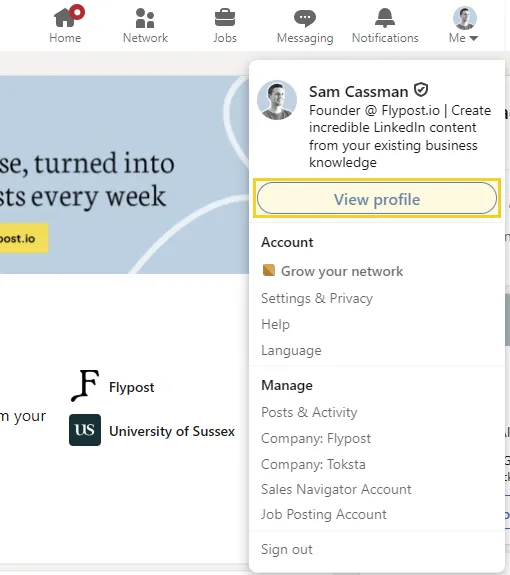
On the LinkedIn website, your URL is on your own profile page, in two places on the page itself. Getting there takes two clicks: click Me in the top navigation bar, then View profile.
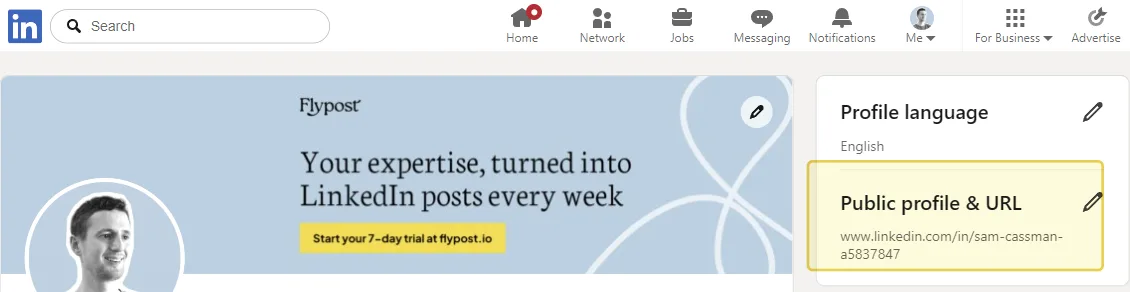
Once you are on your profile, look at the right-hand column. The panel headed Public profile & URL shows your URL in full:
There is a third place, and it is the one most people miss: your browser's address bar. While you are on your own profile, the address bar is showing your URL, so you can read or copy it straight from there.
How do you copy your LinkedIn URL?
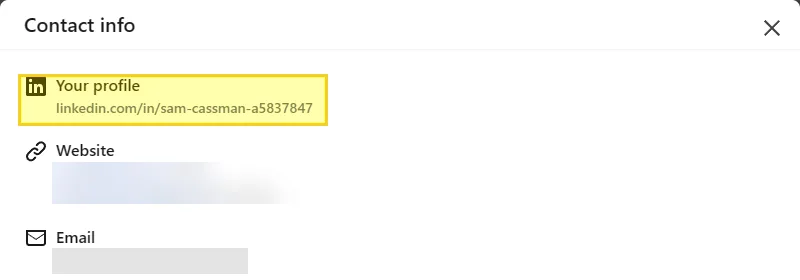
The cleanest route is the Contact info link, which sits under your name, headline and location on your profile:
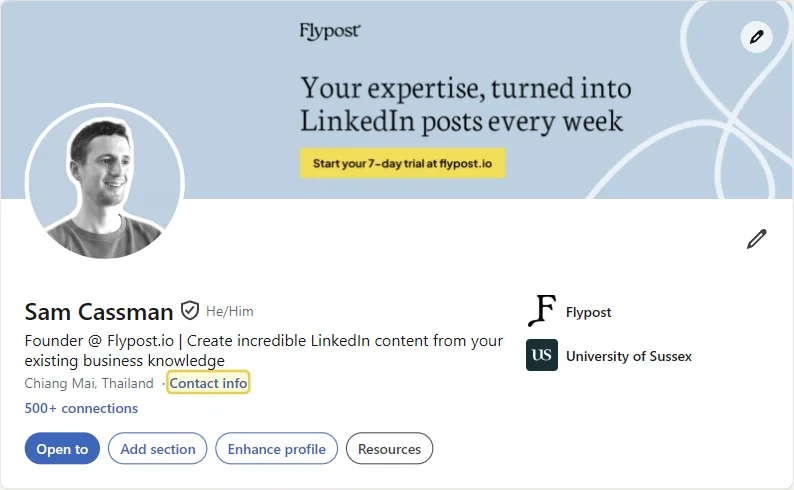
Clicking it opens a panel whose first entry is Your profile, with your URL as a clickable link. Right-click that link and choose Copy link address, and you have it:
One tidy-up before you paste it into a CV or an email signature: if what you copied has a question
mark in it, delete the question mark and everything after it. We saw ?isSelfProfile=true appended
when arriving at the profile through linkedin.com/in/me/. Several guides recommend the same trim
and it matches what we saw, though the link works either way. It is cosmetic, not a fix.
Three places, then, in order of speed:
- Contact info on your profile, under "Your profile". Best for copying, because it is a link.
- The Public profile & URL panel on the right of your profile. Best for reading it off the screen.
- Your browser's address bar while you are on your own profile. Fastest of all if you are already there.
How do you share your LinkedIn profile without copying the link?
If the person you want to send it to is already on LinkedIn, you do not need the URL at all. The Resources button on your profile has Send profile in a message, which puts your profile in a LinkedIn message as a card:
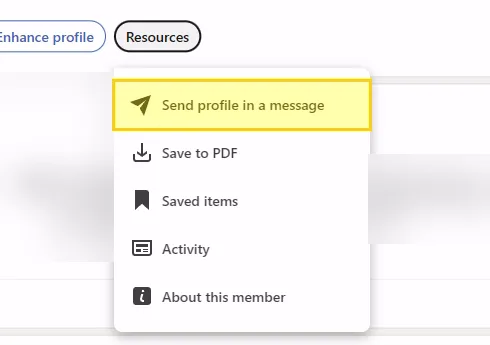
That menu is also where Save to PDF lives, which is the better answer when a form asks for your LinkedIn profile as a document rather than a link.
Where do you find your LinkedIn URL in the iPhone or Android app?
In the app, your URL lives in the same Contact info panel as on the web. Open your own profile by tapping your photo, then look for Contact info on the profile itself, and your URL is the entry called "Your profile".
We did not capture the app flow first hand, so we are not going to give you an exact sequence of tap labels. LinkedIn's help centre, on a page last updated well before 2026, describes two routes to the same panel, and app versions differ in what the buttons are called. Go by the destination instead: you are looking for Contact info on your own profile, and the URL is the first thing in it. If you cannot find it on the phone, open linkedin.com in a mobile browser and use the desktop route above, which works on a phone screen.
How do you find someone else's LinkedIn URL?
The same two ways, on their profile instead of yours. Open the person's profile and the address bar is their URL; open their Contact info panel and the profile link is the first entry in it, assuming they have not restricted it. You do not need to be connected to see a public profile URL, though what else the Contact info panel shows you (email, phone, websites) depends entirely on what they chose to share and how connected you are.
A word of caution if you are collecting these at any scale: the profile you are looking at is someone's personal data, and LinkedIn's own rules on automated collection are strict. Copy a link by hand, not with a scraper.
Can you change your LinkedIn URL?
Yes, and it is the single best five-second improvement you can make to a profile you are about to share. A custom ending is easier to read on a CV, easier to say in a conversation and easier to remember.
On your profile, click the pencil icon next to "Public profile & URL". That opens the Public profile settings page, where the Edit your custom URL panel sits in the right-hand column:
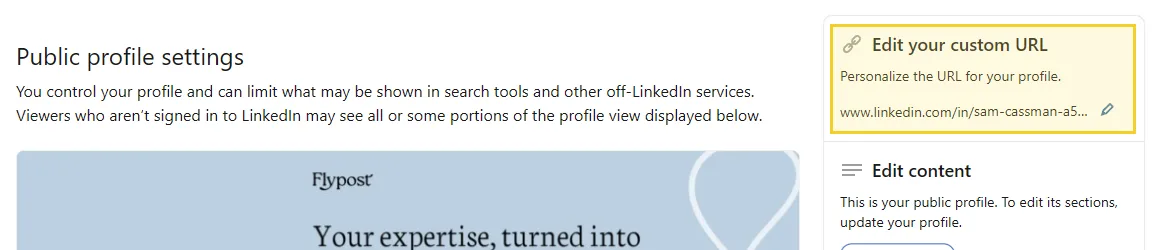
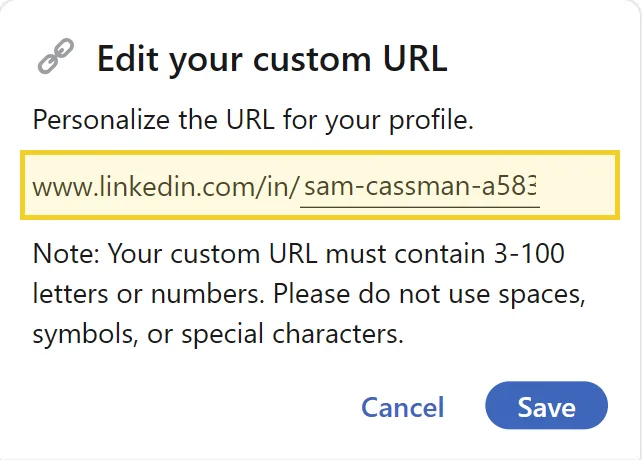
Click the pencil next to your URL in that panel and the ending becomes an editable field. Type the
new ending after www.linkedin.com/in/ and click Save:
So the whole job is four steps:
- Click Me, then View profile.
- Click the pencil next to "Public profile & URL".
- Click the pencil next to your URL under "Edit your custom URL".
- Type the ending you want and click Save.
Your first choice may be taken. Custom URLs are first come, first served, so a plain
firstname-lastname is often gone. Adding your role, your city or a middle initial usually finds
something clean.
What are the rules for a custom LinkedIn URL?
LinkedIn's help centre sets out the rules, and the editor repeats the main one inline as you type ("must contain 3-100 letters or numbers. Please do not use spaces, symbols, or special characters").
| Rule | What it means for you |
|---|---|
| 3 to 100 characters | Letters and numbers only, no spaces or special characters, and you cannot use the word "LinkedIn" |
| Not case sensitive | Sam-Cassman and sam-cassman are the same address |
| First come, first served | If someone has yours, LinkedIn will not free it up on request |
| One at a time | You have a single custom URL, not a set of aliases |
| Five changes in six months | After the fifth change you wait six months before the next one |
| The old URL stays linked for six months | Unless you unlink it, in which case it is hidden for seven days and then anyone can claim it |
| A closed account's URL frees up after 180 days | Worth knowing if you are waiting for one |
| Your assigned URL only changes if you change your name | The automatic ending follows your name, not your custom choice |
One oddity: the official wording says no symbols, yet hyphens appear in virtually every LinkedIn URL, including every automatically assigned one. Hyphens are plainly fine in practice. We are flagging it because LinkedIn does not document it, so treat hyphens as safe and everything else (underscores, full stops, plus signs) as not worth the risk. You will also see pages claiming a 39-character limit with underscores and periods allowed. Nothing official supports that, and the editor itself says 3-100.
Does changing your LinkedIn URL break old links?
Not immediately. LinkedIn's help centre says your previous URL stays linked to you for six months after a change, unless you deliberately unlink it. Anyone who clicks the old address in that window still lands on you.
Six months is a grace period, not a promise, so spend ten minutes updating the places you control:
- Your email signature.
- Your CV and any cover letter template.
- Your website, portfolio and about page.
- Your other social profiles that link out to LinkedIn.
- Any QR code you have printed, which is the one that bites people.
Where should you share your LinkedIn URL?
Anywhere someone might want to check you out and cannot: an email signature, a CV, a conference badge, a podcast description, your website footer, an invoice. The URL costs nothing to add and saves the other person a search.
One place to think twice about is inside a LinkedIn post. When we looked at 1,366 people's posts with links against their own posts without, the posts with links got about 13% fewer reactions, across 116,000+ posts from 2,400+ creators. That is a real cost but a small one, not the catastrophe the folklore describes, and 4 in 10 people actually did better with links. Our data records whether a post contained a link, not where that link pointed, so we cannot tell you whether a link to your own LinkedIn profile behaves differently from a link off the platform. Treat the 13% as the price of any link and decide if the click is worth it.
The more useful move is making the profile worth landing on once someone follows the link. Two pages of ours cover the parts people get wrong: the exact LinkedIn banner dimensions and the mobile safe zone, and every LinkedIn character limit, which includes the 220-character headline and the 2,600-character About section that a visitor reads first.
How we checked this on LinkedIn
Everything above was walked by hand on 12 October 2026, signed in to a real account on the LinkedIn website in Chrome on Windows, and screenshotted step by step. The screenshots on this page are those captures, cropped and with personal details such as an email address and third-party names removed. We opened the custom URL editor and cancelled out of it rather than changing anything.
The rules in the custom-URL table come from LinkedIn's own help centre page on managing your public profile URL, cross-checked against the note the editor shows inline. That help page was last updated some time before 2026, which is why we checked each rule against the live product rather than trusting it alone.
Two honest gaps. We did not capture the iPhone or Android app, so the mobile section describes the destination rather than a tap-by-tap path. And the engagement figure in the sharing section comes from our own study of 116,000+ posts, which is explained in full in the LinkedIn algorithm study, where it is one of ten tactics we tested and found wanting.
Frequently asked questions
- How do I find my LinkedIn URL?
- Click Me in the top bar, then View profile. Your URL shows in the 'Public profile & URL' panel on the right of the page, and again under the 'Contact info' link beneath your name, as 'Your profile'. It looks like www.linkedin.com/in/your-name.
- How do I copy my LinkedIn URL?
- Open your profile, click Contact info, then copy the link under 'Your profile' (right-click, Copy link address). Copying it from the browser address bar while you are on your profile works just as well.
- What does a LinkedIn URL look like?
- It is www.linkedin.com/in/ followed by your custom ending. LinkedIn assigns one made of your name plus a string of characters, such as www.linkedin.com/in/sam-cassman-a5837847, and you can replace that ending with something tidier.
- Where is my LinkedIn URL in the mobile app?
- In the same place as on desktop: the Contact info panel on your own profile, under 'Your profile'. Open your profile from your photo, then look for Contact info. The exact labels differ between app versions, so go by the Contact info panel rather than a fixed tap sequence.
- Can I change my LinkedIn URL?
- Yes. On your profile, click the pencil next to 'Public profile & URL', then the pencil next to your URL under 'Edit your custom URL', type a new ending and save. You get five changes in any six-month period.
- Does changing my LinkedIn URL break the old links?
- Not straight away. LinkedIn's help centre says the previous URL stays linked to you for six months unless you unlink it, which gives you time to update your CV, email signature and website.
Written by
Sam Cassman
Founder, Flypost · Chiang Mai, Thailand
I'm Sam. I built Flypost after watching too many good businesses sit on years of material (blog posts, call transcripts, case studies, half-finished decks) and post almost none of it.
I write everything here myself. When I claim something works on LinkedIn, it's because I tested it first-hand or ran the numbers across our own data. Where I'm working from a small sample, I'll say so. I'd rather be useful than certain.