

How to See Your Scheduled Posts on LinkedIn

By Sam Cassman · Last verified
How do you see your scheduled posts on LinkedIn? They are tucked behind the clock icon in the post composer, not on your profile or in a settings menu. Start a post, click the clock, then choose "View all scheduled posts". We walked the current 2026 flow ourselves and screenshotted every step, including how to edit, reschedule and delete a queued post.
Scheduled posts are one of the most-hidden features on LinkedIn. They are not on your profile, not in your activity, and not in settings. They live in exactly one place: behind the small clock icon in the post composer. Once you know that, finding, editing and deleting them takes seconds. Below is the current flow, screenshotted step by step.
Where are scheduled posts on LinkedIn?
Your scheduled posts sit inside the post composer, not anywhere on your profile. To reach them you open the box you would use to write a normal post, then click the clock icon. There is no menu item, no profile tab and no notification that leads you there, which is why so many people assume the posts have vanished. They have not. They are queued exactly where you left them.
How to see your scheduled posts on LinkedIn
On desktop, three clicks:
- Click Start a post at the top of your feed to open the composer.
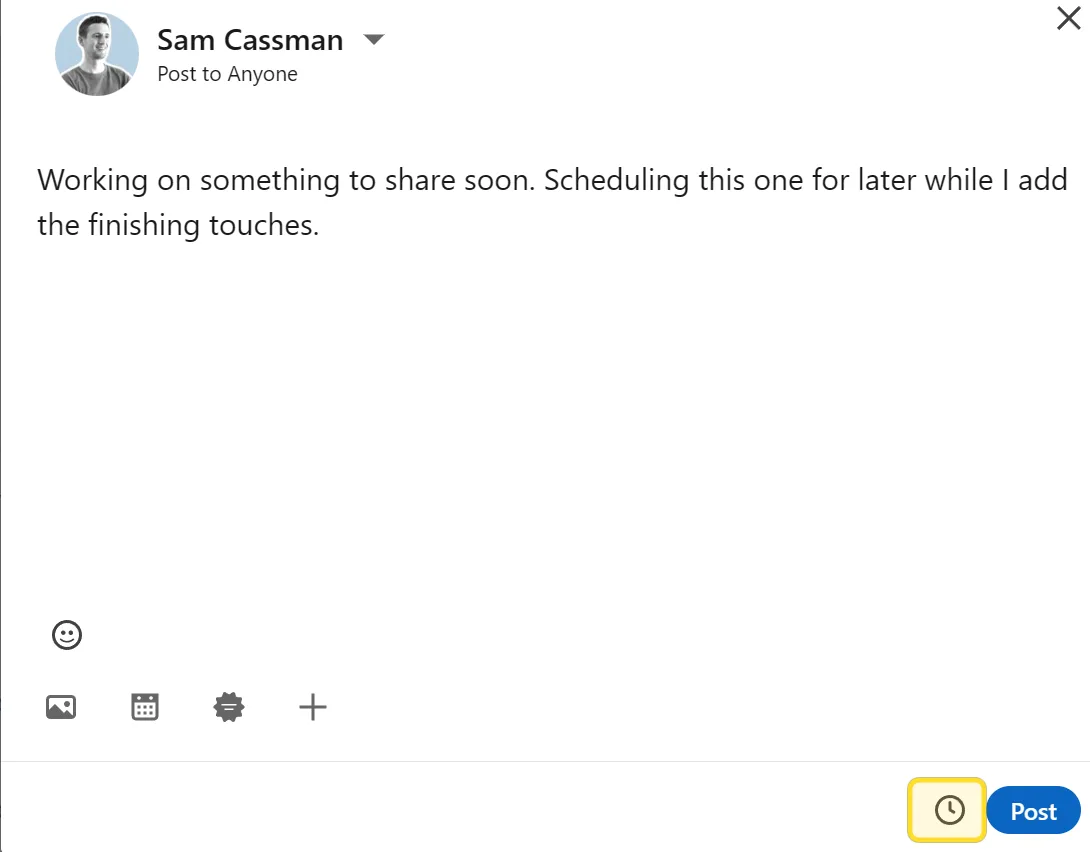
- Click the clock icon in the bottom-right of the box, next to the blue Post button.
- In the schedule window, click View all scheduled posts.
The clock icon is the whole game. Here is where it sits in the composer:
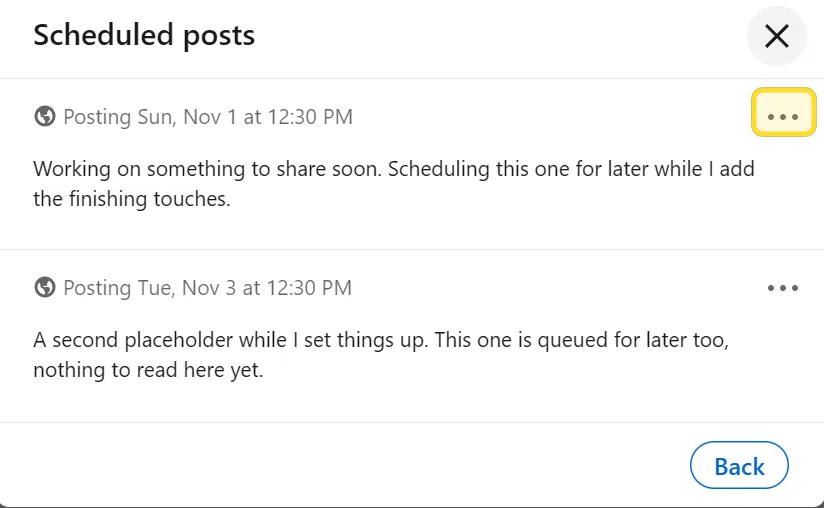
Clicking View all scheduled posts opens a list of everything you have queued, each with its date, time and the first lines of the post:
You can also jump straight there by going to linkedin.com/share/management while logged in, which is the link LinkedIn puts in the "Post scheduled" confirmation toast.
How to schedule a post on LinkedIn
If the list is empty, that is because you have nothing queued yet. Scheduling uses the same clock icon: write your post, click the clock, and the Schedule post window opens.
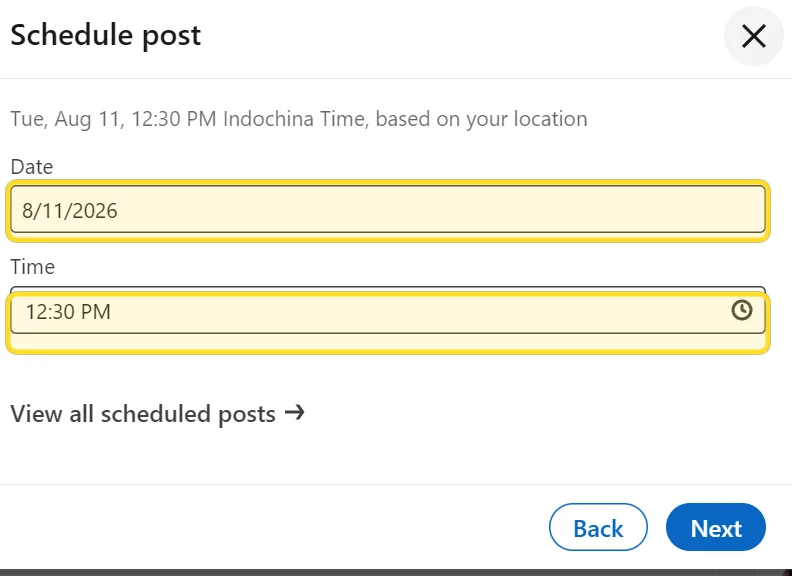
Pick a date and time, click Next, and LinkedIn shows a final review with the exact publish time and an Edit link, then a Schedule button to confirm:
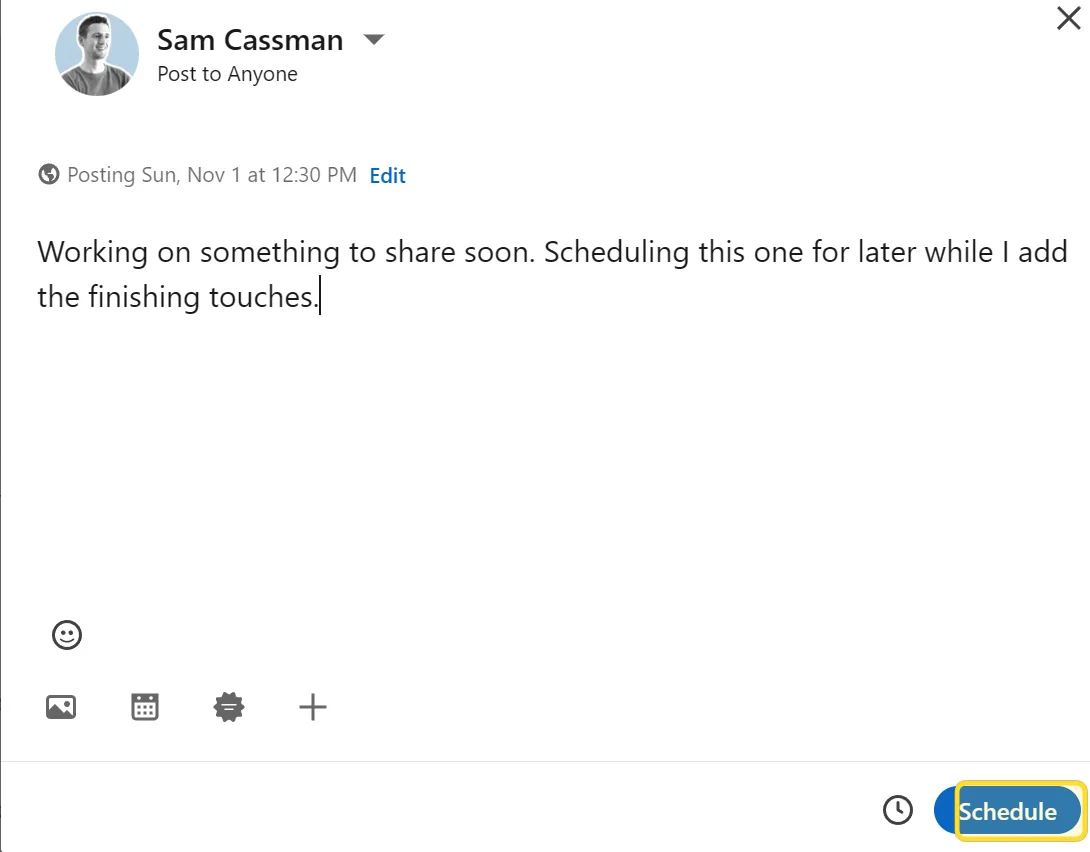
A confirmation toast then reads "Post scheduled", and the post appears in the list above.
How to edit or reschedule a scheduled post
In the scheduled posts list, click the three-dot menu next to any post. That opens four actions:
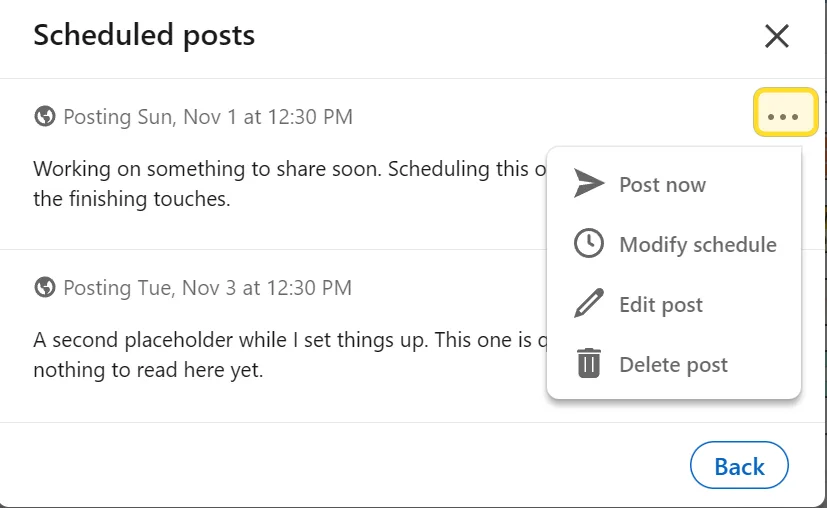
- Post now publishes it immediately instead of waiting.
- Modify schedule changes the date and time.
- Edit post reopens the composer so you can change the text or swap the media.
- Delete post removes it from the queue.
You can edit or reschedule as many times as you like before it publishes.
How to delete a scheduled post on LinkedIn
Choose Delete post from that same three-dot menu. LinkedIn asks you to confirm, because a deleted scheduled post cannot be recovered:
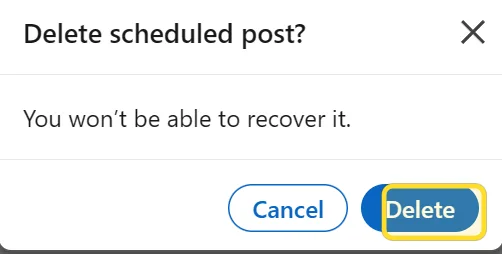
If you might want the content later, copy the text before you confirm. One platform limit worth knowing: deleting and rescheduling are available on desktop and iOS, but not on the Android app. On Android you can view your scheduled posts, but you will need a desktop browser or an iPhone to delete or reschedule one.
How to see scheduled posts in the LinkedIn mobile app
The mobile flow mirrors desktop. Tap the Post button, tap the clock icon at the top of the composer, and choose View all scheduled posts. As above, the app lets you view the queue on any device, but changing or deleting a scheduled post is limited to iOS.
How far ahead can you schedule a LinkedIn post?
Between 10 minutes and roughly 3 months from now. When we tested this on 11 August, the calendar would not let us pick a date past 8 November, and it labelled that date "the latest available". A few post types cannot be scheduled at all, including events, job posts and services.
Why can't I see my scheduled posts?
Almost always because you are looking in the wrong place. Scheduled posts do not appear on your profile, in your activity, or under "Saved items", which is where most people check first. They only live inside the composer, under the clock icon, behind View all scheduled posts. If that list is genuinely empty, either the post already published, or it was never confirmed on the final Schedule step. LinkedIn also shows a clear empty state, "No scheduled posts yet", when there is nothing queued, so an empty list is a reliable signal rather than a glitch.
Scheduling well is only half the job. What you queue matters more than when, and our data on how long a LinkedIn post should be covers the part that actually moves engagement.
Frequently asked questions
- Where are scheduled posts on LinkedIn?
- Behind the clock icon in the post composer, not on your profile. Click 'Start a post', click the clock icon at the bottom of the box, then click 'View all scheduled posts'. You can also go straight to linkedin.com/share/management.
- Can you edit a scheduled LinkedIn post?
- Yes. Open the scheduled posts list, click the three-dot menu next to the post, and choose 'Edit post' to change the text or media, or 'Modify schedule' to change the date and time.
- How do you delete a scheduled post on LinkedIn?
- In the scheduled posts list, click the three-dot menu next to the post and choose 'Delete post', then confirm. It cannot be recovered, so copy the text first if you might reuse it. Deleting is available on desktop and iOS, not Android.
- How far in advance can you schedule a LinkedIn post?
- Between 10 minutes and roughly 3 months ahead. When we tested it on 11 August, the latest selectable date was 8 November.
- Why can't I see my scheduled posts on LinkedIn?
- They are not on your profile or in your activity feed, which is where most people look. They only appear inside the composer, under the clock icon, via 'View all scheduled posts'.
Written by
Sam Cassman
Founder, Flypost · Chiang Mai, Thailand
I'm Sam. I built Flypost after watching too many good businesses sit on years of material (blog posts, call transcripts, case studies, half-finished decks) and post almost none of it.
I write everything here myself. When I claim something works on LinkedIn, it's because I tested it first-hand or ran the numbers across our own data. Where I'm working from a small sample, I'll say so. I'd rather be useful than certain.