

How to Connect Claude to LinkedIn (Every Way, Step by Step)

By Sam Cassman · Last verified
Are you trying to work out how to connect Claude to LinkedIn? Most guides you'll find show one automation tool, connect it, and stop before Claude does anything useful. This guide shows every way to do it, which ones are free and which can get your account restricted, then walks through the one we use, from setup to a post that's ready to schedule, with a screenshot of every step.
Most people assume Claude can't touch LinkedIn at all, or that connecting them means handing over your password to some browser bot. Neither is true. There are six ways to connect the two, and they differ a lot: some only help with the words, some click around LinkedIn as you (which LinkedIn forbids), and a few can write, design, schedule and report back, all from one chat.
In this guide we'll cover whether there's an official connector, all six ways side by side, a full walkthrough of the one we use (with a screenshot for every step), and the honest limits of the other five. Read on to find out more.
Is there an official LinkedIn connector for Claude?
Not for your feed. Search Claude's connector directory for "LinkedIn" and the only connector made by LinkedIn itself is LinkedIn Hiring Pro. Its listing says it will "draft, review, and post one free LinkedIn job from Claude", and that's all it does: no posts, no comments, no analytics.
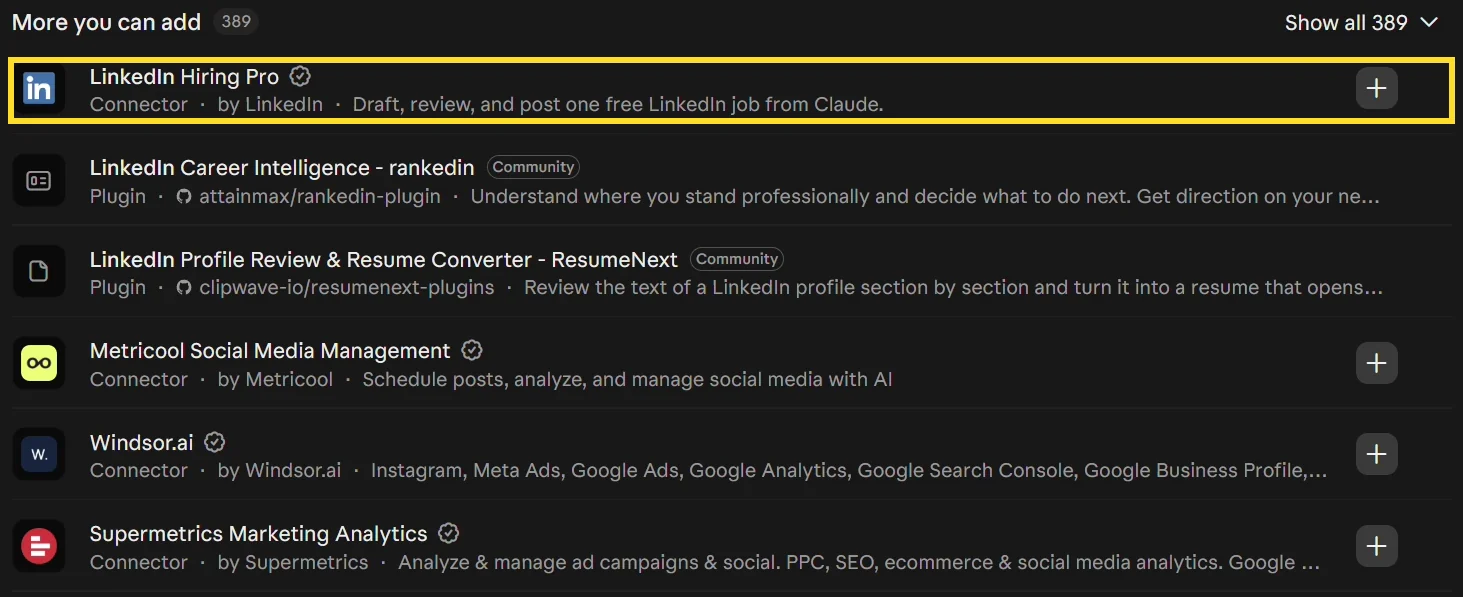
So whatever you want Claude to do with your posts, something has to sit in between: a LinkedIn tool with its own connector, an automation app, a browser extension or your own code. Which one you pick decides how safe it is and how much Claude can actually do.
What are the ways to connect Claude to LinkedIn?
There are six, and we've scored each on the five things that matter: is it safe for your account, does it sound like you, can it make visuals, can it schedule, and can it tell you what worked.
| Way | Safe for your account? | Sounds like you? | Visuals? | Schedules? | Reads your results? |
|---|---|---|---|---|---|
| 1. Flypost connector | Yes, official API | Yes, from your own material | Carousels, infographics, images | Yes | Yes (Pro plan) |
| 2. A Claude Project | Yes, nothing connects | From the posts you paste in | No | No | No |
| 3. Claude in Chrome | Against LinkedIn's rules | Only if you tell it how | No | No | No |
| 4. Zapier or Make | Yes, official API | No | An image link only | No | No |
| 5. Your own LinkedIn app | Yes, official API | No | No | Only if you build it | No |
| 6. A server from GitHub | No, it logs in as you | No | No | No, it can't post | No |
Other LinkedIn tools with their own Claude connectors work the same way as the first row, so we cover them with it. We'll start with the one we use, since it's the only route on the list that does all five, then cover the others more briefly.
What do you need to connect Claude to LinkedIn with Flypost?
Three things:
- A Claude account. The free plan works: it lets you add one custom connector, and this can be it.
- A Flypost account. Flypost is a LinkedIn content tool with its own connector for Claude, so Claude can use everything in your Flypost account. There's a free 7-day trial.
- Your LinkedIn profile, plus your company page if you post as one.
The whole setup takes about five minutes, and you only do it once.
Step 1: How do you connect your LinkedIn account?
This step happens in Flypost, not in Claude. Open your project's settings, go to the Channels tab and connect your LinkedIn profile under Posting to LinkedIn. Any company pages you admin come along with it, so you can post as yourself or as the page.
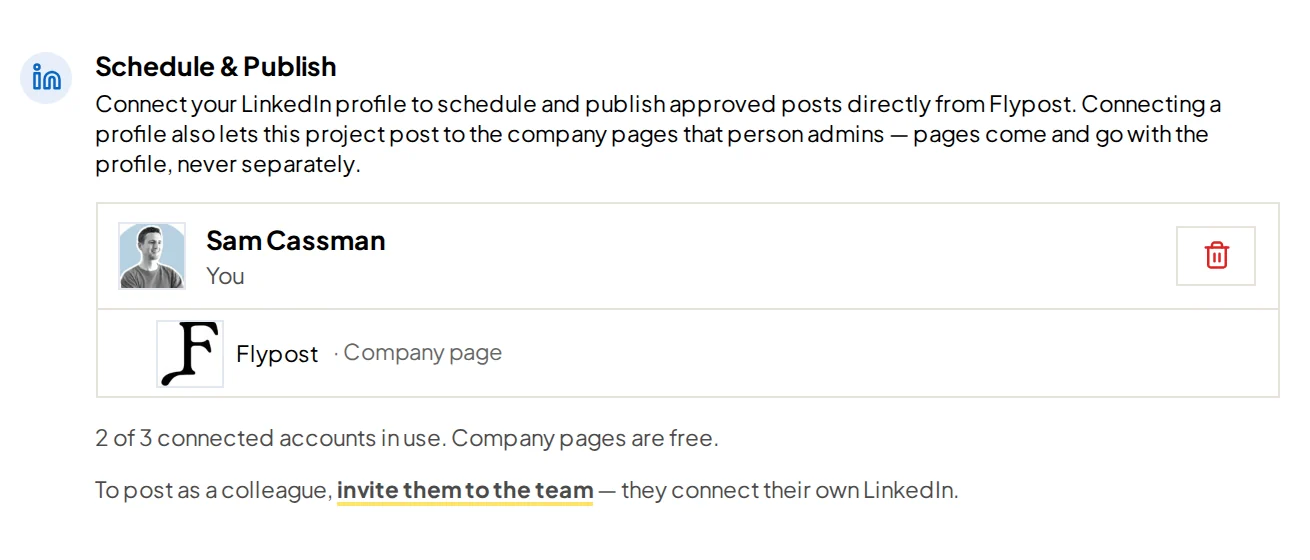
Flypost posts through LinkedIn's official API, the route LinkedIn provides for apps, not through your browser. That's what keeps this method on the right side of LinkedIn's rules, and it's the difference that matters most later in this guide.
Step 2: Where do you find the Flypost server address?
In Flypost, open the project menu at the bottom of the sidebar and click Connect AI tools. The page shows one server address, https://mcp.flypost.io/mcp. Click Copy URL.
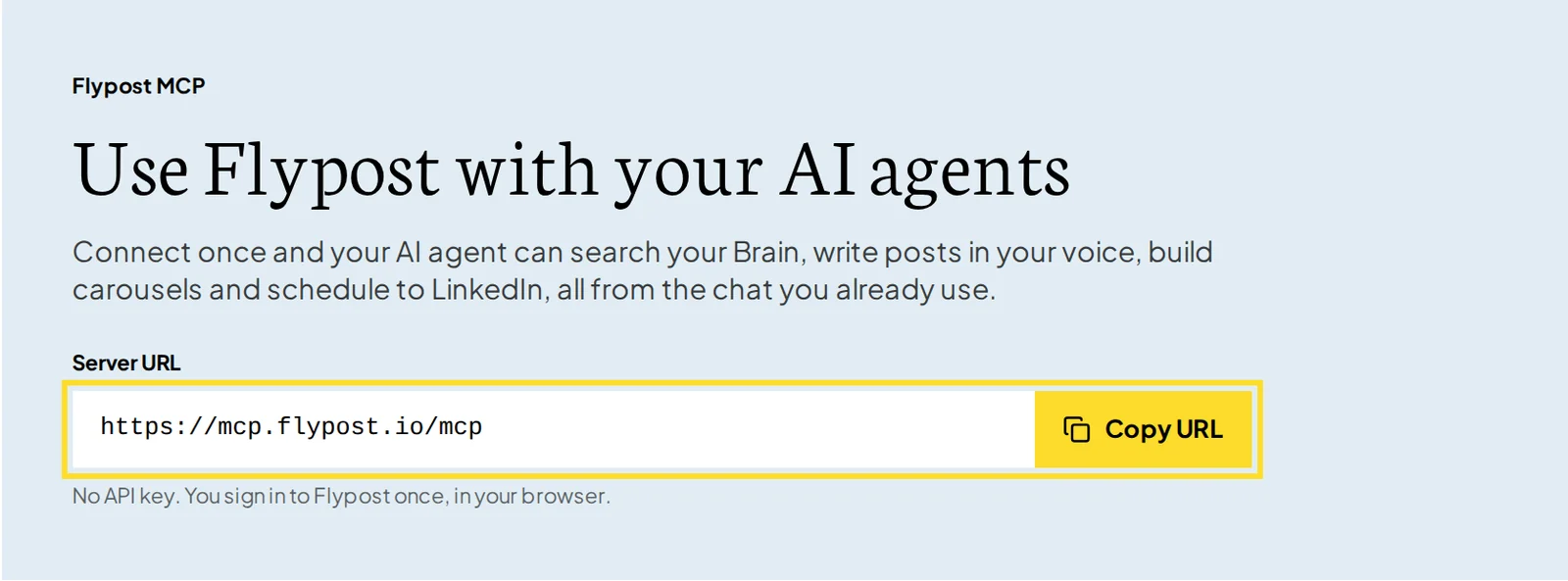
There's no API key or password involved. Claude will ask you to sign in to Flypost in your browser in the next step, the same way you'd sign in to any app.
Step 3: How do you add a custom connector in Claude?
In Claude, go to Customize, then Connectors. Click + Add, then Add custom connector.

Name it Flypost, paste the address into the second box and click Continue. Keep the sign-in settings Claude detects, click Add, then Connect, and sign in to Flypost when the window opens.
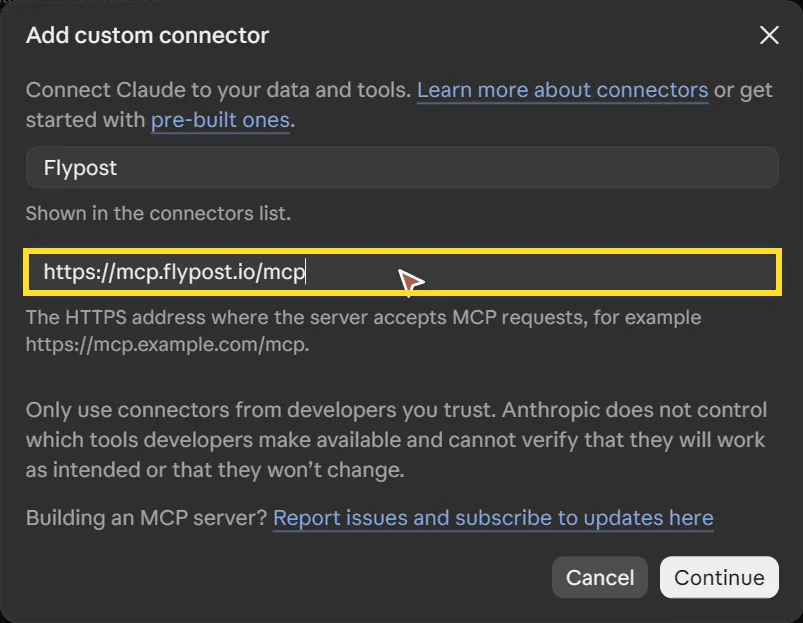
That's the setup done. On a Team or Enterprise plan, only an Owner can add a custom connector, under Organization settings; everyone else then connects to it with their own account. Flypost isn't in Claude's public directory yet, which is why you add it by address like this.
Step 4: How do you get Claude to write a LinkedIn post in your voice?
Start a new chat and ask for a post. This is the prompt from the video:
Use Flypost to write a LinkedIn post in my Flypost project about [your topic]. Pull from my Brain and write it in my voice. Don't schedule or publish it.
The Brain is where Flypost keeps your own material: your blog posts, videos and documents. So Claude isn't writing from a blank page. In our test it wrote about post length using our own study of 116,000+ LinkedIn posts, which was already in the Brain. (The finding it used is in our guide to how long a LinkedIn post should be.)
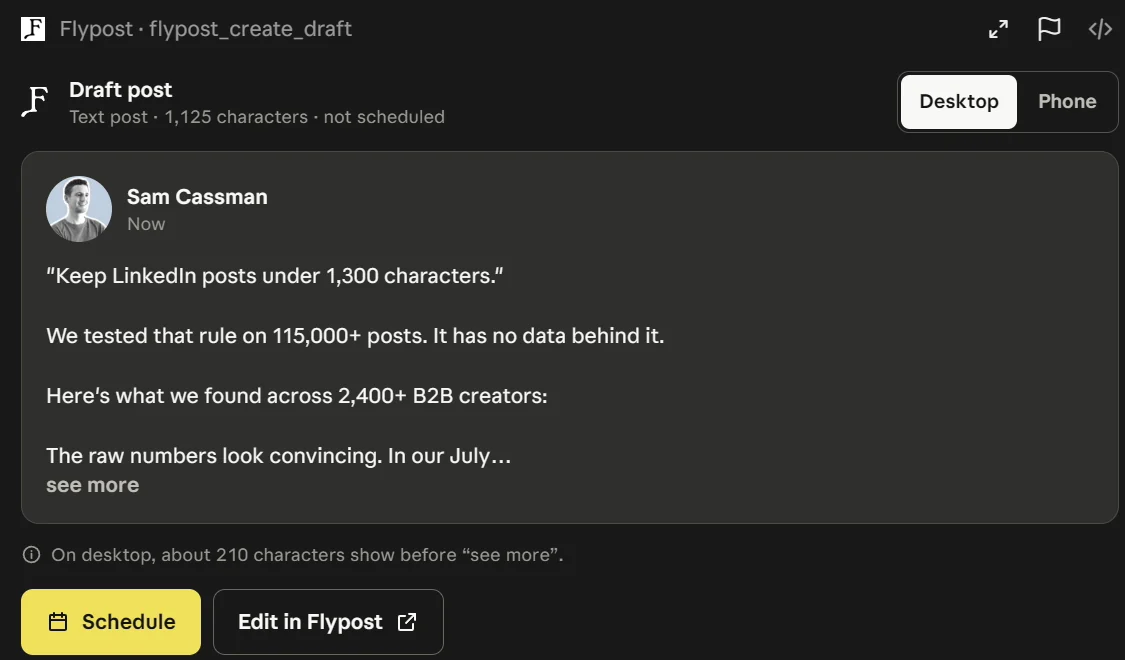
Switch between Desktop and Phone to check the first lines on both, since that's all most people see before they decide to read on. The draft is saved in Flypost, unscheduled.
Step 5: How do you turn the post into a LinkedIn carousel?
Ask for one in the same chat:
Now turn it into a designed carousel in my brand.
Flypost designs the slides in your brand's colours and fonts, with your name and photo on each one. Ours came back as eight slides, right in the chat.
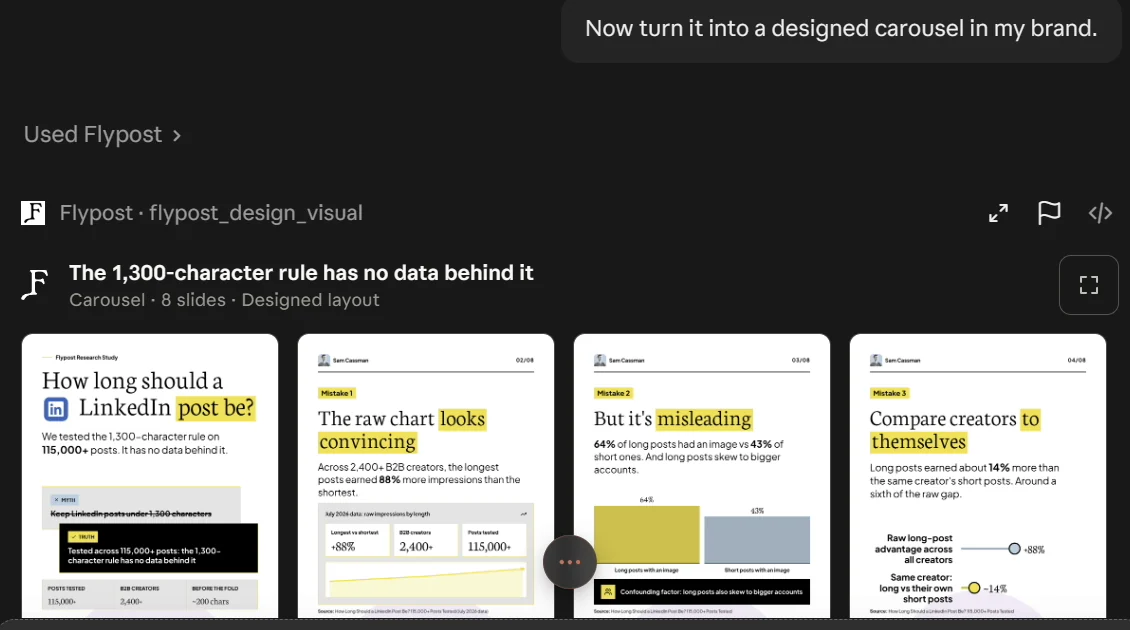
Open any slide for a closer look. If you'd rather adjust a slide yourself, click Edit in Flypost and change it there; our guide to making a LinkedIn carousel covers the editor step by step.
Step 6: How do you schedule a LinkedIn post from Claude?
Ask Claude to get it ready, but not to schedule it yet:
Get the carousel ready to schedule for next Tuesday at 9am and show me the options. Don't actually schedule it yet.
Claude brings up a scheduling card in the chat. Pick where it goes (your profile or a company page), then the day and the time.
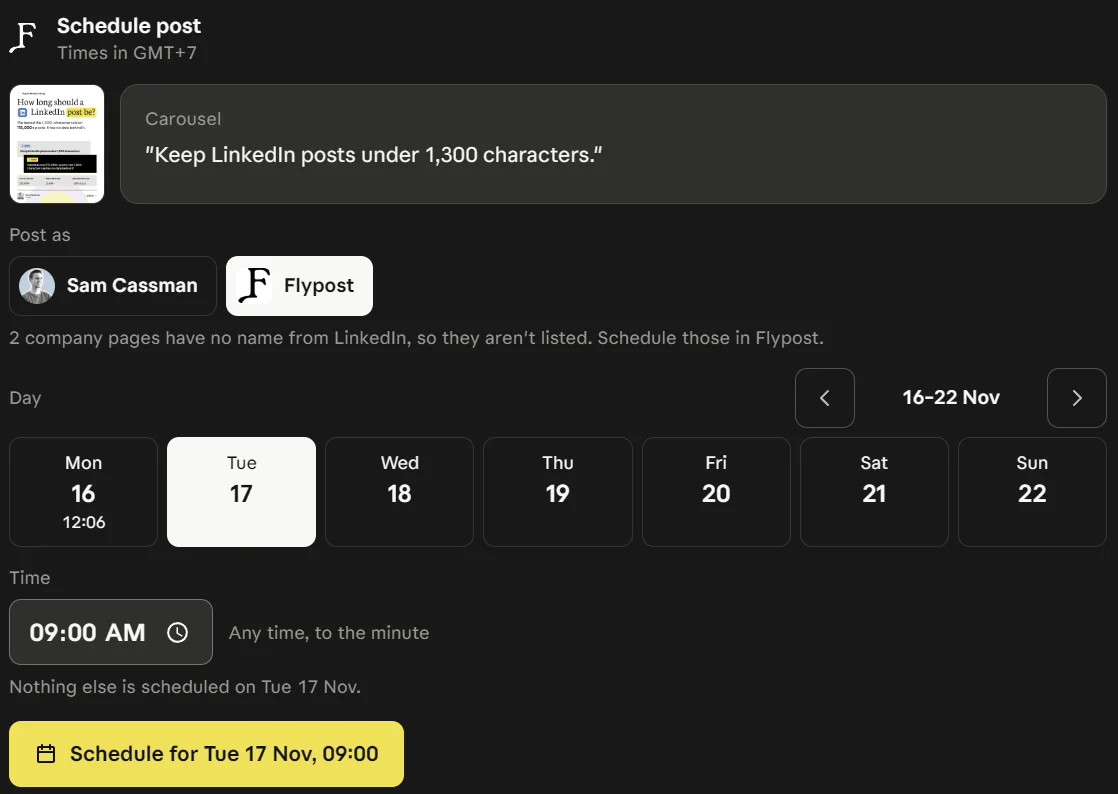
We chose the Flypost company page and Tuesday the 17th, and left it there because this was a demo. In real life, one click on Schedule puts it on your calendar.
Step 7: How do you ask Claude which LinkedIn posts did best?
Ask it straight out:
Which of my LinkedIn posts did best last month?
Your own numbers come back into the chat: how a typical post does, which formats did best, and your top posts by impressions.
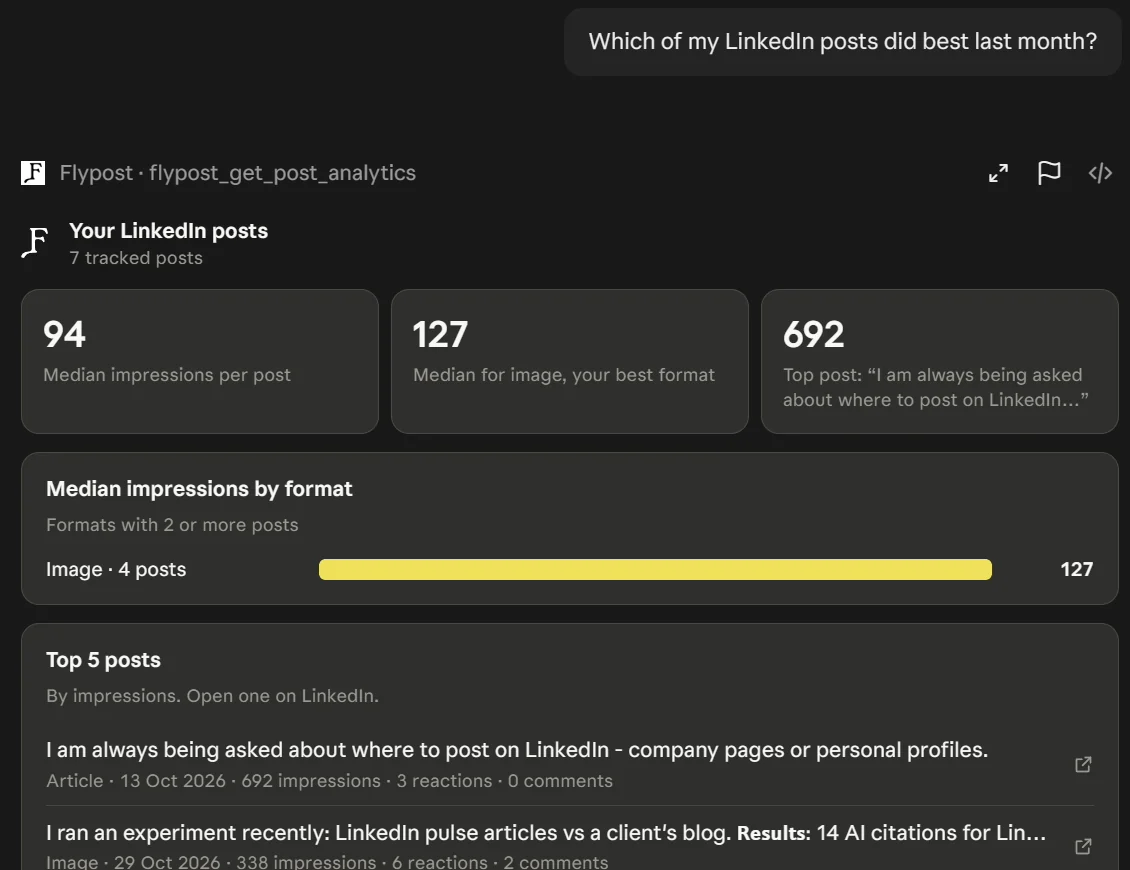
That's the useful part. Next time, ask Claude to write more of what's working, in the format that worked. Post analytics are on Flypost's Pro plan.
Can you connect Claude to LinkedIn for free?
Yes, if all you want is help with the words. Make a Claude Project, paste in a few of your best posts as text, and ask for new posts in the same style. Nothing connects to LinkedIn, so it works on Claude's free plan and carries no risk to your account.
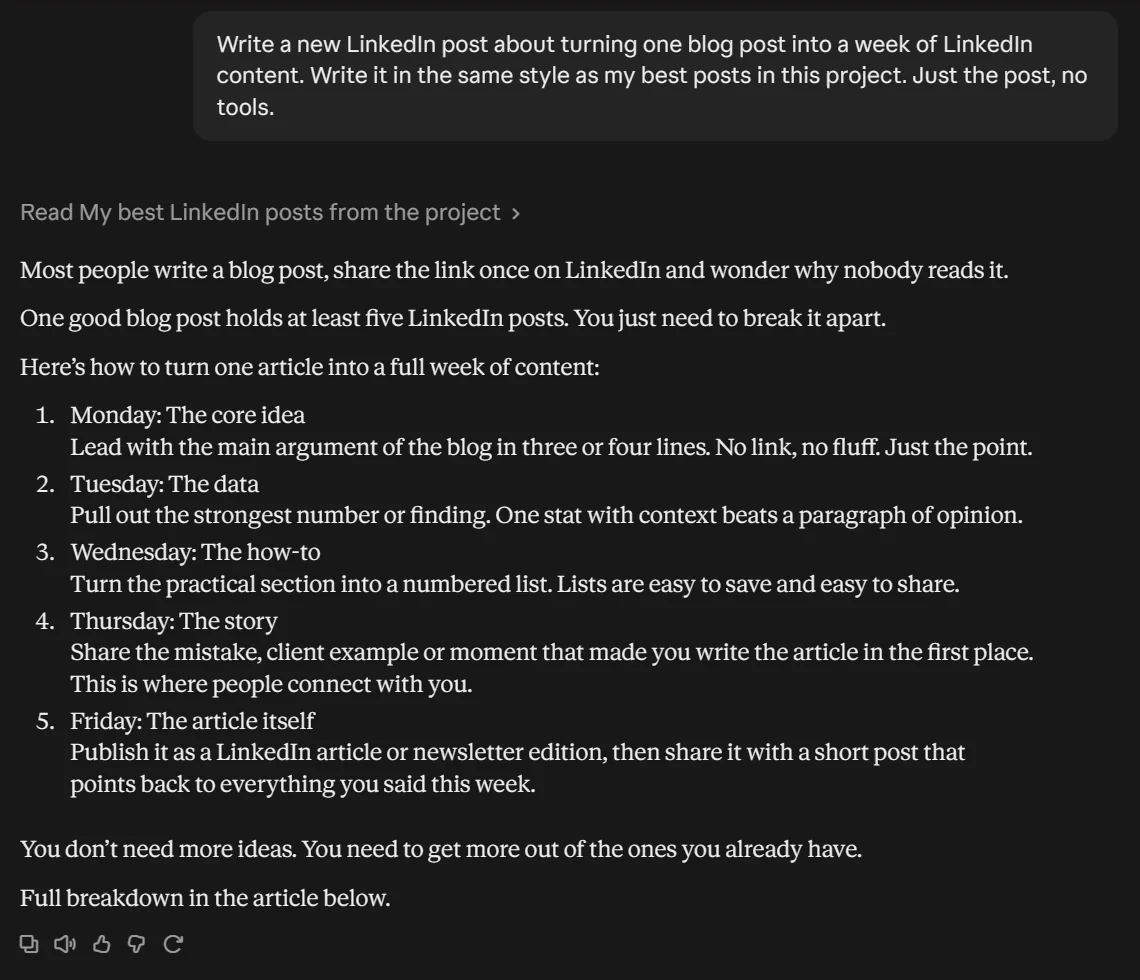
We picked the four of Sam's posts with the most impressions, and a few is plenty. (You can also download every post you've written from LinkedIn's data export, but you don't need them all.) The catch is everything else: you copy and paste every post yourself, there are no visuals or scheduling, and Claude only knows what you paste in.
Is it safe to use Claude in Chrome on LinkedIn?
It works, but the risk sits with you. Claude in Chrome is Anthropic's browser extension: Claude clicks and types in your Chrome tab, so it can open LinkedIn, start a post and type it out. There are three catches:
- It's paid plans only, in Chrome only. Anthropic's help page says it's on Pro, Max, Ultra, Team and Enterprise, and not on other browsers or phones.
- It goes against LinkedIn's rules. LinkedIn's User Agreement (effective 3 November 2025) says not to use "bots or other unauthorized automated methods" to "create, comment on, like, share, or re-share posts". Its help page on prohibited software and extensions says accounts that use them "risk having their accounts restricted or shut down".
- Claude reads every page it visits. Anthropic warns about hidden instructions in web content, and on LinkedIn that means a lot of other people's posts.
If you try it, type the post with Claude and press Post yourself.
Can Zapier or Make post to LinkedIn from Claude?
Yes. Zapier and Make both have connectors in Claude's directory. Zapier posts through LinkedIn's official API: you connect LinkedIn inside Zapier, pick the Create Share Update action, then ask Claude to post.
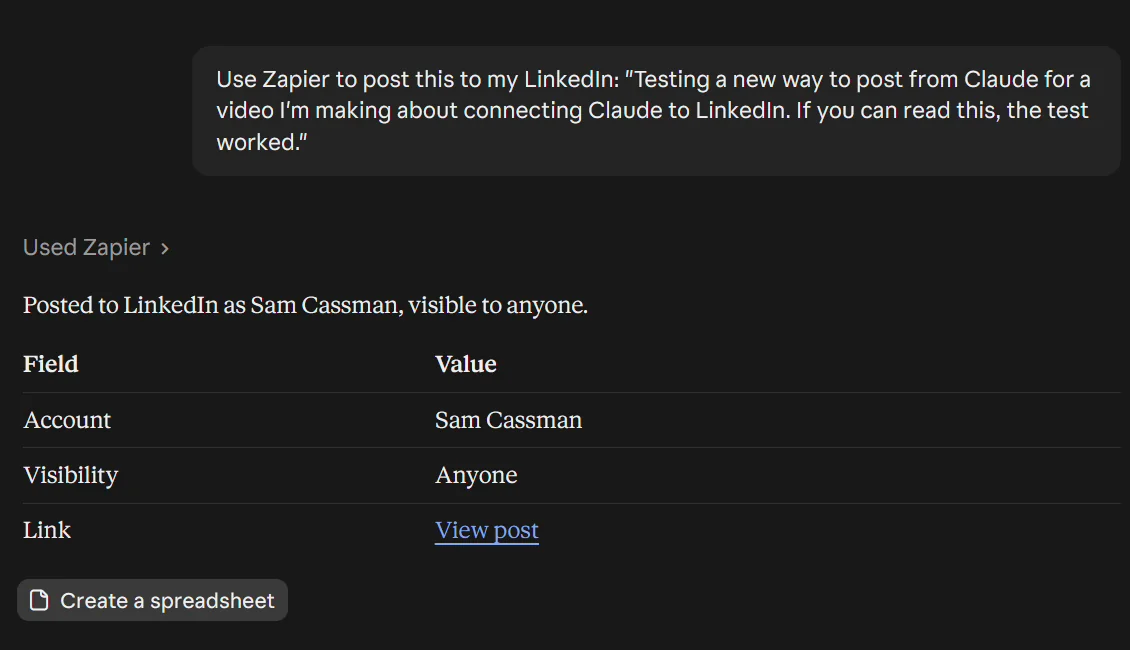
It's free to start, but the free plan is small. Zapier's pricing page gives the free plan 100 tasks a month, and each call from Claude uses two, so that's about 50 posts. More to the point, it's a pipe, not a writer: it sends text and an image link, it doesn't know your voice, and it can't schedule.
Which other LinkedIn tools have a Claude connector?
A handful of LinkedIn tools have their own connectors, the same kind as Flypost's. Taplio, Typefully and Metricool are all in Claude's directory, and they're real options. Before you pick one, check how it posts and what it can do from the chat:
- Taplio publishes through a Chrome extension on your logged-in LinkedIn, rather than LinkedIn's official API.
- Metricool's free plan doesn't include LinkedIn.
Our comparison of the best AI tools for LinkedIn has prices and the honest downsides of each.
How do developers connect Claude to LinkedIn?
The last two ways are for developers, and neither suits most people:
- Build your own LinkedIn app and connect it with Claude Code. That gets you posting, but LinkedIn's Share on LinkedIn docs cap it at 150 requests per member a day. Reading your own posts back is a permission LinkedIn gives approved partners only, and posting to a company page needs LinkedIn's approval too.
- Use an open-source server from GitHub. The most popular one logs in through your own browser session, the kind of automation LinkedIn's rules forbid, and it can't post at all.
Will LinkedIn ban you for connecting Claude?
Not for the official routes. Tools that post through LinkedIn's API, like Flypost or Zapier, are the lower-risk way to do this. It's the bots and extensions that click around LinkedIn for you that go against its rules.
LinkedIn says accounts using that kind of software can be restricted or shut down. Its help page on automated activity adds that a restriction can be temporary: once you turn the software off, the account is "automatically re-enabled". So if you've been using a browser bot, stop, and move to a tool that uses the API.
Which way should you pick?
It depends what you want Claude to do:
- Help with the words only, and you're happy to copy and paste: a Claude Project. It's free and safe.
- Post a quick update without opening LinkedIn: Zapier, within its free 50 or so posts a month.
- Write in your voice, design the visuals, schedule and see what worked, all from the chat: connect Flypost, as in the steps above.
How we tested the ways to connect Claude to LinkedIn
We tried four of the six ways ourselves, on our founder Sam's real LinkedIn account, in November 2026: Flypost, a Claude Project, Claude in Chrome and Zapier. The Zapier test posted for real; the Flypost carousel was left unscheduled. Every screenshot in the Flypost and Claude steps comes from those sessions or from the live Flypost app.
The other tools and the developer routes are described from their own documentation and directory listings, checked on 11 November 2026, and Anthropic's, LinkedIn's and Zapier's pages linked above were checked again on 16 November 2026. Connectors, plans and limits change often, so check the directory before you rely on a detail here.
Flypost is our product, so weigh that in. We've kept every other method's limits to what its own pages say.
Frequently asked questions
- Is there an official LinkedIn connector for Claude?
- Not for your feed. The only connector LinkedIn has made is LinkedIn Hiring Pro, which drafts and posts one free job ad. To write, schedule or post updates from Claude you need a tool in between, such as Flypost, Zapier or another LinkedIn app with its own Claude connector.
- Can I connect Claude to LinkedIn for free?
- Yes. Claude's free plan lets you add one custom connector, so you can add a LinkedIn tool's connector at no cost to Claude. Zapier's free plan also posts to LinkedIn from Claude, for roughly 50 posts a month. A Claude Project with your best posts pasted in is free too, but it only writes, and you post by hand.
- Will LinkedIn ban me for using Claude?
- Tools that post through LinkedIn's official API, like Flypost or Zapier, are the lower-risk route. LinkedIn's rules forbid bots and browser extensions that click around the site for you, and it says accounts using them can be restricted or shut down, although its help pages say a restriction can be lifted once you stop.
- Can Claude post to a LinkedIn company page?
- Yes, through a tool that's approved to post to company pages. Flypost posts to your company page on every paid plan, through LinkedIn's official API, and you pick the profile or the page on the schedule card in the chat.
- Does a Claude connector work in the Claude phone app?
- Yes. Once you've added a connector on the web or in the desktop app, it carries over to the Claude app on your phone. Claude in Chrome is the exception: it only works in the Chrome browser on a computer.
Written by
Sam Cassman
Founder, Flypost · Chiang Mai, Thailand
I'm Sam. I built Flypost after watching too many good businesses sit on years of material (blog posts, call transcripts, case studies, half-finished decks) and post almost none of it.
I write everything here myself. When I claim something works on LinkedIn, it's because I tested it first-hand or ran the numbers across our own data. Where I'm working from a small sample, I'll say so. I'd rather be useful than certain.