
How to Make a LinkedIn Carousel in 2026 (Step by Step)

By Sam Cassman · Last verified
How do you make a LinkedIn carousel? Write your slides, design them as a set of square or portrait pages, save them as one PDF and post it as a document, which LinkedIn shows as a swipeable carousel. Below we build one from a blank page to a live post, screenshot by screenshot, using Flypost to do the writing, design and PDF in one place.
Are you trying to work out how to make a LinkedIn carousel? Most guides you'll find are Canva walkthroughs from a few years ago, and they skip the part that takes the time: deciding what goes on each slide. We wanted a guide that shows the whole thing, from an idea to a post that's live on LinkedIn.
Most people think a carousel is a design job. In practice, the slides are easy once you know what each one says, and that comes from good source material. When we looked at how carousels perform across thousands of LinkedIn posts, the ones that did best were long, detailed and step by step, not the prettiest.
In this guide we'll cover what a LinkedIn carousel actually is, how to build one step by step (with a screenshot for every step), how to write the post that goes with it, and how many slides to aim for. Read on to find out more.
What is a LinkedIn carousel?
A LinkedIn carousel is a PDF that people swipe through in their feed. Each page of the PDF shows as one slide, with arrows to move between them. LinkedIn calls it a document post, but almost everyone calls it a carousel.
That matters for how you make one. Whatever tool you use, the finished carousel is a PDF of square or portrait pages, posted alongside a normal LinkedIn post that introduces it.
Carousels work best for anything with steps: a process, a framework, a checklist, a breakdown. In our study of LinkedIn posts, carousels got about 13% more reactions than the same person's text posts, for about half of the 178 people we could compare. That's a real gain, though a modest one, so save carousels for content that genuinely has steps. (Our guide to the types of LinkedIn posts compares every format side by side.)
What do you need to make a LinkedIn carousel?
Three things, and the third one does most of the work:
- A tool that builds the slides and the PDF. We use Flypost here, which writes, designs and publishes in one place. There's a free 7-day trial.
- An idea for the carousel. A specific question your audience asks works best.
- Research on the topic. A few articles, videos or your own posts, so the slides have real points to make rather than generic advice.
The example in this guide is a carousel on how to get your brand cited by AI search engines by publishing on LinkedIn.
Step 1: How do you gather research for a LinkedIn carousel?
Collect the sources first, before you write a single slide. A carousel is only as good as the points on it, and points come from material: a research report, a video transcript, your own past articles.
In Flypost, sources live in the Brain. Create a notebook for the topic and add each source to it by pasting its link. Flypost reads the whole thing, including the transcript of a YouTube video, and marks it Ready when it's done.
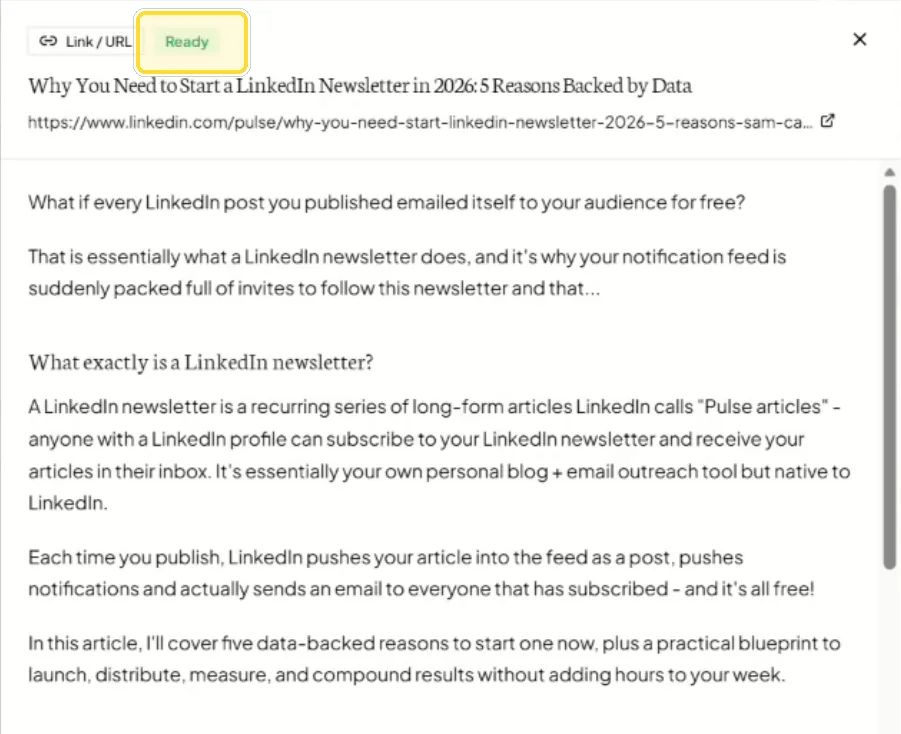
We added three sources: LinkedIn's own research on AI citations, a YouTube tutorial on publishing LinkedIn articles, and one of our own past articles. Three or four good sources is plenty for a 12-slide carousel.
Step 2: How do you start a carousel post?
Go to Posts, click Create post and choose I have something in mind. Then set three things before you write anything:
- Format: choose Carousels.
- Carousel type: How-to, Listicle, Framework, Mistakes, Story or Curation. Pick the one that matches your idea. Ours is a how-to.
- Depth: Quick, Standard or In-depth. Standard gives 4 to 7 points on 8 to 11 slides; In-depth gives 8 to 12 points on 12 to 16 slides, with more detail on each.
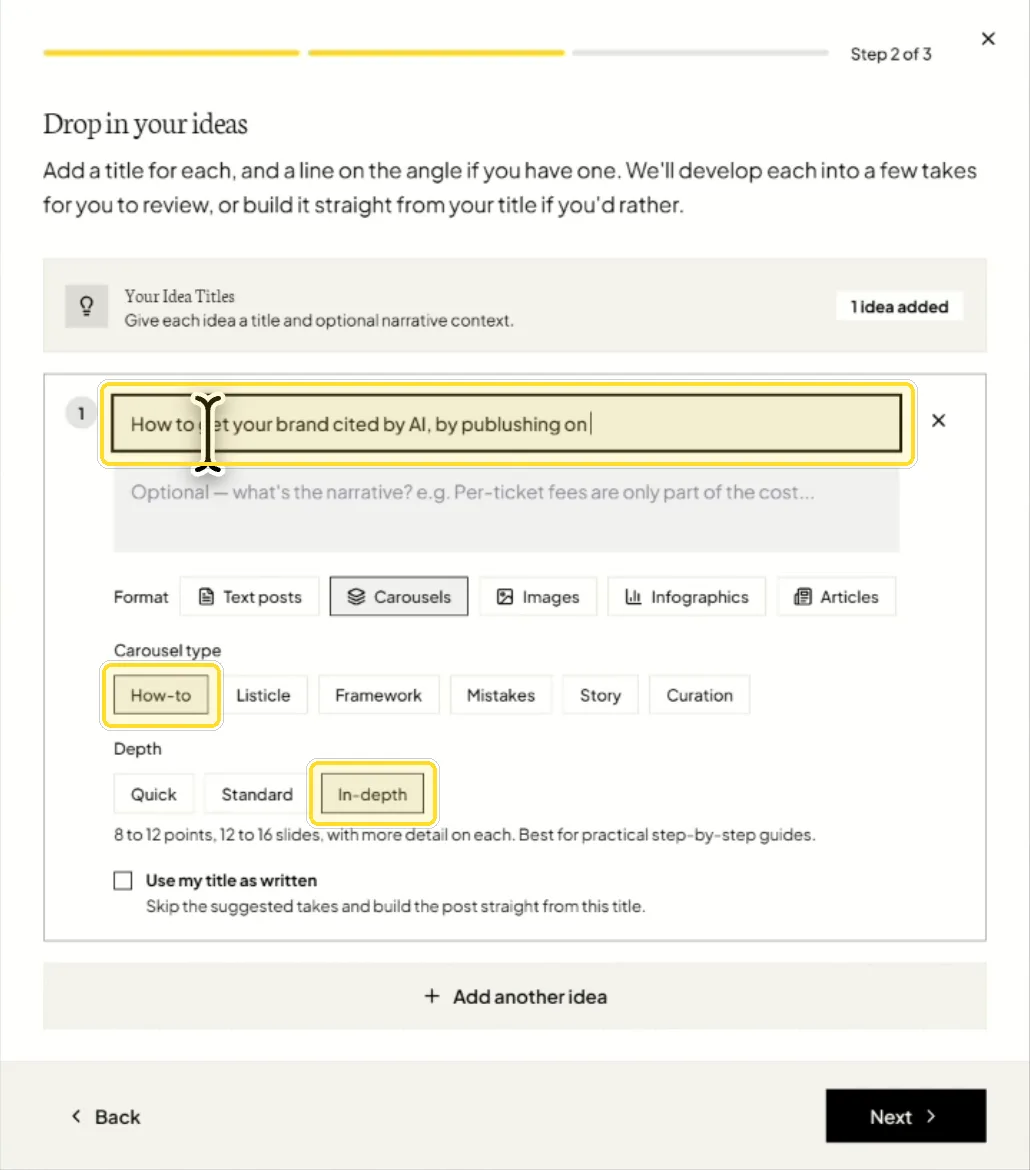
Type the title you want, and use the line underneath to say what the carousel should cover. Ours asked for the strategy, keyword research, where to find LinkedIn's article tools and how an article should be structured. If you already know exactly what the title should be, tick Use my title as written.
Pick In-depth if your topic has a lot of steps. Our data says long carousels do better (more on that further down).
Step 3: How do you build the first draft?
Point the carousel at your research. On the last step, choose the notebook under What to riff on, check the brand voice, and click Build My Post.
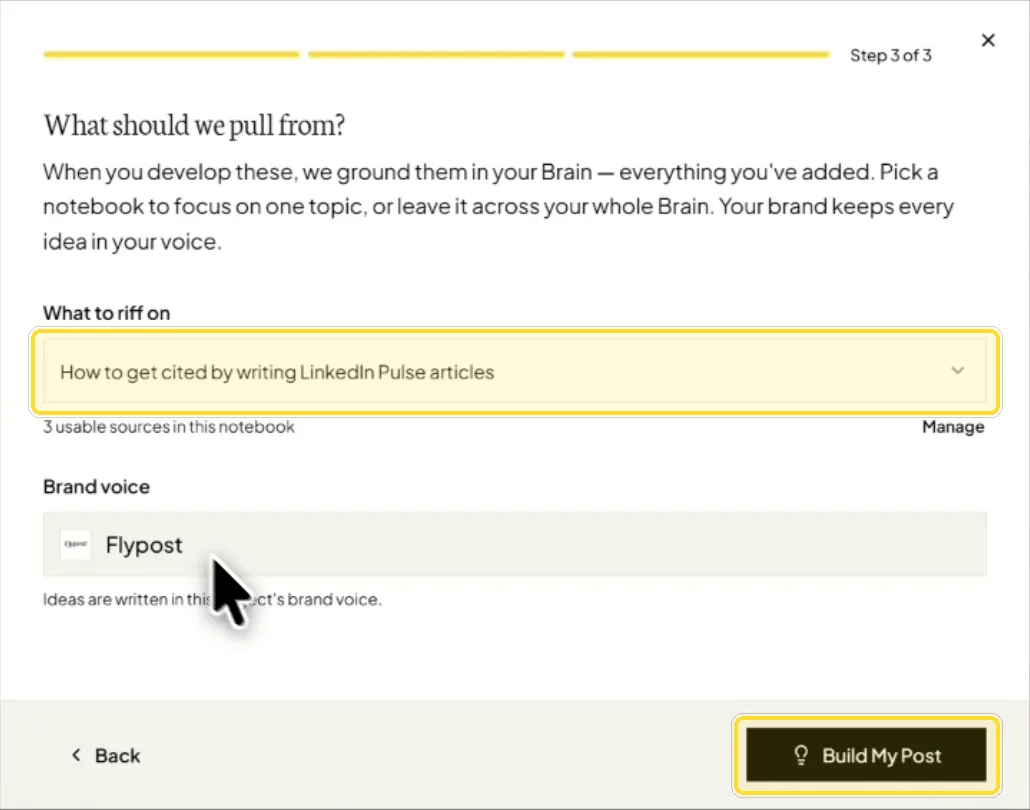
Flypost reads every source in the notebook, works out the structure and writes the slides. It takes a minute or two. You can leave it running and come back.
Step 4: How do you edit the slides of a LinkedIn carousel?
The first draft opens in the carousel editor. Ours came back as "8 steps to get your brand cited by AI search engines", with a hook slide at the start, one slide per step, and a recap slide at the end.
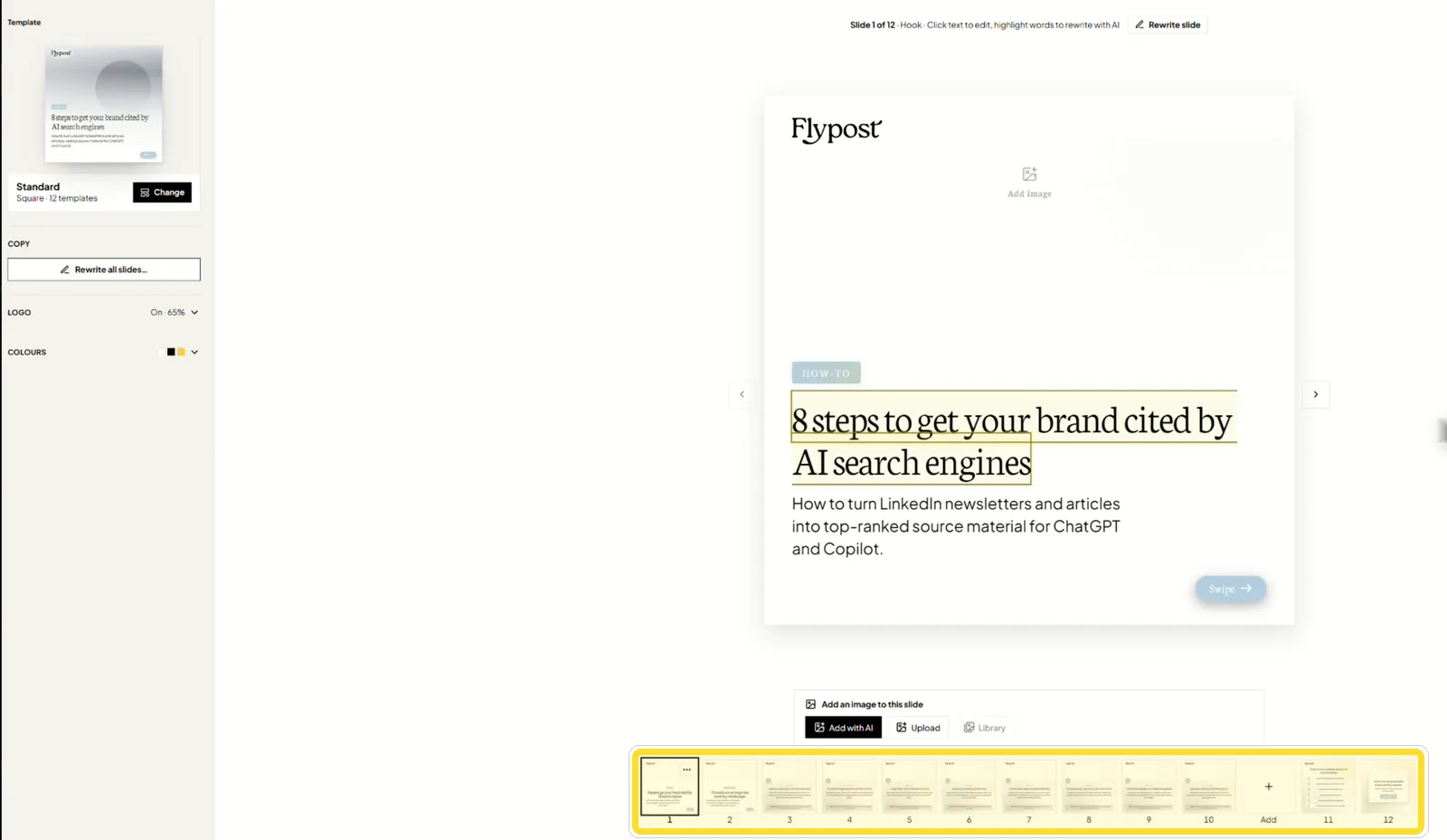
Read every slide before you change the design. This is where your knowledge adds the most:
- Click any text to edit it directly on the slide.
- Rewrite slide at the top asks AI for a new version of just that slide.
- Add in the slide strip writes a new slide. We added a step on getting articles indexed faster, which the sources didn't cover.
- Rewrite all slides on the left redoes the whole set if the angle is off.
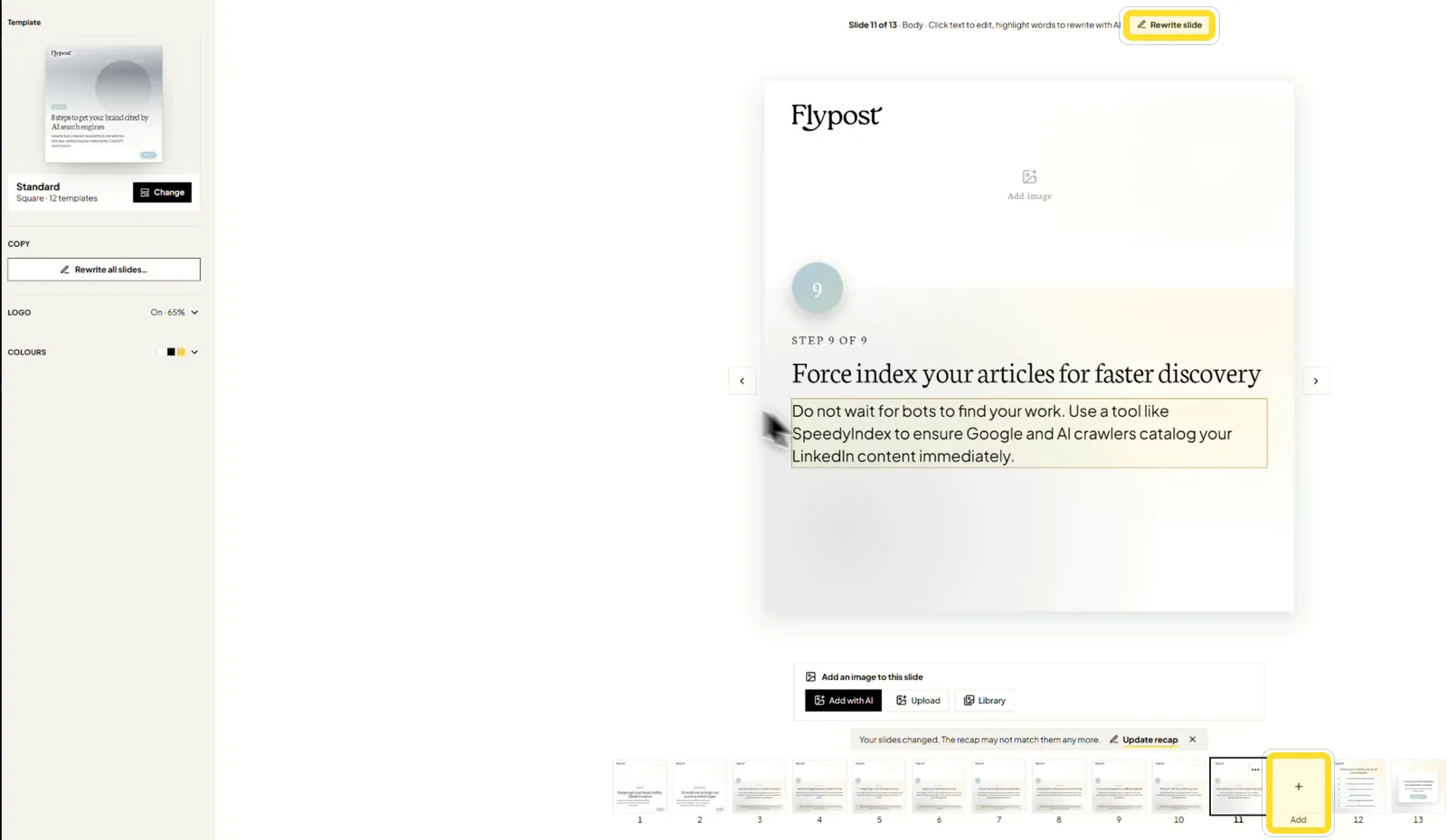
A good carousel slide says one thing. If a slide needs two paragraphs, it's two slides.
Step 5: How do you design a LinkedIn carousel?
Click Change next to the template on the left to open the style picker. There are 12 templates: five square, five portrait and two wide. Each card previews your own carousel in that style, so you're judging your real slides, not a stock example.
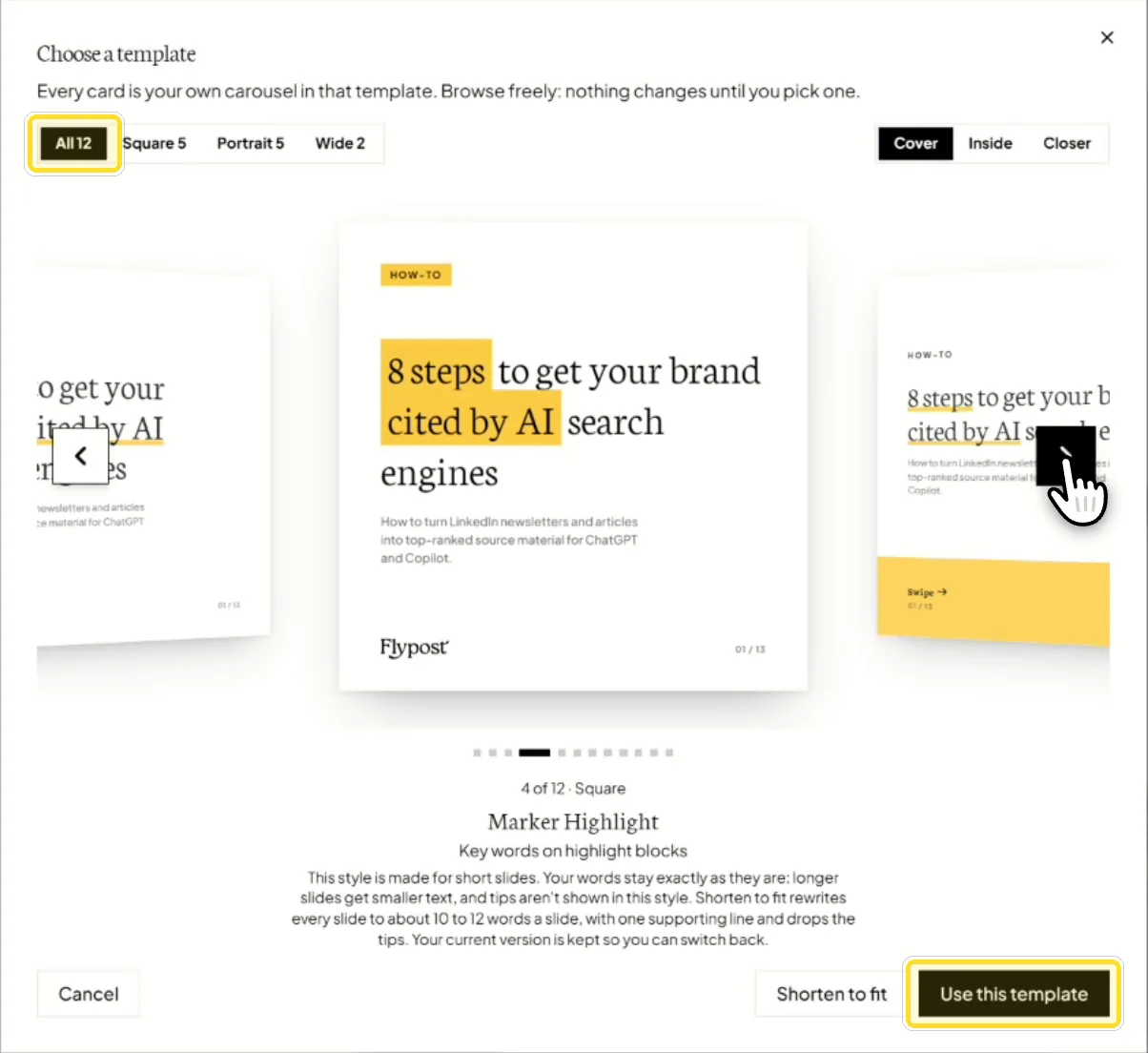
Nothing changes until you click Use this template. Some styles are made for short slides; those offer Shorten to fit, which trims each slide to suit, and keep your current version so you can switch back.
We chose Magazine Split, a portrait style with a large image area and a big step number on each slide. The whole carousel restyled at once, with our brand colours and logo on every slide.
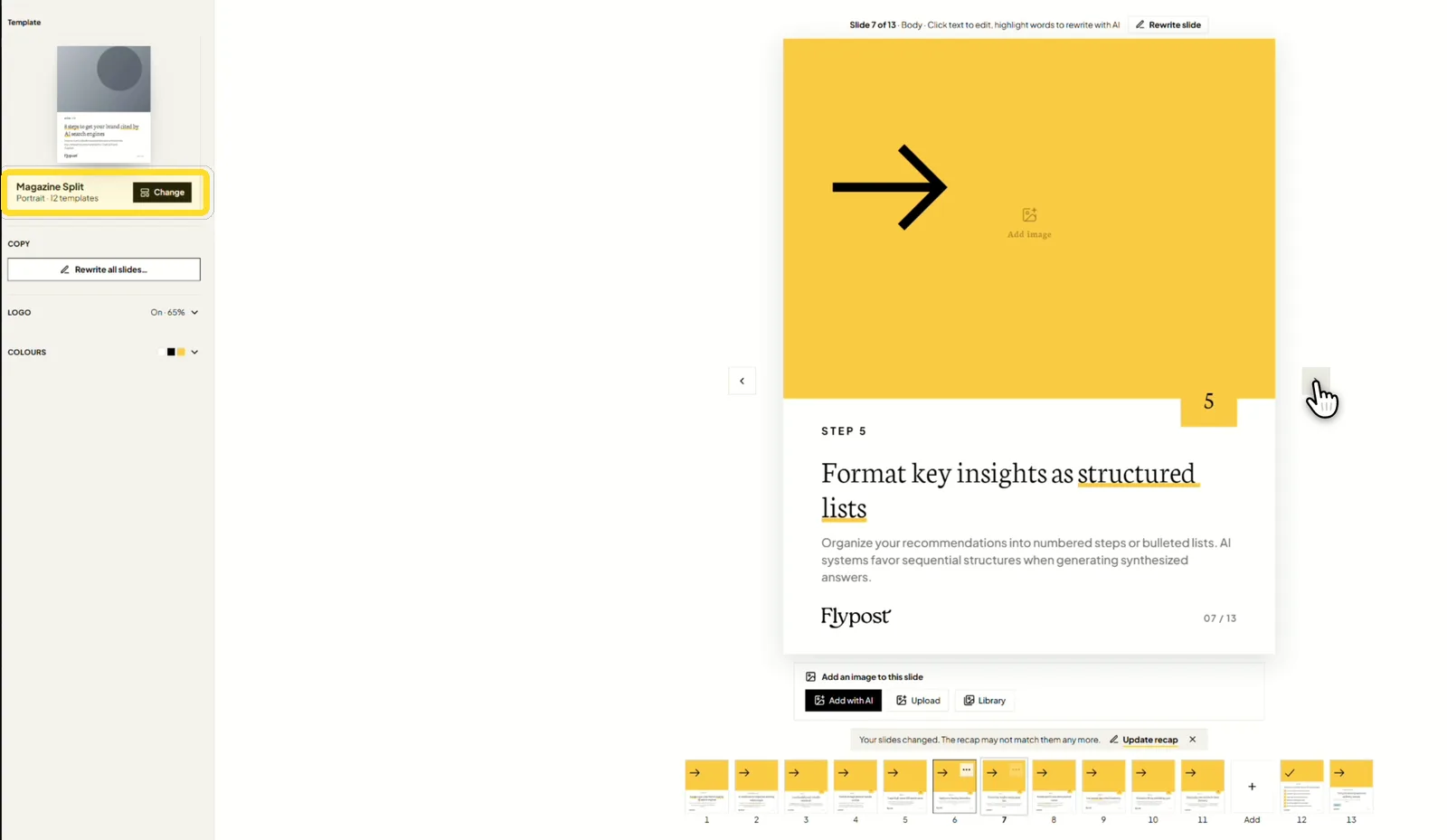
Your brand colours and fonts come from your website when you set up your Flypost account, so every template is already on-brand. You can change the colours and the logo size on the left.
Step 6: How do you add images to carousel slides?
Images make the difference between a carousel that looks like a slide deck and one people stop for. Select a slide, then use the bar under it:
- Upload adds your own image, like a screenshot. Real screenshots make strong proof: ours shows a LinkedIn article being cited in Google's AI Overview.
- Add with AI generates one. Describe what you want, pick an illustration style and tick Use my brand colours.
- Adjust zooms and repositions an image so the important part shows.
- Regenerate gives you a new version of an AI image if you don't like the first.
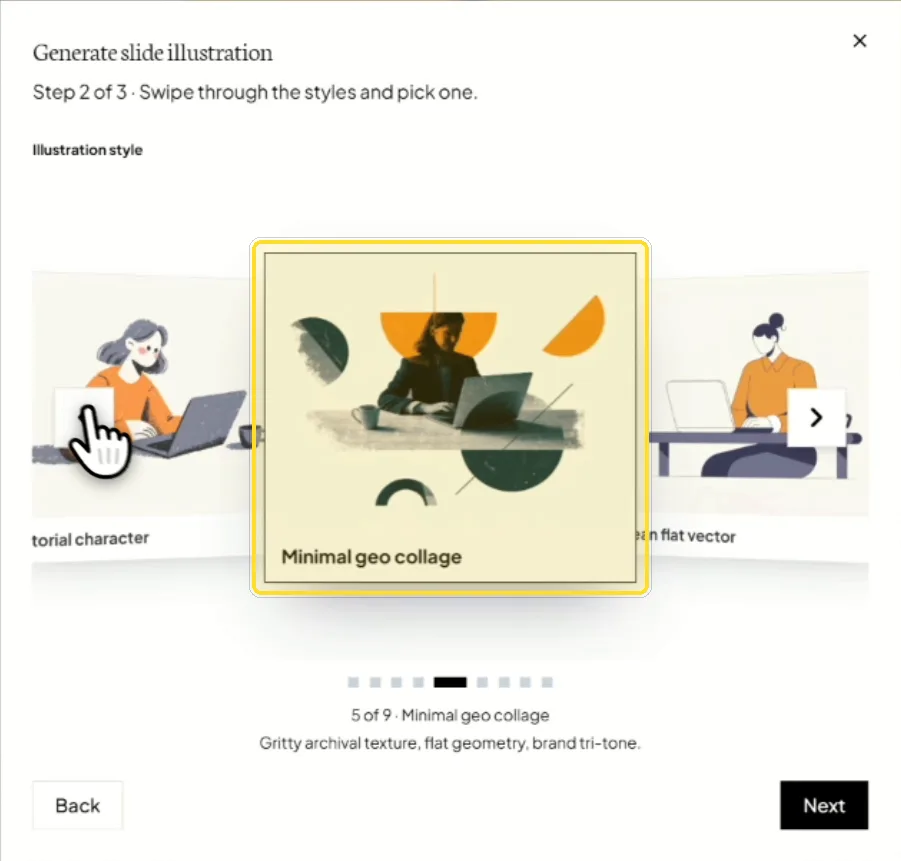
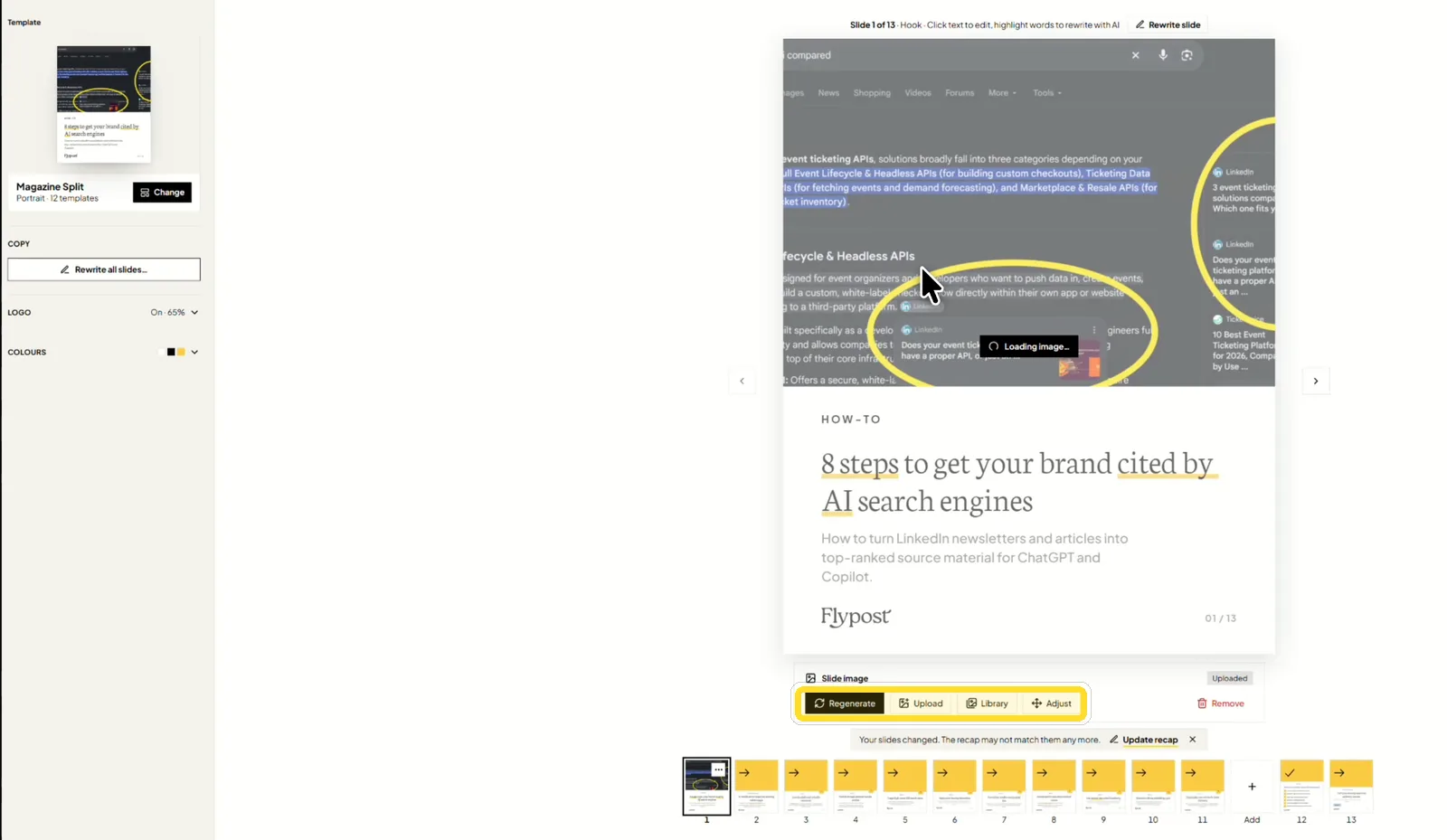
We put a real screenshot on the cover and the steps, and an AI chart in a napkin-sketch style on slide two. Once the images were in, we flicked back through a couple of other templates to check they still worked. Magazine Split still won.
Step 7: How do you write the post that goes with a carousel?
A carousel always goes out with a normal post above it. That text is what people read before they decide to swipe, so it deserves as much care as the slides.
Open the post editor and click Draft with AI (the AI writing tools sit under Edit with AI). Choose the same notebook as your source, so the post and the carousel make the same points from the same research.
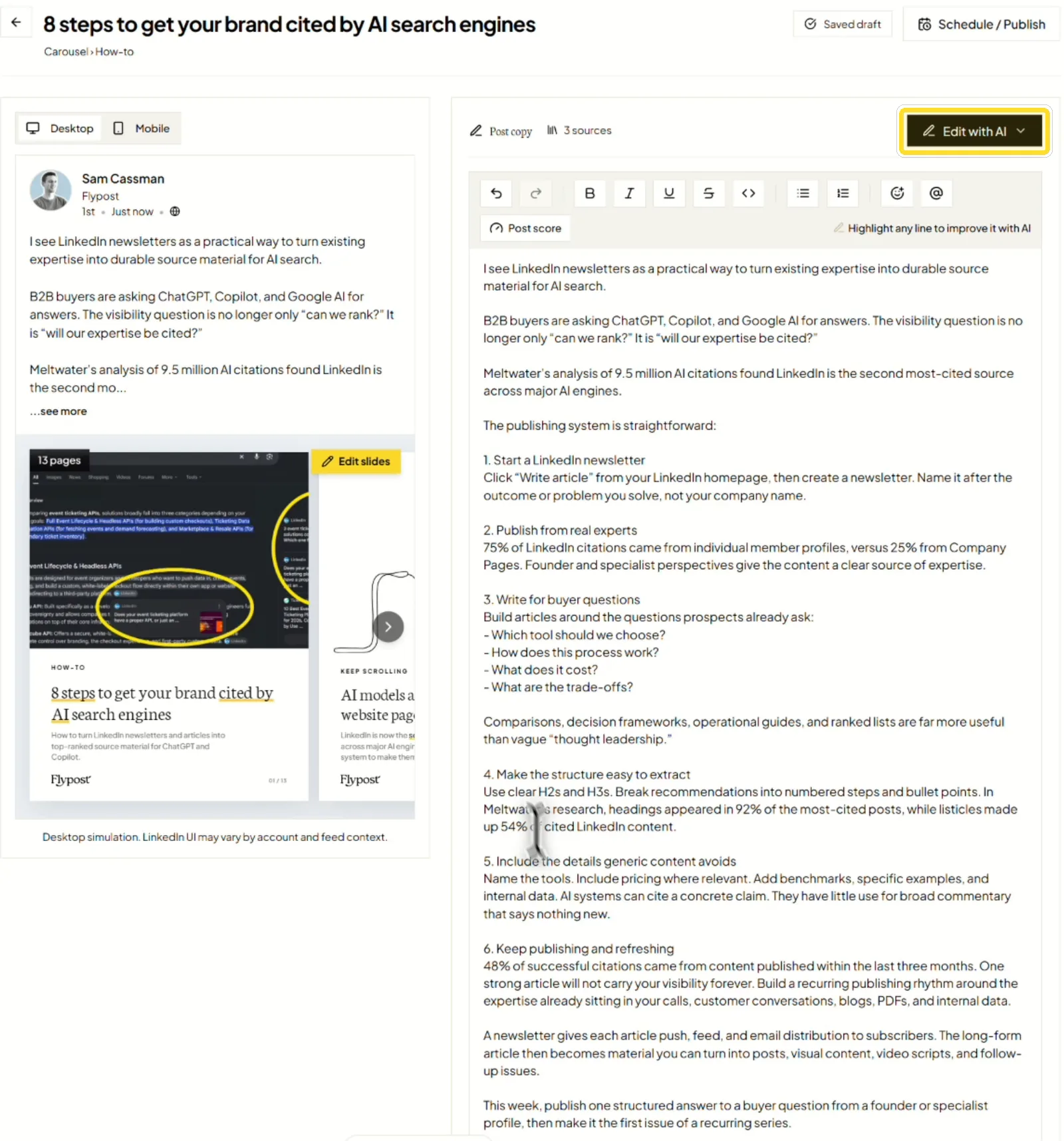
Two tools help you shape it. Highlight any text, on a slide or in the post, and click Improve with AI to rewrite just that part. We used it on the cover so the title mentions LinkedIn articles.
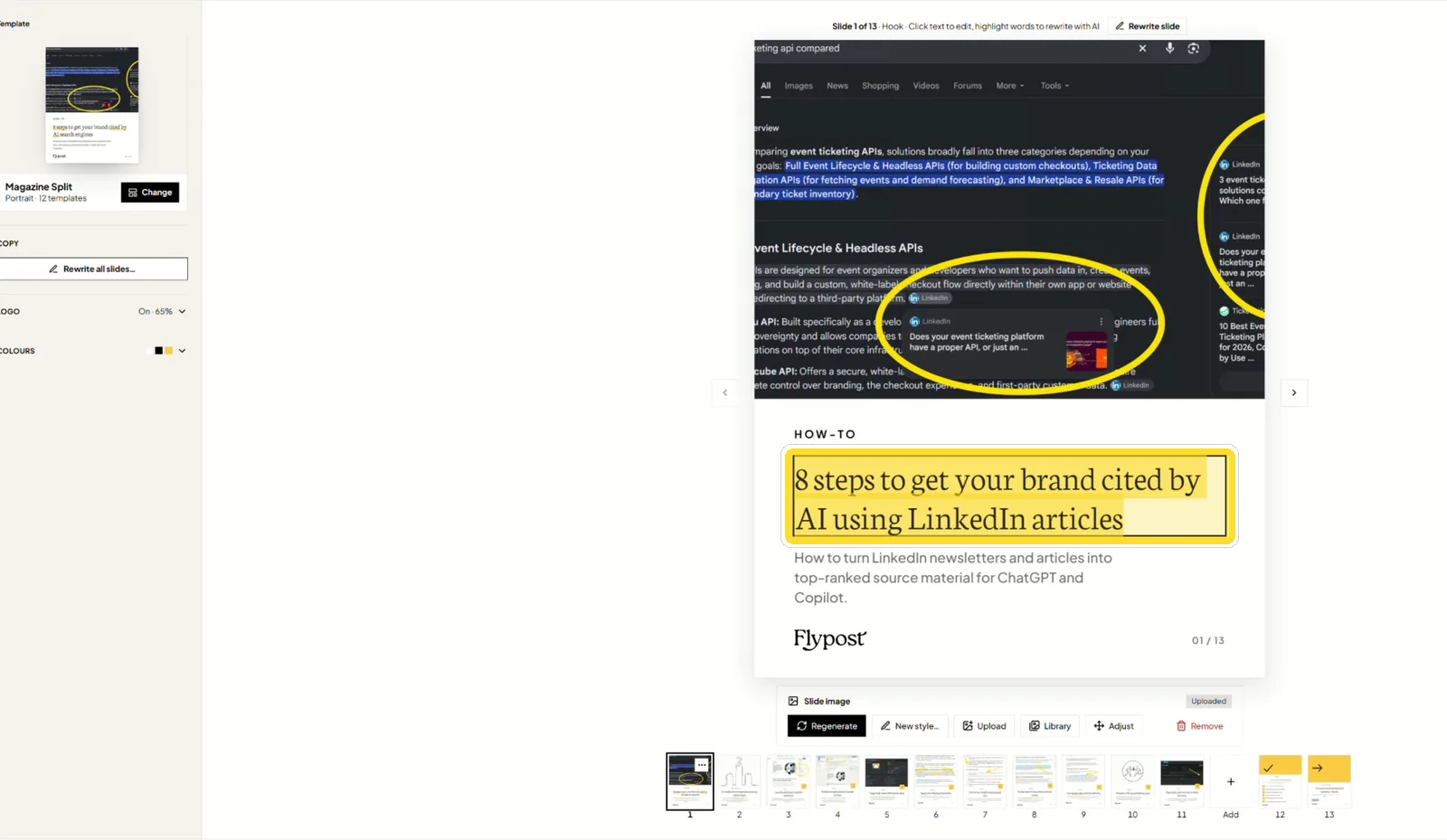
Then use Refine to change the whole post. Type what you want changed, or pick a quick option such as Too long or Hook needs to be stronger. Only what you mention changes; the rest stays exactly as written.
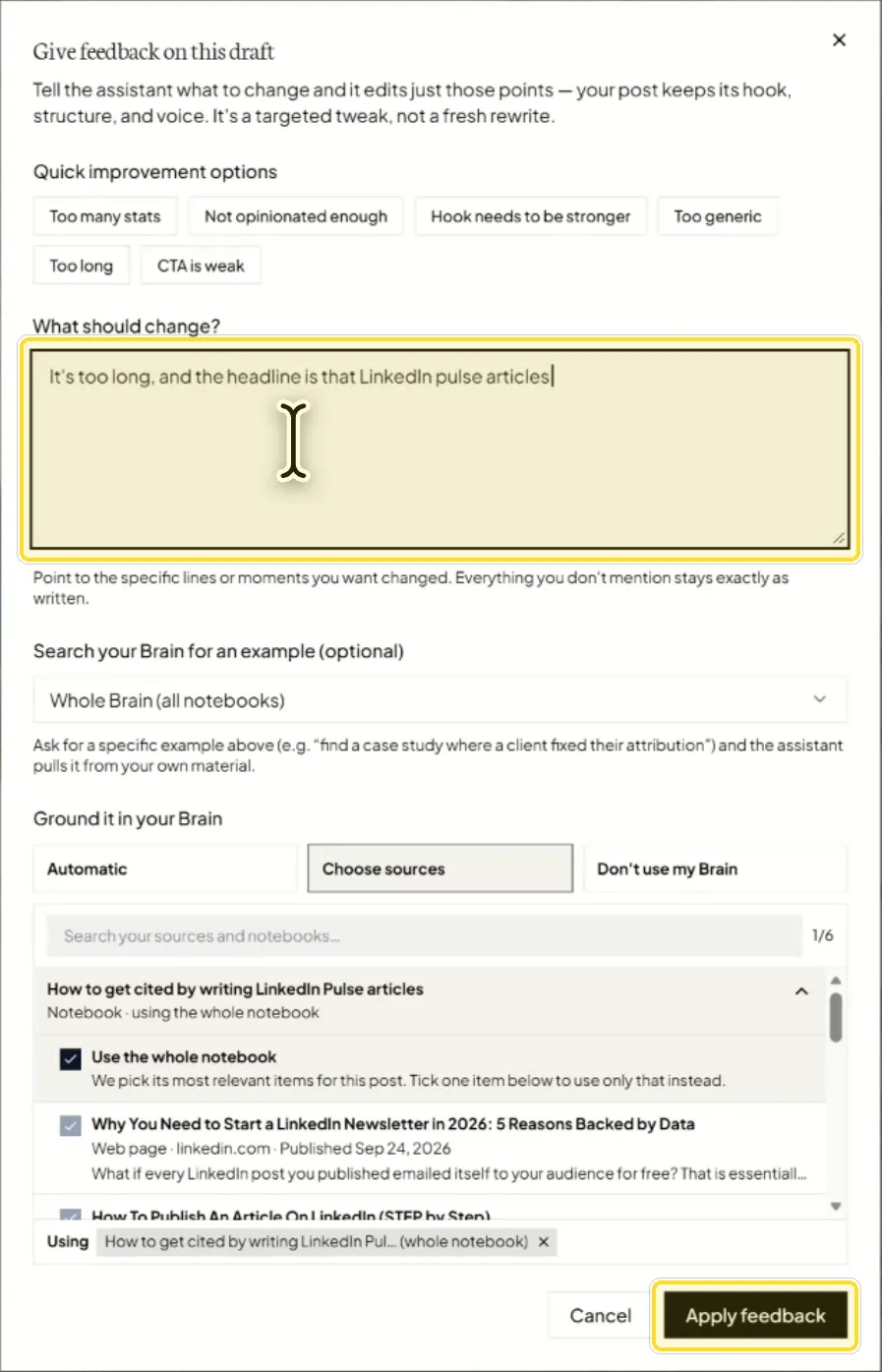
We asked for a shorter post that leads with the fact that LinkedIn articles rank well. Then we read it through and trimmed a few lines by hand. Always do that last read yourself.
Step 8: How do you check a carousel post before publishing?
Run the post score before you publish. It scores the post out of 100 and flags what tends to hold LinkedIn posts back:
- AI-sounding phrases, like "let's dive in".
- Hype words, like "game-changer".
- A weak opening line, like starting with a question.
- Engagement bait, like a lonely "Thoughts?" at the end.
It also checks that the post shares real experience and specific details. The checks are calibrated on the same study of 86,725 LinkedIn posts: for example, posts that opened with a question did worse, so the score flags them. (Our guide to LinkedIn hooks has the full story on first lines.)
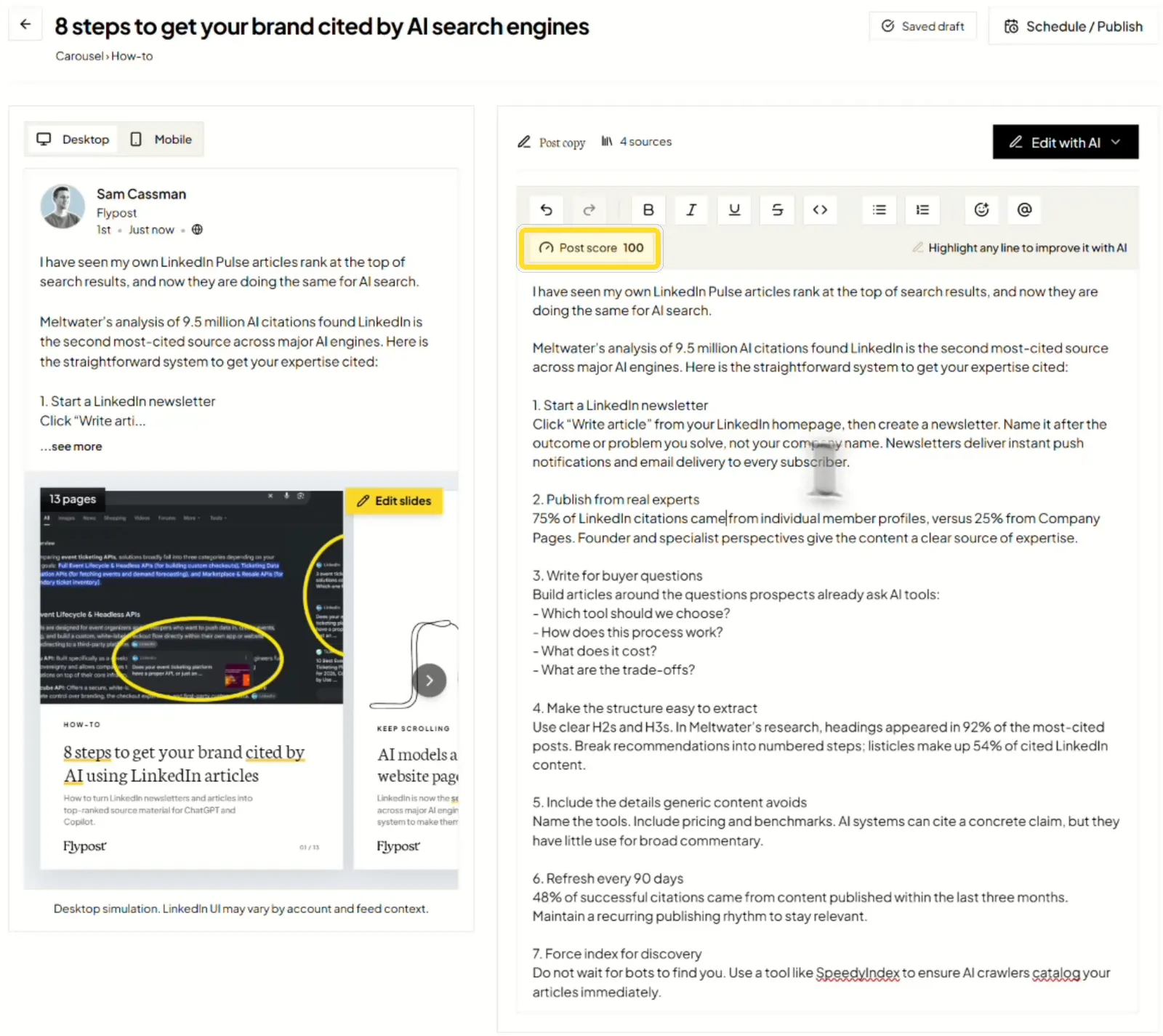
Ours came back at 100. If yours flags something, fix that line and run it again.
Step 9: How do you publish a carousel to LinkedIn?
Click Schedule / Publish, choose who it posts as, then pick Publish now or Schedule. Flypost turns your slides into a PDF, which is how LinkedIn shows carousels, and posts it straight to your profile. The images finish rendering in the background, so you don't have to wait on the screen.
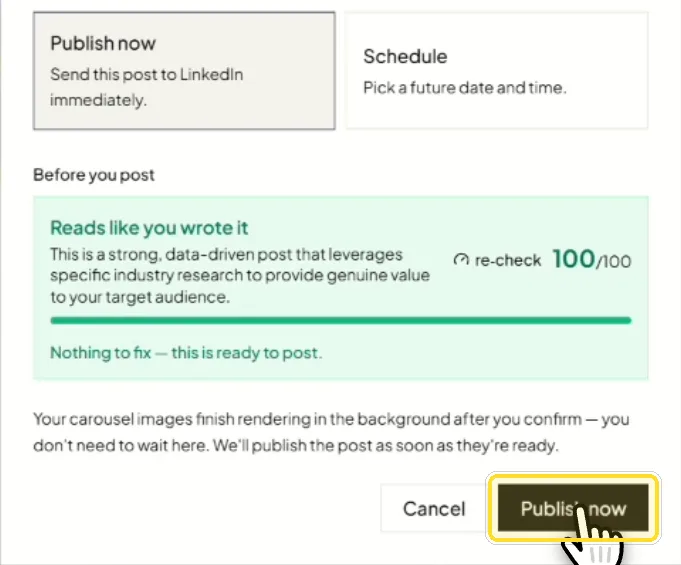
If you post at a regular time each week, use Schedule instead, and the carousel goes out at the time you choose.
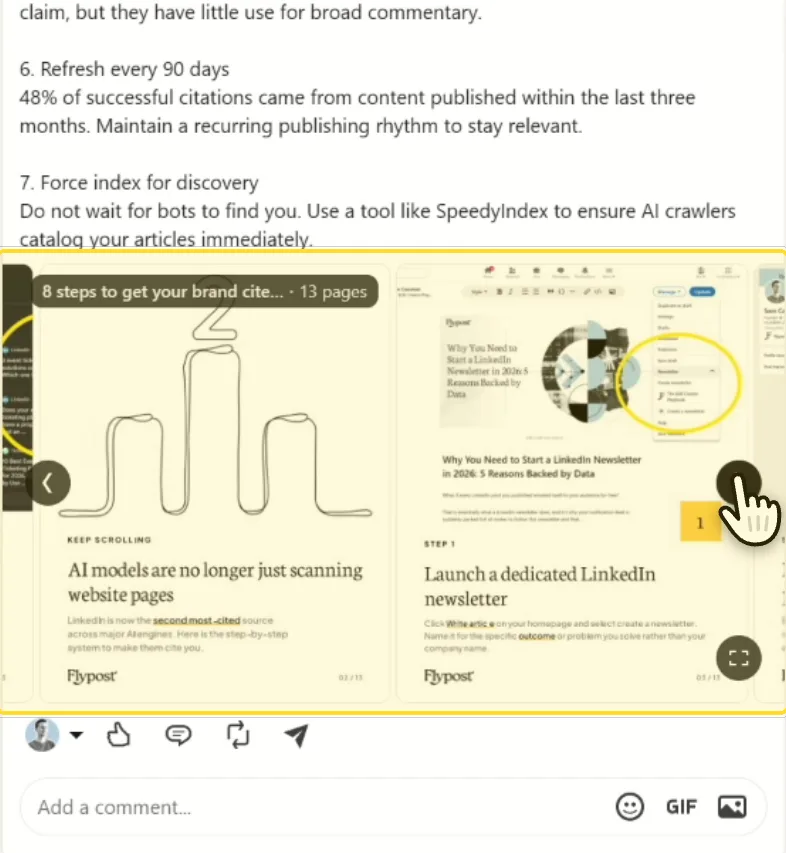
And there it is, live on LinkedIn: the post on top and the carousel underneath, ready to swipe.
How many slides should a LinkedIn carousel have?
More than you'd think. The usual advice is to keep a carousel under 10 slides, but our data points the other way: longer carousels got more reactions, all the way up.
| Slides | Carousels | Typical reactions |
|---|---|---|
| 2 to 5 | 1,004 | 27 |
| 6 to 8 | 1,061 | 29 |
| 9 to 11 | 742 | 39 |
| 12 to 15 | 422 | 47.5 |
| 16 or more | 303 | 57 |
That's across 3,532 carousels. One caveat: we couldn't compare each person against their own carousels here, because few people post enough of them, so this compares different posts. Treat it as a strong hint rather than a rule.
So write as many slides as your steps genuinely need. If your topic has 12 real steps, use them all, and don't cut it to 8 to hit a number. Padding is the one thing to avoid: every slide should earn its place.
What makes a good LinkedIn carousel?
A few things matter more than the template you pick:
- One idea per slide. If a slide needs two paragraphs, split it.
- A cover that says what's inside. "8 steps to get your brand cited by AI" tells people exactly what they'll get for swiping.
- Real proof. A screenshot, a number with a source or an example beats a stock image.
- Steps people can act on. Each slide should tell the reader what to do, not just what to think.
- A post that earns the swipe. The text above the carousel is your hook. Lead with the most useful or surprising point.
How we tested LinkedIn carousels
The engagement figures come from Flypost's study of LinkedIn posts: 130,000 posts collected from 2,500 B2B creators between July 2025 and July 2026, of which 86,725 were analysed.
For the carousel versus text comparison, we compared each person's carousels against their own text posts, which takes out the difference between people. 178 people had enough of both to test. For slide count, we grouped 3,532 carousels by number of pages and compared their typical reactions. Too few people post enough carousels to compare each person against themselves, so that one is a comparison of different posts.
The step-by-step screenshots come from building and publishing a real carousel in Flypost in October 2026, the one in the video above. Read the full study: how the LinkedIn algorithm works, from 86,725 posts.
Frequently asked questions
- How do you post a carousel on LinkedIn?
- Save your slides as one PDF and add it to a LinkedIn post as a document. LinkedIn shows each page of the PDF as a slide people swipe through. Tools like Flypost build the PDF from your slides and post it for you.
- How many slides should a LinkedIn carousel have?
- More than most advice suggests. In our data on 3,532 carousels, the typical carousel with 16 or more slides got 57 reactions, against 27 for one with 2 to 5. That compares different posts rather than the same person, so treat it as a strong hint: write as many slides as your steps need, and don't stop at 10 because someone said so.
- Do LinkedIn carousels get more engagement?
- A little. Compared with the same person's text posts, carousels got about 13% more reactions, and that held for about half of the 178 people we could test. They suit step-by-step content best. If you want the most reliable lift, a single image did better in the same study.
- Can I make a LinkedIn carousel for free?
- Yes. Flypost's free LinkedIn carousel generator builds one in your browser and downloads the PDF, with no signup. The full Flypost app adds writing from your own sources, AI images, the post copy, a post score and publishing, with a 7-day free trial.
- Can I make a LinkedIn carousel in Canva?
- Yes, but you write every slide, design each page and export the PDF yourself, then upload it to LinkedIn. A carousel tool does the writing and layout from your idea and sources, so you spend your time editing rather than designing.
Written by
Sam Cassman
Founder, Flypost · Chiang Mai, Thailand
I'm Sam. I built Flypost after watching too many good businesses sit on years of material (blog posts, call transcripts, case studies, half-finished decks) and post almost none of it.
I write everything here myself. When I claim something works on LinkedIn, it's because I tested it first-hand or ran the numbers across our own data. Where I'm working from a small sample, I'll say so. I'd rather be useful than certain.