
How to Remove "Open to Work" on LinkedIn

By Sam Cassman · Last verified
How do you remove "Open to Work" on LinkedIn? There are two separate things to remove. The green #OpenToWork photo frame comes off by clicking your profile photo, then Frames, then Original, then Apply. The setting behind it comes off separately, by clicking the Edit pencil on the "Open to work" box near the top of your profile and choosing Delete. We walked the current desktop flow in October 2026.
Are you trying to remove "Open to Work" from your LinkedIn profile? It sounds like one switch, and it is the reason this job is more annoying than it should be. Some people take the green ring off their photo and assume they are now invisible. Others delete the setting and are baffled that the green ring is still there the next morning. The guides that rank for this question tend to blur the two together, so we opened the current desktop flow and screenshotted it.
Most people think "Open to Work" is a single thing you turn off. It is two: a setting that holds your job preferences and decides who can see them, and the green #OpenToWork photo frame, which is part of your profile picture. They are removed in different places, and removing one does not remove the other.
In this article we'll cover what the two halves actually are, where the setting lives, how to delete it, how to take the green frame off your photo, and how to stay open to work without announcing it to your current employer. Read on to find out more.
What does "Open to Work" mean on LinkedIn?
"Open to Work" is a setting that tells LinkedIn you are looking for a job, and stores what sort of job you want. Depending on the visibility you pick, it can also add a green #OpenToWork ring around your profile photo. The ring is the part everyone recognises, but it is only the public face of the setting, not the setting itself.
That distinction is the whole page, so it is worth being blunt about it:
| The thing | What it is | Where you remove it |
|---|---|---|
| The setting | Your job preferences, plus who can see that you are open | The "Open to work" box near the top of your profile |
| The green frame | A ring on your profile photo reading #OpenToWork | Your profile photo, then Frames, then Original |
Take the frame off and the setting can still be on. Delete the setting and you have also dealt with the frame, because the frame only exists while you are sharing with everyone. Most of the confusion on this topic is people doing one and expecting the other.
Where is the "Open to Work" setting on LinkedIn?
It lives on your own profile, not in Settings. Under your headline there is a row of buttons, and the first is Open to. Clicking it opens a short menu, and "Finding a new job" is the entry that controls Open to Work.
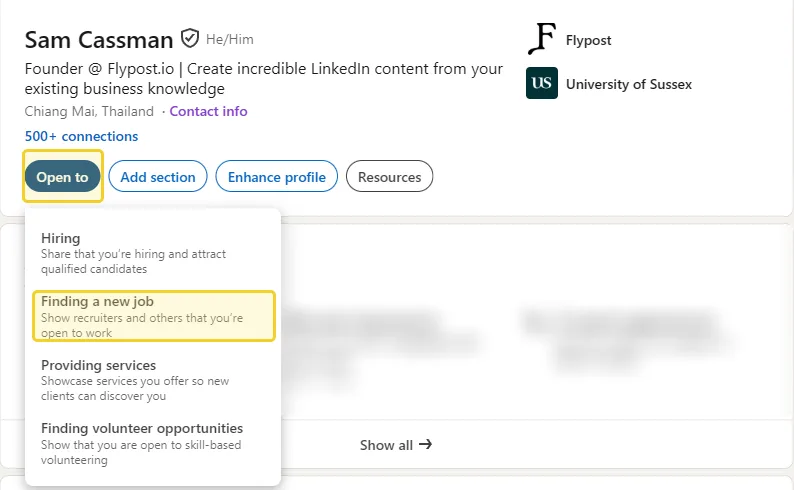
The same menu also offers Hiring, Providing services and Finding volunteer opportunities. Those are different badges with their own settings, so if your profile is showing something you did not expect, check which of the four you actually switched on.
Choosing "Finding a new job" opens a form headed Select your job preferences, which is where the setting keeps its contents: job titles, location types, locations and employment types.
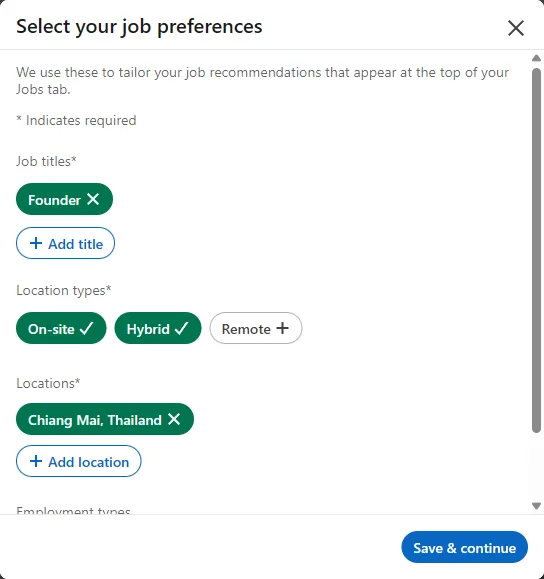
Knowing that this form is the setting makes the next part make sense. Deleting Open to Work throws this form away, which is why LinkedIn warns you about it.
How do you remove "Open to Work" from your LinkedIn profile?
If Open to Work is on, your profile carries an "Open to work" box near the top, under your headline. That box is the control. Click the Edit pencil on it, then choose Delete, and both the box and the sharing stop.
The steps, as LinkedIn documents them:
- Open your own profile.
- Find the "Open to work" box near the top of the page.
- Click the Edit (pencil) icon on that box.
- Choose Delete. Some versions label it "Delete from profile".
One honest note on this section. The account we tested on does not have Open to Work switched on, and we were not willing to switch it on for a screenshot, because doing so is visible to a real network. So the four steps above come from LinkedIn's help page Let recruiters know you're Open to Work, which was last updated about six months before we read it on 12 October 2026. Everything else on this page we saw with our own eyes. We would rather tell you which is which than draw you a screen we are guessing at.
How do you remove the green #OpenToWork frame from your LinkedIn photo?
This half we did check first hand, and it is four clicks. The frame is attached to your profile picture, so you remove it from the photo, not from the Open to menu.
Click your profile photo and the Profile photo dialog opens. Along the bottom are Edit, Update, Frames and Delete. You want Frames.
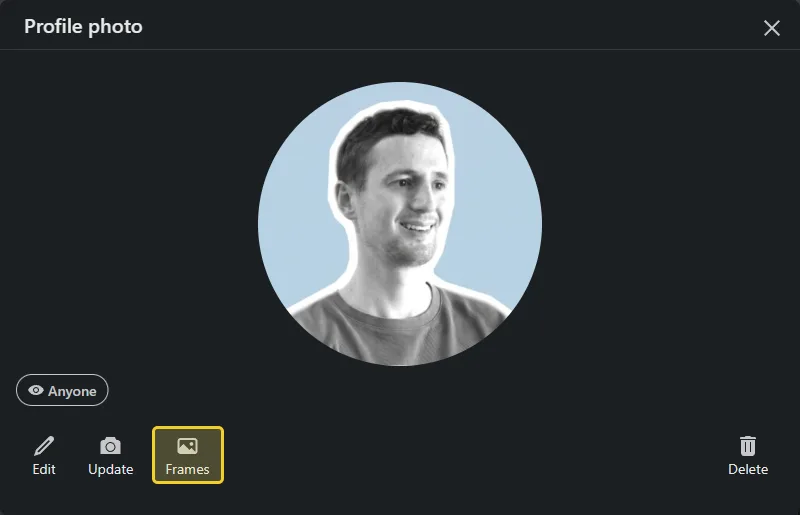
The Frames picker shows a big preview of your photo and three options underneath: Original, #OpenToWork and #Hiring. If the green ring is on your profile, #OpenToWork is the one currently selected, and the preview looks like this:
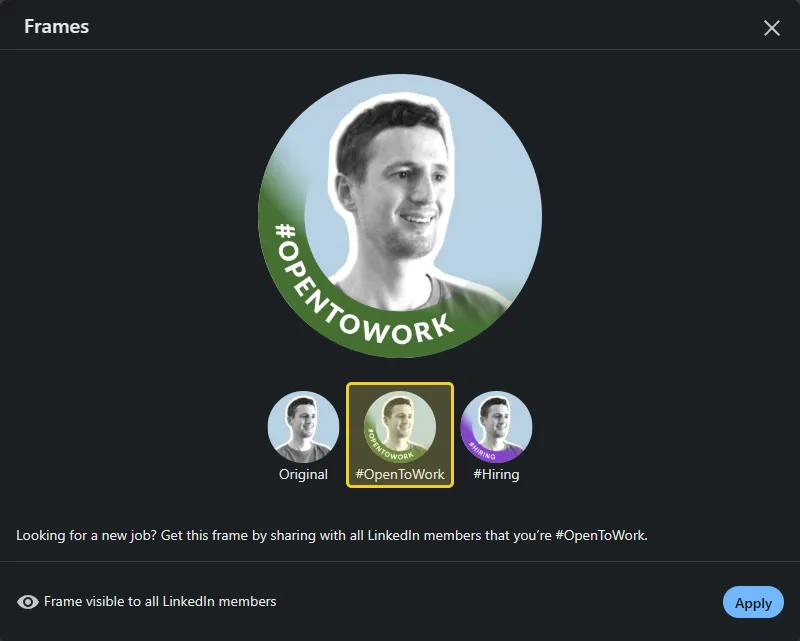
Choose Original, which is the option with no ring at all, and then click Apply.
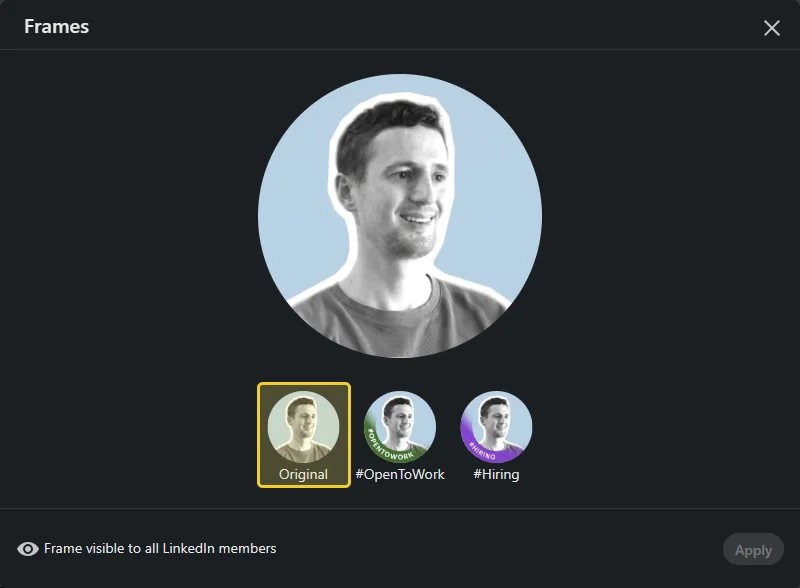
So the frame comes off in four clicks:
- Click your profile photo.
- Click Frames.
- Choose Original.
- Click Apply.
The #Hiring frame in the same picker works identically, if that is the one you are trying to shift. Choose Original and apply.
What this does not do is change the setting. The ring leaves your photo, and your job preferences and their visibility are still whatever you last set them to. If you want both gone, do the delete in the previous section as well.
Why does the #OpenToWork frame appear on some LinkedIn profiles and not others?
Because only one of the three visibility choices adds it. The frame comes with All LinkedIn members, the public option. Pick either of the other two and you are open to work with no ring on your photo at all.
LinkedIn says as much inside the picker itself: "Looking for a new job? Get this frame by sharing with all LinkedIn members that you're #OpenToWork." Underneath, it labels the frame "Frame visible to all LinkedIn members". The frame is the public setting made visible, which is exactly why taking it off by itself is not the privacy fix people assume it is.
Can you be open to work on LinkedIn without your employer seeing?
Largely, yes, by choosing who the setting is shared with rather than deleting it. LinkedIn offers three visibility choices on the job preferences form, and only the first is public.
| Visibility | Who can see it | Green frame? |
|---|---|---|
| All LinkedIn members | Anyone, including people at your current company | Yes |
| Recruiters only | People using LinkedIn Recruiter | No |
| Visible only to you | Nobody. It only tailors your job recommendations | No |
Recruiters only is the choice most job hunters actually want. One caveat matters, and LinkedIn is upfront about it: the platform tries to hide your Open to Work status from recruiters at your own company, but its help page says it cannot guarantee complete privacy. If someone in your HR team uses LinkedIn Recruiter, treat "hidden" as "probably hidden" and plan accordingly.
Visible only to you is the quiet option. Nobody is told anything; LinkedIn just uses your preferences to pick the jobs it shows you. It is also the setting to switch to instead of deleting if you want to pause without losing the form you filled in.
How do you remove "Open to Work" in the LinkedIn mobile app?
The same two destinations, reached by tapping rather than clicking: the "Open to work" box on your own profile for the setting, and your profile photo, then Frames, then Original, for the green ring.
We did not capture the app flow first hand, so we are not going to invent a sequence of tap labels for you. LinkedIn's help pages describe the same two routes on mobile, and the button names shift between app versions. Navigate by the destination: your own profile, then either the Open to work box or your photo. If the app is fighting you, open linkedin.com in a mobile browser and follow the desktop steps above, which work fine on a phone screen.
What should you do after removing "Open to Work" on LinkedIn?
Removing the badge is the easy part. If the reason you had it on was that you want to be found, the badge was never doing much of the work anyway.
- Decide which half you actually wanted off. Public ring gone but still open to recruiters? Frame to Original, visibility to Recruiters only. Done with the whole thing? Delete the box.
- Check your photo on a fresh page load. Profile pictures cache, so give it a minute and reload before concluding it did not work.
- Fix your headline while you are here. It travels everywhere your name appears, including search results and comment threads, and it does more for you than a ring ever did.
- Tell people in the feed instead. A post reaches your network; a badge waits for someone to visit your profile.
- Check what your profile looks like to other people, since you have just changed two things that only show from the outside.
On that fourth point, we do have data. In our study of 116,000+ LinkedIn posts from 2,400+ B2B creators, the single most reliable thing about a first line was writing it in the first person: posts opening with "I", "my", "we" or "our" earned about 19% more reactions than the same person's other openers, and it worked for about 7 in 10 of the 1,734 people we could compare that way. If your posts usually get 30 reactions, that is about 36.
Be clear on the limit of that, though: our data covers posts and reactions from B2B creators, not job offers. We can tell you what gets a post read. Nobody outside LinkedIn can tell you what gets you hired.
If you want to see your profile the way a stranger does once the frame is off, our guide to what LinkedIn shows about who viewed your profile covers what is visible from the outside and what is not.
How we checked these LinkedIn "Open to Work" steps
We walked the flow rather than summarising other guides. On 12 October 2026, signed in to a real LinkedIn account on Chrome on the desktop site, we opened the Open to menu, the Select your job preferences form, the Profile photo dialog and the Frames picker, and captured every screenshot on this page. Nothing was saved or applied: both dialogs were closed with the X, and the profile was checked afterwards to confirm it was unchanged.
Two things we did not see first hand, and have therefore described from LinkedIn's own documentation rather than a screen:
- The "Open to work" box and its Delete button, because the test account does not have Open to Work switched on and switching it on would have been visible to a real network. Those steps come from LinkedIn's help page Let recruiters know you're Open to Work, read on 12 October 2026.
- The three visibility choices, which sit on the second step of the preferences form, behind "Save & continue". We did not click through to it, so the descriptions come from the same help page. The frame picker's own wording, which we did see, agrees with it on the part that overlaps: the frame belongs to the all-members option.
The frame removal steps match LinkedIn's help page Change your profile photo frames, and we confirmed them in the live picker.
The engagement figures come from our LinkedIn algorithm study of 116,000+ posts, analysed from 2,400+ B2B creators between October 2025 and September 2026.
Frequently asked questions
- How do I remove Open to Work on LinkedIn?
- Open your own profile and find the 'Open to work' box near the top. Click the Edit pencil on that box, then choose Delete. LinkedIn's help page warns that your job preferences are not kept, so if you switch it back on later you fill the form in again.
- How do I get rid of the green #OpenToWork frame on my photo?
- Click your profile photo to open the Profile photo dialog, click Frames, choose Original, then click Apply. The picker offers three choices: Original, #OpenToWork and #Hiring. Original is the one with no frame.
- Does removing the green frame turn off Open to Work?
- No. The frame is a change to your photo. Your job preferences and who can see them are a separate setting on the 'Open to work' box, and you remove that on its own. Take the frame off and recruiters may still see that you are open.
- Will my current employer see that I am open to work on LinkedIn?
- It depends which visibility you chose. 'All LinkedIn members' is public and adds the green frame, so colleagues can see it. 'Recruiters only' shows it to people using LinkedIn Recruiter and adds no frame, though LinkedIn says it cannot guarantee complete privacy from recruiters at your own company.
- How do I remove Open to Work in the LinkedIn mobile app?
- The same two places as on desktop: the 'Open to work' box on your own profile for the setting, and your profile photo then Frames then Original for the frame. Tap labels differ between app versions, so go by those destinations rather than a fixed sequence of taps.
Written by
Sam Cassman
Founder, Flypost · Chiang Mai, Thailand
I'm Sam. I built Flypost after watching too many good businesses sit on years of material (blog posts, call transcripts, case studies, half-finished decks) and post almost none of it.
I write everything here myself. When I claim something works on LinkedIn, it's because I tested it first-hand or ran the numbers across our own data. Where I'm working from a small sample, I'll say so. I'd rather be useful than certain.