
How do I write a LinkedIn article with Flypost?
Last updated 25 October 2026
Quick answer
Go to Articles in the sidebar and click New article. Give it a topic, choose where the facts come from, check the outline Flypost suggests, and it writes the full article. When it's ready, click Publish to LinkedIn: articles are pasted into LinkedIn's own editor rather than posted for you.
Are you trying to write a proper long-form article on LinkedIn without losing a day to it? Flypost takes you from a topic to a finished article in a few steps, written in your voice and built from your own material, with a chance to shape the outline before a single paragraph is written.
In this guide we'll cover starting an article, reviewing the outline, editing it, and getting it onto LinkedIn. Read on to find out more.
How do I start a new article?
- Click Articles in the sidebar, then New article.
- Enter a Topic. You can also add an Angle (your take on it) and a Target query (what someone might search for to find it). Both are optional.
- Click Continue, then choose where the facts should come from: your Brain only, or your Brain plus research on the web.
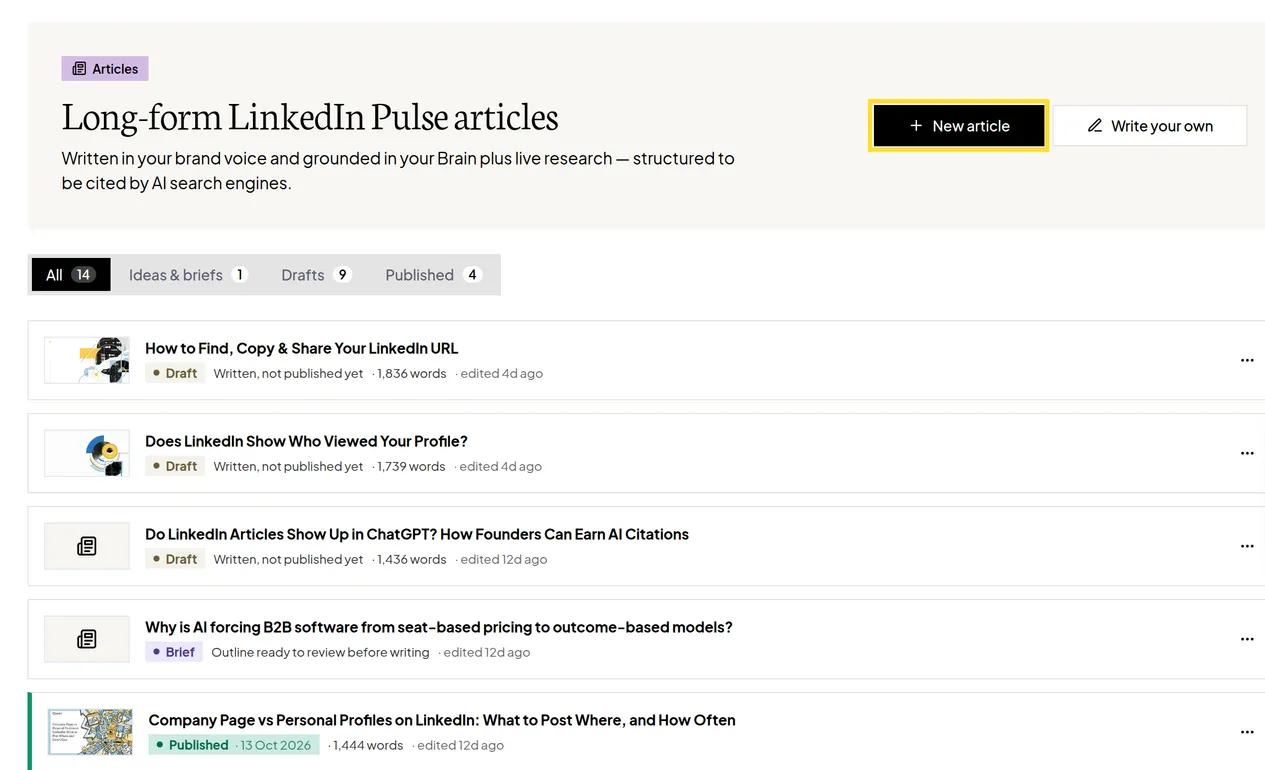
Prefer to write it yourself? Click Write your own for a blank article, and use the AI tools only where you want them.
How does the article brief work?
Before writing, Flypost shows you a brief: the outline of the article, section by section. This is the cheapest moment to change direction, so it's worth a look.
- Drag sections to put them in a different order.
- Use Feedback on the outline to ask for changes ("add a section on pricing", "fewer sections").
- When you're happy, carry on and Flypost writes the full article.
Articles move through the tabs on the Articles page as they progress: Ideas & briefs, then Drafts, then Published.
How do I edit an article with AI?
It works the same way as posts:
- Highlight any text and click Improve with AI to rewrite just that part.
- Use Edit with AI at the top for the whole article: Refine with feedback to change it, or Draft a new version to start again.
The Publishing checklist beside the article shows what makes a strong LinkedIn article, such as 800 to 1,800 words, 4 to 7 section headings and at least three sourced statistics, and ticks them off as you go.
How do I publish my article on LinkedIn?
LinkedIn doesn't let any app publish articles for you, so you finish in LinkedIn's own editor. Flypost makes it quick:
- Click Publish to LinkedIn at the top of the article.
- Follow the steps in the window: Copy article, Open LinkedIn, then paste and publish.
- The same window writes a short share post to go with it. Copy that too, to post when the article is live.
- Back in Flypost, mark the article as published from the menu on its row on the Articles page.
Common questions
- Can Flypost schedule or publish my LinkedIn article for me?
- No. LinkedIn doesn't let other apps publish articles, so Flypost copies the article for you and you paste it into LinkedIn's article editor. Flypost walks you through it step by step.
- How do I mark an article as published?
- On the Articles page, open the menu on the article's row and choose Mark as published. Flypost can't tell on its own when an article goes live.
- Why can't I click Publish to LinkedIn?
- The button switches on once the article has some body text. If it's still writing, wait for it to finish.