
How do I turn an idea into a finished post?
Last updated 25 October 2026
Quick answer
Click Draft on an idea in your Posts list. Flypost researches it from your Brain, then you click Draft with AI and choose a style. To change part of it, highlight the text and click Improve with AI; to change all of it, use Edit with AI. The Post score shows how much it sounds like you.
Are you looking at an idea and wondering how to turn it into something worth posting? The post editor does most of the heavy lifting: it researches the idea from your own material, writes a first draft in your voice, and gives you tools to change any part of it without starting again.
In this guide we'll cover developing an idea, drafting it, editing it with AI, the Post score, and the finishing touches like tags and changing the post type. Read on to find out more.
How do I start writing a post from an idea?
On the Posts page, click Draft on any idea card. The post editor opens.
If the idea hasn't been researched yet, Flypost does that first. You'll see a message like "Raiding your Brain for the good stuff…" while it finds the facts, stories and numbers in your Brain that fit the idea. For a text post, it stops at an outline so you can choose how to write it.
How do I write the first draft?
- In the Post copy card, click Draft with AI.
- Pick a Post style: Data driven, Controversial, Contrarian, Storytelling, Thought leadership, Educational or Provocative question.
- Choose how much to lean on your Brain: Automatic, Choose sources or Don't use my Brain.
- Add any instructions if you have them ("keep it under 150 words", "end with a question").
- Click Draft with AI.
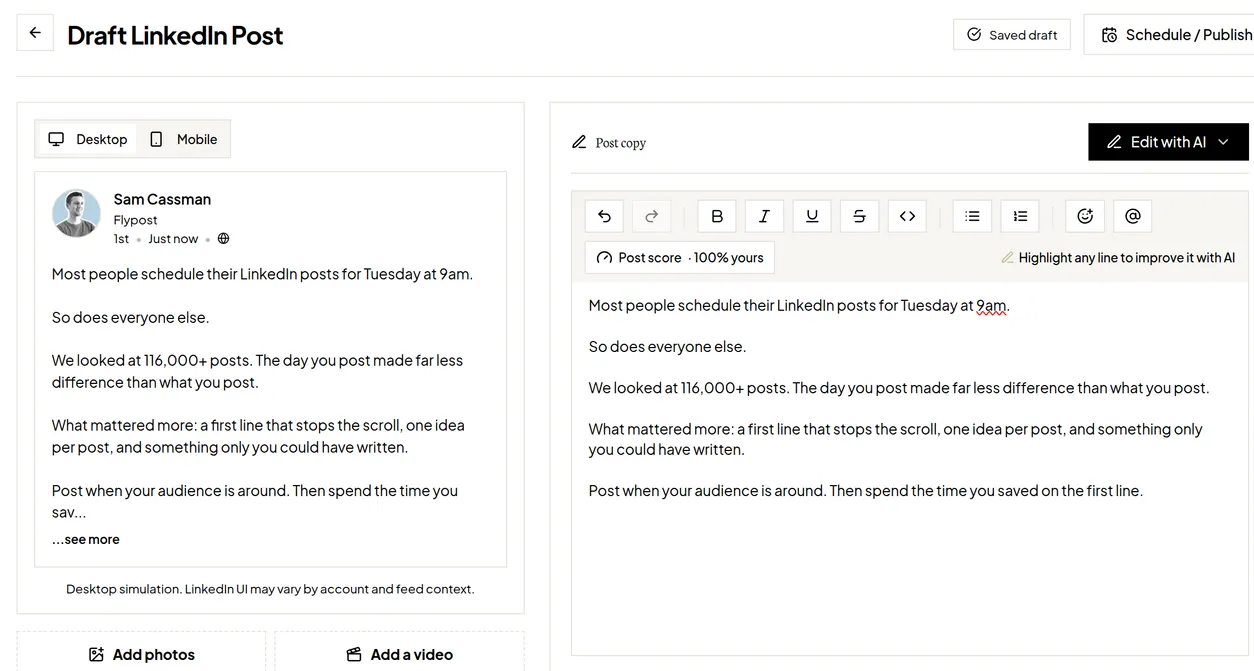
You can also just type. The editor works like any other: bold, italics, bullet points, numbered lists and emoji are in the toolbar.
How do I rewrite part of a post?
Highlight the sentence or paragraph you want to change, then click Improve with AI when it pops up. Tell it what you want ("make this punchier", "add a number") and click Rewrite.
Two switches can give it more to work with: Research with Perplexity looks up fresh facts on the web, and Pull from Brain finds supporting material in your own content. With either on, the button reads Research & rewrite.
How do I change the whole post?
Click Edit with AI at the top of the post copy:
- Refine with feedback keeps your draft and changes it the way you ask. Pick from the quick suggestions or type what should change, then click Apply feedback.
- Draft a new version writes a fresh one from scratch.
What is the Post score?
The Post score button in the toolbar checks how much the post sounds like a real person (you) rather than AI. It shows two things:
- Written by you: how much of the text you typed or edited yourself.
- Authenticity check: click Check with AI for a score and a verdict, from "Reads like AI slop" up to "Reads like you wrote it".
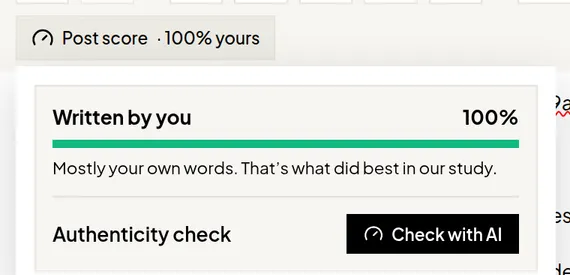
Under To lift this score you'll get specific suggestions, such as adding a real example. Find in Brain looks for one in your own material. Editing the post clears the score, so click re-check when you're done.
How do I tag a person or company?
Click the @ button in the toolbar, paste their LinkedIn profile or company page address, and click Add tag. The tag goes live when the post is published on LinkedIn.
Can I change the type of post?
Yes. On the Posts page, click the format label on the card (for example "Text post") to open the Change type menu: Text post, Carousel, Image, Infographic or Article.
You can also add a video to a text post with Add a video (MP4 or MOV, from 3 seconds to 10 minutes). A post can have a video or photos, not both.
What next?
When you're happy with it, schedule or publish it.
Common questions
- Why is the Draft with AI button greyed out?
- The idea hasn't been researched yet. Flypost develops an idea first (you'll see a message while it reads your Brain), and the button switches on when that's done.
- Why has my Post score disappeared?
- The score is cleared whenever you edit the text, because it no longer matches. Click re-check to score the new version. A blank score doesn't mean zero.
- How do I tag someone in a post?
- Click the @ button in the editor toolbar, paste the person's or company's LinkedIn profile address and click Add tag.
- Can I edit a scheduled post?
- Click Unschedule to edit, make your changes, then schedule it again. Scheduled and published posts are locked so what goes out matches what you approved.