
How do I schedule or publish a post to LinkedIn?
Last updated 25 October 2026
Quick answer
Open the post and click Schedule / Publish at the top. Choose who it posts as, then pick Publish now or Schedule and choose a day and time. Your scheduled posts appear on the Schedule page, where you can drag them to another day. You need a connected LinkedIn account first.
Are you ready to get a post onto LinkedIn? You can send it straight away or pick a time, and Flypost takes care of the rest, including posting as your company page or a teammate. Once a post is scheduled you can see everything going out on a calendar, and move things around by dragging.
In this guide we'll cover publishing and scheduling a post, the Schedule page, changing or cancelling a scheduled post, and what to do when something goes wrong. Read on to find out more.
What do I need before I can schedule posts?
A connected LinkedIn account. If you haven't done it yet, follow how to connect your LinkedIn account first. Until then, the editor shows "LinkedIn not connected" in place of the scheduling options.
How do I publish or schedule a post?
- Open the post and click Schedule / Publish at the top of the editor.
- If you have more than one account or company page, choose one under Post as.
- Choose Publish now to send it immediately, or Schedule to pick a time.
- If you're scheduling, pick a day on the calendar and a time. There are quick buttons for 7:30 AM, 9:00 AM, 12:00 PM and 5:00 PM, or type any other time. The line underneath confirms it, for example "Goes out Tue 27 Oct at 9:00 AM as Sam Cassman".
- Click Schedule post (or Publish now).
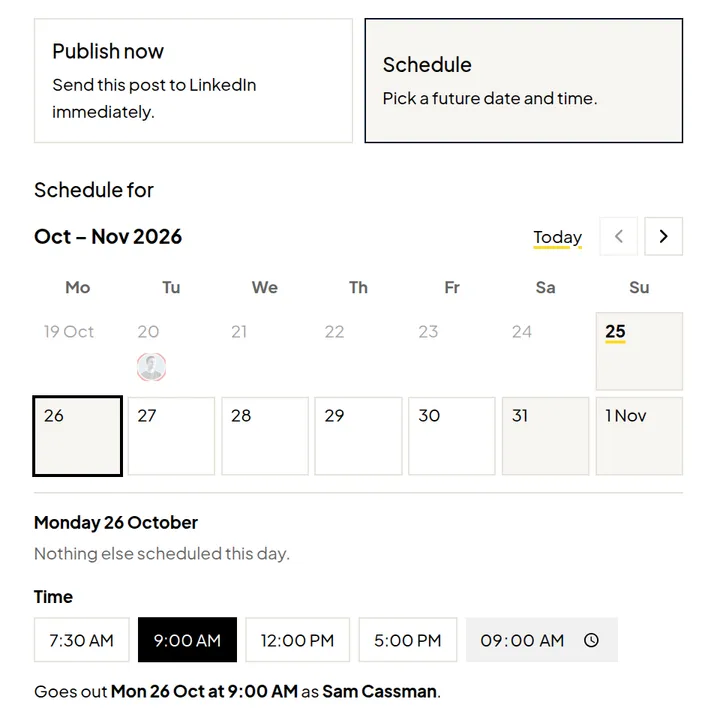
The window closes straight away and the post's status updates at the top of the editor. When it's done you'll see "Post scheduled on LinkedIn" or "Your post is live on LinkedIn".
Where can I see my scheduled posts?
Click Schedule in the sidebar. You'll see every scheduled and published post on a calendar, with a Month and Week view, or switch to List. The colours show each post's status: Scheduled, Publishing, Published, Failed, Cancelled or Unpublished.
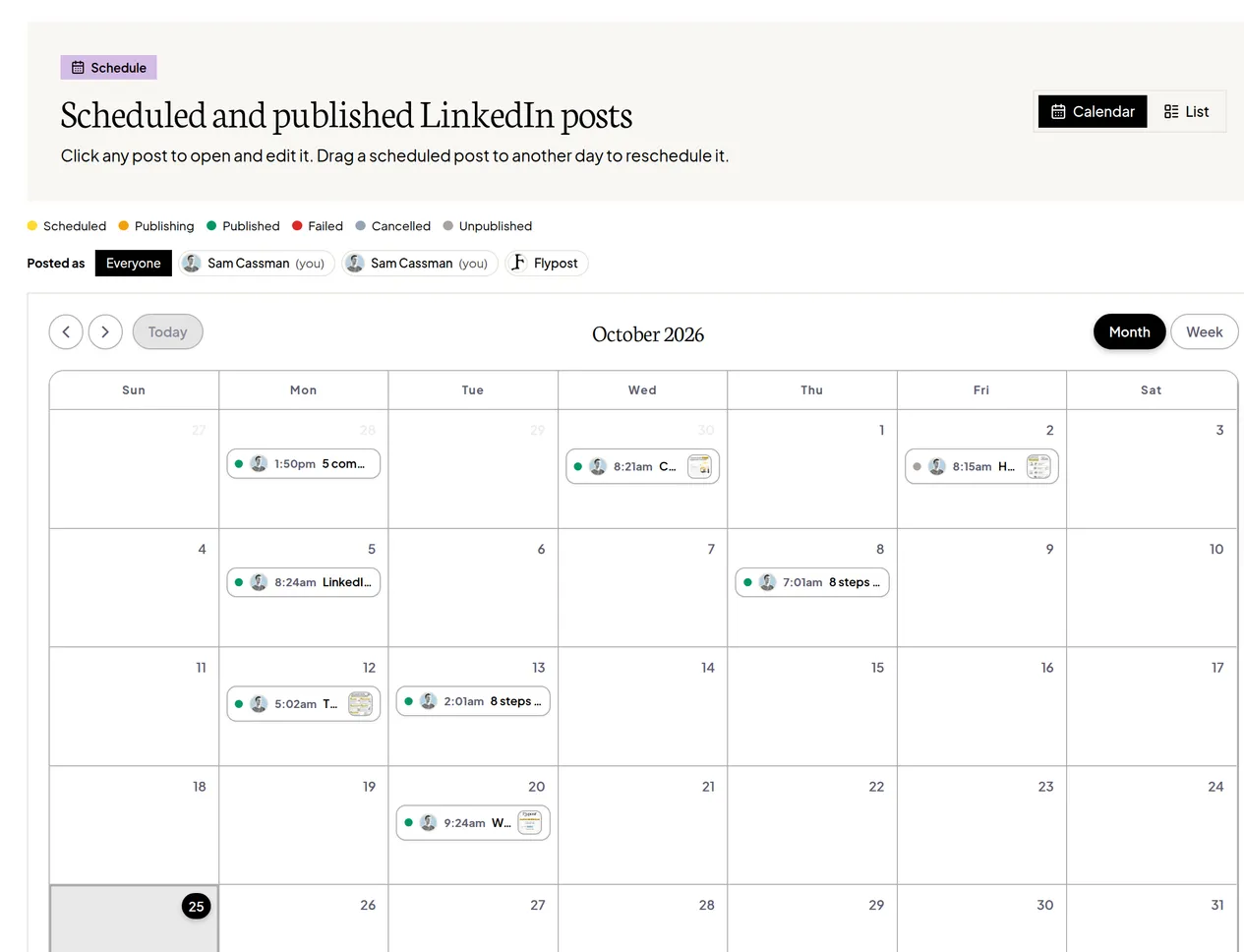
Click any post to open it. If more than one person posts from the project, use Posted as to see just one person's posts.
How do I move a scheduled post to another day?
On the Schedule page, drag it to another day. Only posts that are still scheduled for the future can be moved, and you can't drop a post into the past. In the List view, use Move post instead.
How do I change or cancel a scheduled post?
Scheduled posts are locked so that what goes out is exactly what you approved. To change one:
- Open the post and click Unschedule to edit (or Unschedule at the top).
- Confirm with Unschedule post. It goes back to being a draft.
- Make your changes, then schedule it again.
To cancel a post completely, unschedule it and leave it as a draft. If you'd rather keep the scheduled version and work on a copy, click Duplicate as new post.
What happens if a post fails to publish?
The post is marked Publishing failed, and the editor shows a red box with LinkedIn's reason. The most common causes:
| What you see | What to do |
|---|---|
| "Your LinkedIn connection expired" | Reconnect LinkedIn, then schedule the post again. |
| "LinkedIn posts must be 3000 characters or fewer" | Shorten the post. |
| "Publishing as a teammate requires the manager role" | Ask the project owner to make you a manager. See team roles. |
| "Subscribe to keep generating and publishing" | Your plan or trial has ended. See plans and billing. |
What does "Mark as unpublished" do?
If you delete a post on LinkedIn, Flypost doesn't find out straight away. Open the post's menu and choose Mark as unpublished to update Flypost's records. The post becomes an editable draft again. This doesn't delete anything on LinkedIn.
Common questions
- What time zone does Flypost schedule in?
- Your computer's own time zone. The time you pick is the local time on the device you're using, and that exact moment is sent to LinkedIn. There's no separate time zone setting.
- How do I edit a scheduled post?
- Open it and click Unschedule to edit. It goes back to being a draft, so make your changes and schedule it again.
- Why did my scheduled post disappear?
- Most likely your LinkedIn connection expired or was disconnected, which cancels everything scheduled through it. Reconnect LinkedIn in Project settings, then find the posts on the Posts page under the Not scheduled status and schedule them again.
- Is there a character limit?
- Yes, LinkedIn's own limit of 3,000 characters per post. Flypost won't schedule a post that's longer.
- I deleted a post on LinkedIn but Flypost still says Published. How do I fix that?
- Open the post's menu on the Posts page (or the editor header) and choose Mark as unpublished. It only updates Flypost's records and turns the post back into an editable draft. Nothing is deleted on LinkedIn.