
How do I invite my team to Flypost?
Last updated 25 October 2026
Quick answer
Open Project settings from the menu at the bottom of the sidebar, go to the Team tab, type your teammate's email and click Invite. They share the project's brand, Brain and posts and use your plan, so they don't need their own subscription.
Are you working on LinkedIn with colleagues, or getting someone to help with yours? You can invite as many people as you like to a project. They see the same brand, Brain and posts as you, and they use your plan, so there's nothing extra for them to buy.
In this guide we'll cover inviting someone, the three roles and what each can do, and how to let Flypost post as your colleagues. Read on to find out more.
How do I invite a teammate?
Only the project's owner can invite people.
- Click the button with your project's name at the bottom of the sidebar, then Project settings.
- Click the Team tab.
- Type your teammate's email address and click Invite.
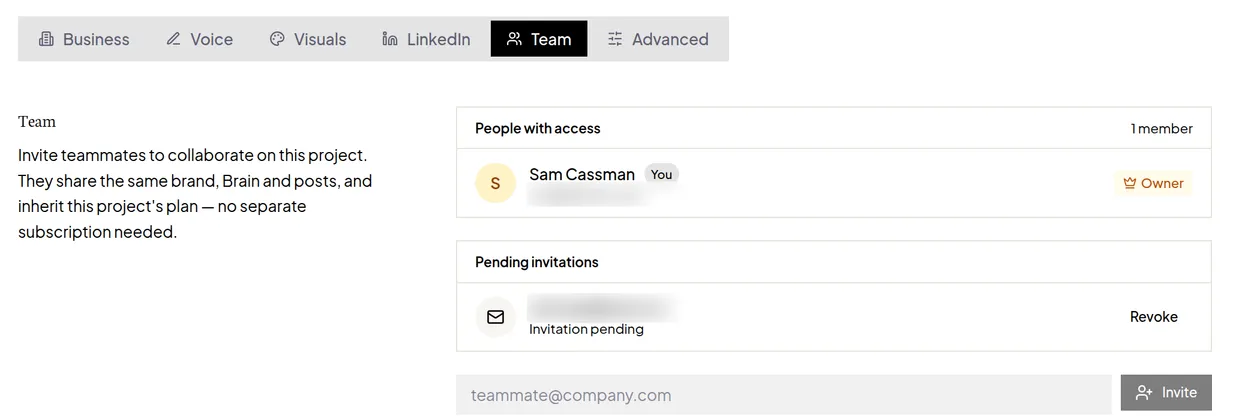
They'll get an email invitation. If the email can't be sent for some reason, Flypost gives you a link to copy and send them yourself.
Your teammate needs to accept while signed in with the email you invited. If they're signed in as someone else, they'll see "Wrong account" and a button to switch.
What can each team role do?
| Role | Can do |
|---|---|
| Owner | Everything: invite and remove people, change roles, delete the project |
| Manager | Post and schedule as anyone in the project |
| Member | Post as themselves and as company pages, but not as other people |
Everyone starts as a Member. To change someone's role, the owner picks Member or Manager from the dropdown on their row.
How do I post as a colleague?
Flypost can publish to your colleagues' own LinkedIn profiles, so the whole team posts from one place.
- Invite them to the project (above).
- They sign in, go to Project settings, then the LinkedIn tab, and click Connect LinkedIn. They'll be asked to confirm they're happy for posts to go out from their profile without asking them first.
- When you schedule a post, choose them under Post as.
Posting as other people needs the Pro or Agency plan, and each extra connected account is $10 a month. Only managers and the owner can post as someone else. See connecting LinkedIn for the details.
How do I remove someone or leave a project?
The owner can remove anyone from the Team tab. Removing someone also disconnects their LinkedIn from the project and cancels anything they had scheduled.
If you're a member and want to leave, open the Team tab and click Leave project.
Common questions
- Do teammates need to pay for their own Flypost plan?
- No. Teammates use the plan of the project they're invited to, at no extra cost. Connecting their LinkedIn for posting may be an extra $10 a month on Pro and Agency.
- My teammate's invite says 'Wrong account'. What do they do?
- They're signed in with a different email from the one you invited. They should click 'Sign out and switch account' and sign in (or sign up) with the invited email address.
- Can a member post as me?
- No. Members can post as themselves and as company pages. Only managers (and the owner) can post as other people in the project.
- What happens when I remove someone from the team?
- They lose access to the project, their LinkedIn is disconnected from it, and anything they had scheduled through it is cancelled.