
How do I add my content to the Brain?
Last updated 25 October 2026
Quick answer
Go to Brain in the sidebar and click Add a source. You can add your blog or site sections, a YouTube channel, a single web page, pasted notes, uploaded documents or Google Drive files. Flypost reads everything in full over the next few minutes and pulls in whatever is relevant each time it writes.
Are you wondering why some of Flypost's drafts sound more like you than others? It almost always comes down to the Brain. The Brain is your raw material: your blog, your videos, your documents, your notes. Every time Flypost writes, it pulls in whatever in there is relevant, so the more you add, the more your posts sound like your own expertise and the less they sound like everyone else's.
In this guide we'll cover what you can add, how to add it, how long it takes, how notebooks work and how your Brain stays up to date. Read on to find out more.
What can I add to the Brain?
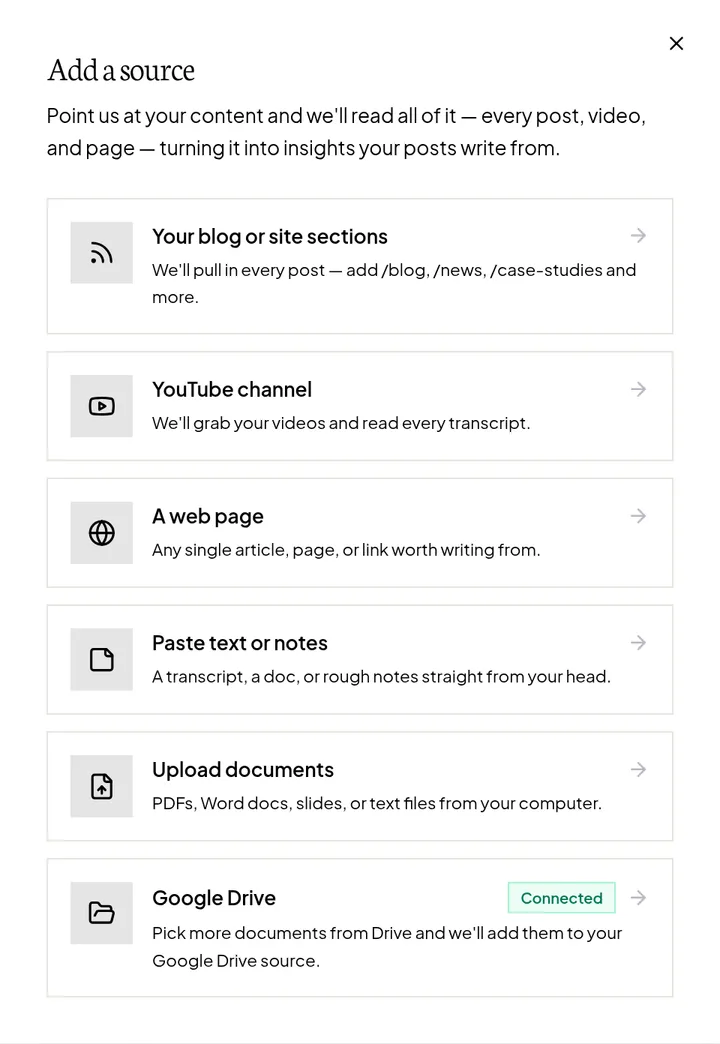
Click Brain in the sidebar, then Add a source. You can choose from six kinds of source:
| Source | What to give it | What Flypost does |
|---|---|---|
| Your blog or site sections | The address where your articles live, e.g. yourcompany.com/blog | Reads the whole archive, every post in full |
| YouTube channel | Your channel address, e.g. youtube.com/@yourchannel | Pulls the transcript of each video |
| A web page | One page's address | Reads just that page |
| Paste text or notes | Any text | Saves it as it is |
| Upload documents | PDF, DOCX, PPTX, TXT or MD files | Reads each file (up to 20 at once, each under 20MB) |
| Google Drive | Your Google account | Imports the Docs, Slides, PDFs and Office files you pick |
How do I add a source?
- Go to Brain and click Add a source.
- Choose the type of source.
- Paste the address, pick your files or paste your text. You can add a name if you like.
- Click Add to Brain.
Flypost shows you its progress ("Stocking your Brain…") and then tells you it's on its way in. You don't need to wait: it carries on in the background.
For a blog with more than one section (say /blog and /case-studies), click Add another
section. Each section becomes its own source, up to 12.
How long does it take to add a source?
Usually a few minutes. Each source card on the Brain page shows how it's getting on, for example "12 ready" and "3 processing", and says All ready when it's done. A big archive can take longer, because Flypost reads every piece in full rather than skimming.
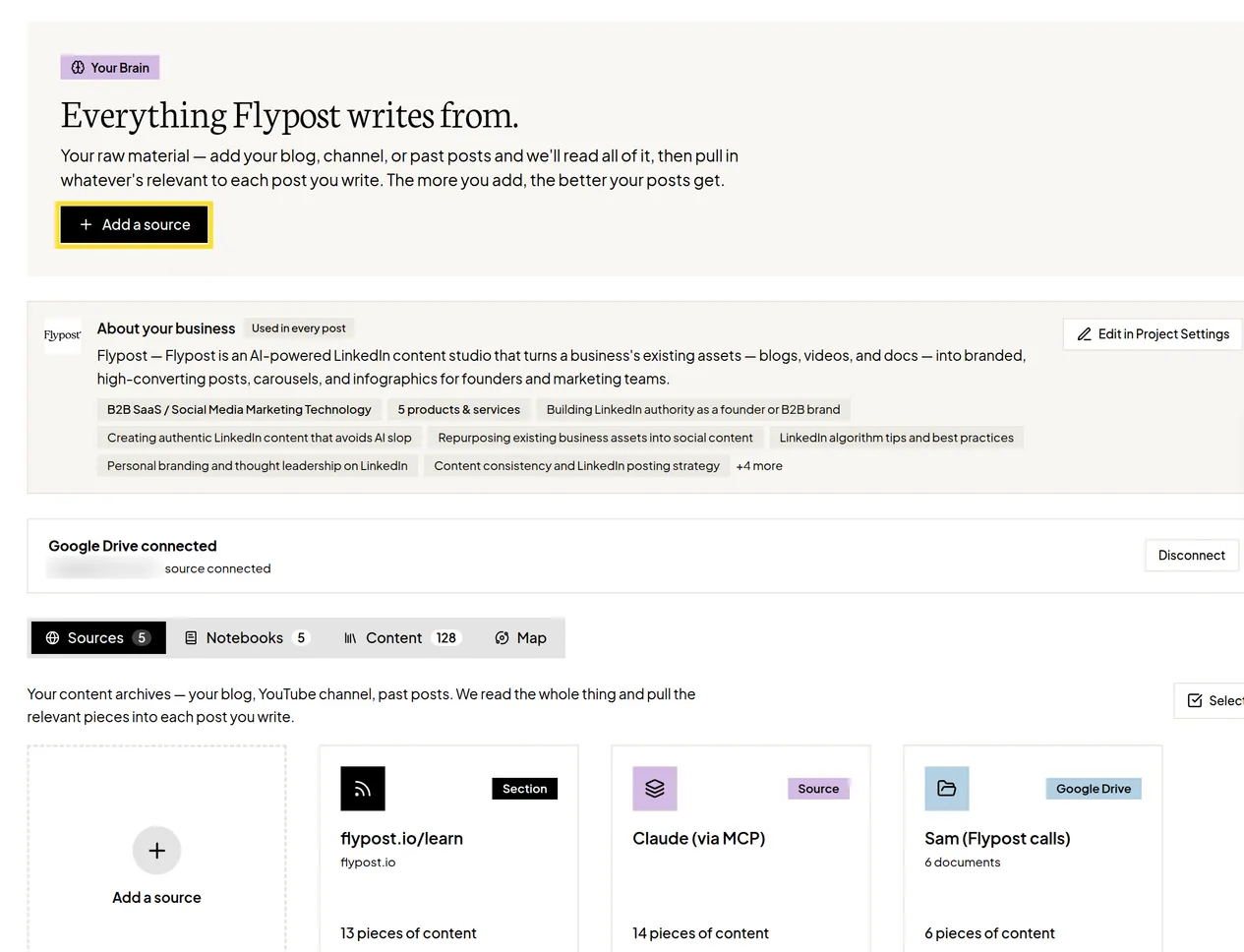
If a card shows a message instead, here's what it means:
| Message | What to do |
|---|---|
| "No content found at this address" | Check the address. It should be the page that lists your posts. |
| "Already covered by your other sources" | Nothing. You already have this content. |
| "We couldn't read this source" | Add it again. Some sites block automated reading. |
| "This is taking longer than usual" | Add it again. |
What are notebooks?
A notebook is a folder of material on one subject, like "Product launch" or "Industry reads". They're handy when you want ideas about one thing rather than everything in your Brain.
- On the Brain page, switch to the Notebooks view.
- Click New notebook, give it a name and click Create notebook.
- Inside it, add links, notes or files. Tick Did you write this? for your own work, so Flypost knows it's your voice and not someone else's.
When you brainstorm ideas, choose the notebook from the dropdown that normally says "Your whole Brain (everything)".
How does my Brain stay up to date?
- Blog and YouTube sources are checked every day on paid plans. New posts and videos are added automatically, and edited posts are re-read. (Free trials don't get the daily refresh.)
- Google Drive files update when you open the source and click Sync now.
- Your LinkedIn posts come in during setup and aren't refreshed automatically.
How do I remove something from the Brain?
Open the source and click the bin icon to delete it. To remove individual pieces, switch to the Content view, click Select, tick what you want gone, then click Delete. Deleted sources go to the Bin for 30 days. In the Bin they're labelled "Notebook", because sources and notebooks are stored together.
Common questions
- What file types can I upload to the Brain?
- PDF, Word (DOCX), PowerPoint (PPTX), plain text (TXT) and Markdown (MD). You can upload up to 20 files at once, each under 20MB.
- How long does it take to add a source?
- Usually a few minutes. A big blog or YouTube channel can take longer because Flypost reads every piece in full. If a source shows no progress for half an hour, try adding it again.
- Does the Brain update when I publish a new blog post?
- Yes, on paid plans. Flypost checks your blog and YouTube sources every day and adds new posts and videos. Free trials don't get the daily refresh. Google Drive documents update when you click Sync now.
- Should I add my homepage or About page as a source?
- No. Who you are and what you sell belongs in your Business context in Project settings, which is included in every post. Sources are for your articles, videos and notes.