
How do I set up my brand kit and writing voice?
Last updated 25 October 2026
Quick answer
Open the project menu at the bottom of the sidebar and choose Project settings. The Business tab is who you are and who you sell to, the Voice tab is how you write (and words to avoid), and the Visuals tab is your logo, colours and fonts. Changes save automatically.
Are Flypost's drafts close but not quite you? The fix is usually a few minutes in Project settings. This is where you tell Flypost who you are, who you're writing for and the rules you write by, and it applies all of it to every single post, idea and rewrite.
Flypost fills most of this in during setup by reading your website and your LinkedIn posts. It's worth checking, because a sharper description of your audience or one good "never do this" rule changes every draft that follows.
In this guide we'll cover the Business tab and the Voice tab, and what each setting actually changes. Read on to find out more.
Where are my brand settings?
Click the button with your project's name at the bottom of the sidebar, then Project settings. There are six tabs: Business, Voice, Visuals, LinkedIn, Team and Advanced.
There's no save button. Changes save automatically a second after you stop typing, and the button in the top-right corner shows Saving… then Saved.
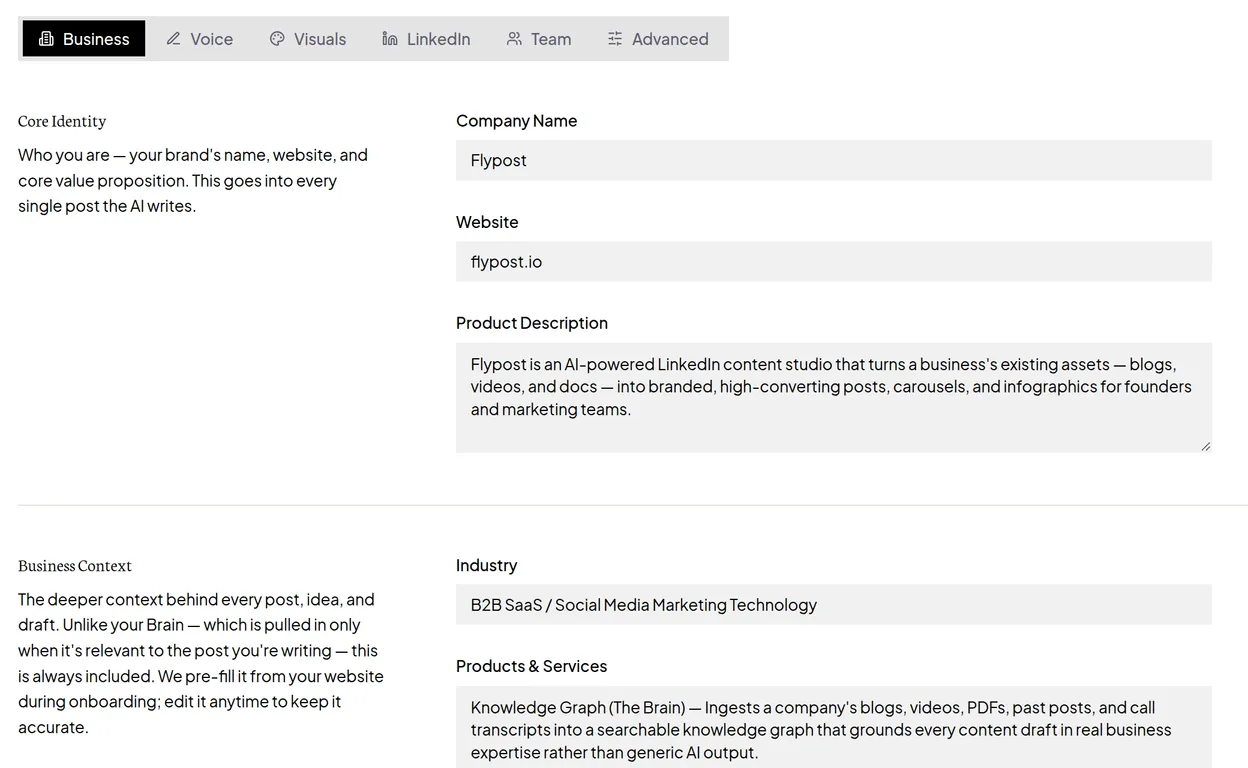
What goes on the Business tab?
The Business tab is the background Flypost always has in mind, whatever it's writing about.
- Core Identity: your Company Name, Website and Product Description.
- Business Context: your Industry, your Products & Services (one per line) and your Key Topics (separated by commas). Unlike your Brain, which is only pulled in when it's relevant, this is included every time.
- Target Audience: who you're writing for. Be specific: "founders of 10 to 50 person B2B software companies" gives far better ideas than "business owners". This also powers the audience-fit checks in Analytics.
How do I change my writing voice?
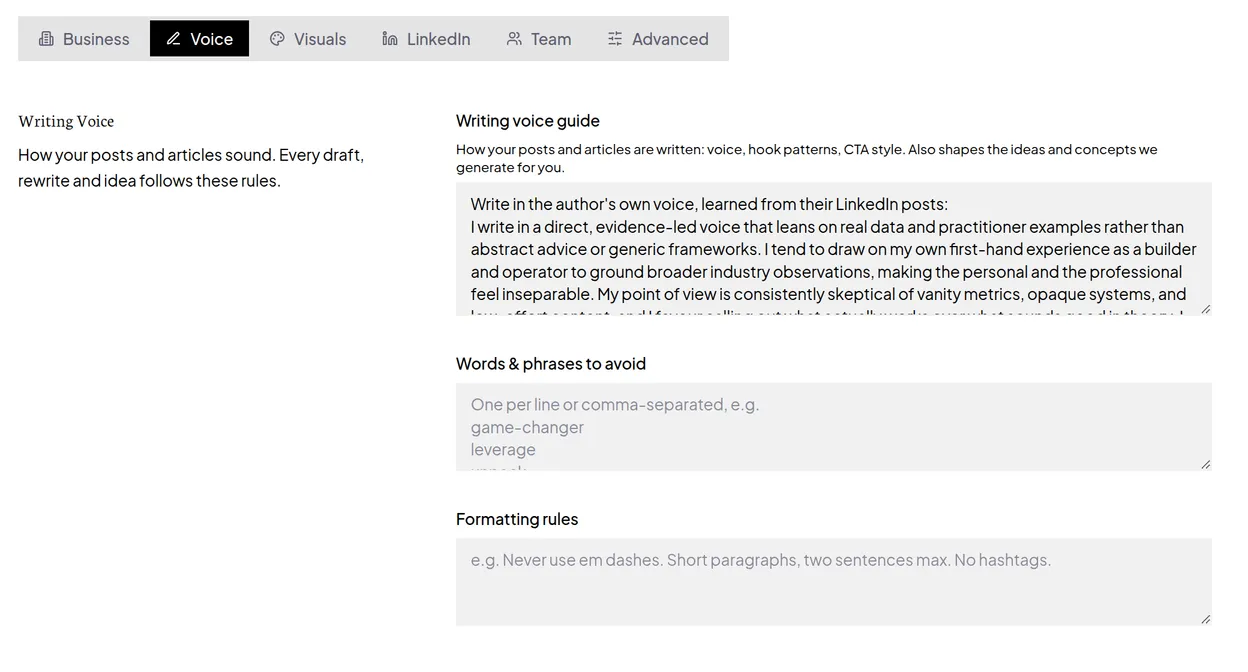
Go to the Voice tab. It has three boxes, and every draft, rewrite and idea follows them:
- Writing voice guide. How you sound: your tone, how you like to open a post, how you end one. If you added your LinkedIn profile during setup, Flypost wrote a first version from your own posts.
- Words & phrases to avoid. One per line, or separated by commas. Good for the words you'd never use ("leverage", "game-changer") and any you're sick of seeing.
- Formatting rules. The mechanical rules, for example "Never use em dashes", "No hashtags" or "Short paragraphs of one or two lines".
What goes on the Visuals tab?
The Visuals tab holds your logo, colours, fonts and other visual settings, which Flypost uses whenever it makes an image, carousel or infographic for you. These settings only change how visuals look, not how your posts are written. For that, use the Voice tab.
What does the LinkedIn tab do?
It has two separate jobs. Sync Recent Posts reads your public LinkedIn profile so post previews show your name and photo and drafts can learn from your recent posts. Posting to LinkedIn is where you connect your account so Flypost can publish. That second part has its own guide: how to connect your LinkedIn account.
Does changing my Company Name rename the project?
No. The name in the project menu is set when the project is created, and editing Company Name doesn't change it. If you need a project renamed, contact support.
Common questions
- How do I stop Flypost using em dashes or hashtags?
- Go to Project settings, then the Voice tab, and add it to Formatting rules, for example 'Never use em dashes. No hashtags.' Every draft, rewrite and idea follows those rules.
- Do I need to press save in Project settings?
- No. Changes save automatically about a second after you stop typing. The button in the top corner shows Saving, then Saved.