
How do I design an infographic?
Last updated 27 October 2026
Quick answer
Click Ready to design on an infographic post. Choose Designed layout (beta) to have it laid out in your brand with every word editable, or AI image to have it drawn in one of our styles. On a designed infographic, Edit design changes any part, and Revise with AI makes a new version you can undo.
Do you have a post full of numbers, steps or tips that would work better as a picture? Flypost turns an infographic idea into a finished graphic. You can have it laid out in your brand with every word editable, or drawn by an AI image model in one of our styles.
In this guide we'll cover the two ways to make an infographic, steering the design, editing it, changing it with AI and keeping track of versions. Read on to find out more.
How do I make an infographic?
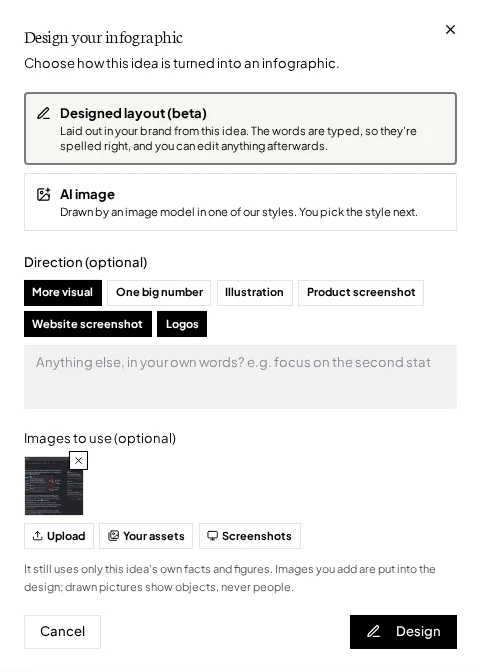
Open the infographic post. Once Flypost has researched the idea, the preview says Ready to design. Click it, and Design your infographic asks how you'd like it made:
- Designed layout (beta) lays it out in your brand from the idea. The words are typed, so they're spelled right, and you can edit anything afterwards. Click Design.
- AI image has it drawn by an image model in one of our styles. Click Choose a style to pick one (or Let AI decide), then generate it.
Already have a graphic? Click Upload your own instead.
Should I choose Designed layout or AI image?
| Designed layout (beta) | AI image | |
|---|---|---|
| Looks like | Laid out in your fonts, colours and logo | One of our illustrated styles |
| Words | Typed, so always spelled right | Drawn by the image model |
| Changing it | Edit any word, size, colour or position | Change the copy and generate a new one |
| Your logo | A switch in the editor | Include logo when you pick the style |
If you're not sure, start with the Designed layout. It's quicker to fix a word than to redraw a whole image.
How do I steer the design?
With Designed layout (beta) chosen, you can give it a direction. All of it is optional:
- Options to tick: More visual, One big number, Illustration, Product screenshot (once you've added product screenshots in Project settings), Website screenshot and Logos.
- Your own words in the box, such as "focus on the second stat".
- Images to use, up to three: Upload, Your assets or your product Screenshots.
These work the same way as for carousels. See steering a design for the details.
How do I edit a designed infographic?
Click Edit design under the preview (it's also in the Edit infographic menu). The Edit designed layout editor opens.
- Click anything to select it, including your footer. Drag to move it, or pull a handle to resize it. Shift-click, or drag across the background, to select several things at once.
- Double-click text to type. Enter finishes, Escape cancels.
- Selection has the text size, Text colour, Fill, Bring forward, Send back, Hide and Reset for what you've selected.
- Words lists every change you've made to the wording.
- Background changes the colour and texture. Back to the original undoes it.
- Footer has two switches, Your profile and Company logo. Switching them redraws the design, with no AI and no cost.
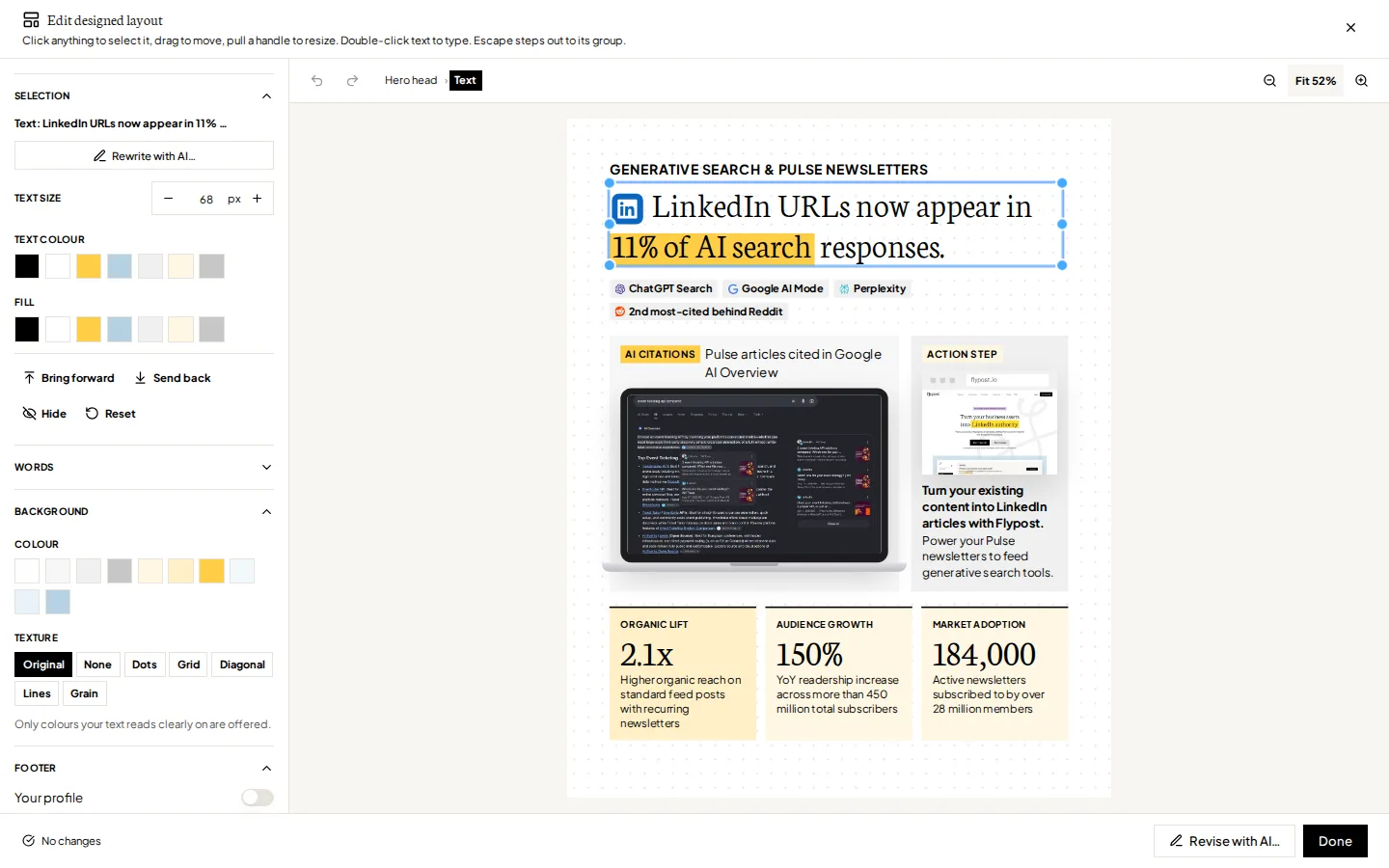
Click Done to apply your changes. The cross in the top corner closes the editor without saving, and asks first if you've changed anything.
How do I rewrite one part with AI?
Select a part, such as the headline, a stat box or a card, and click Rewrite with AI…. Flypost writes three replacements from the post's own research, in the same place and the same design. Click Use this on the one you like, or say what you'd like instead and click Suggest again. Undo takes it back.
How do I change the whole design with AI?
Click Revise with AI… at the bottom of the editor, say what should change, and click Revise. For example: "Make the 11% much bigger and move the logos to the bottom."
Flypost revises the design as it is now, your edits included, and leaves everything else alone. It takes about a minute and comes back as a new version. If you prefer the one before, click Undo revision under the preview. The revision isn't deleted; it stays in your versions.
How do versions work?
Every design, revision, AI image or upload of the post is kept as a version. Switch version under the preview shows how many there are and lets you pick the one that goes out.
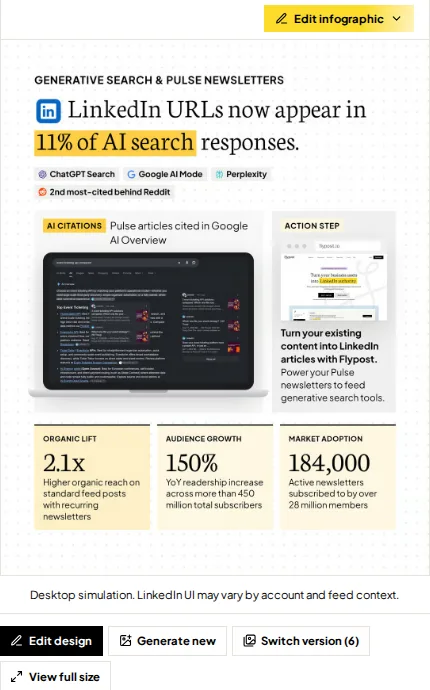
Generate new makes another one, with the Design your infographic choice again, and View full size opens the image on its own.
What next?
Write the text that goes with your infographic in the post editor, then schedule or publish it.
Common questions
- How long does a designed infographic take?
- Usually under a minute. Revise with AI takes about a minute too. The preview shows what it's doing while it works.
- Does designing an infographic use up my plan?
- A new design and Revise with AI count towards your plan's monthly image allowance, as AI images do. Editing a design, Rewrite with AI and the footer switches don't.
- Why does my infographic say Updating your design when I open the post?
- We've improved the parts designs are built from since it was made, so Flypost redraws it with your words and edits. It's free and takes a few seconds. Scheduled and published posts are never changed.
- Can I use an infographic I made somewhere else?
- Yes. Click Upload your own on the post (or in the Edit infographic menu) and choose the image.
- How do I change a number on a designed infographic?
- Numbers that draw a chart come from the idea, so they can't be typed over. Change them under What the infographic says, then click Generate new for a fresh design.