How do I make an Image post?
Last updated 27 October 2026
Quick answer
An Image post is one picture with your post. Click Ready to generate on the post to make it. Striking stat and Comparison images can be a Designed layout (beta), laid out in your brand and editable afterwards, or an AI image. Product in situ, Meme take and Let AI decide images are always drawn by an AI image model.
Do you want a single, eye-catching picture to go with your post? An Image post is just that: one image, made from your idea, that stops people scrolling. Flypost can lay it out in your brand or have an AI image model draw it, depending on the kind of image.
In this guide we'll cover the kinds of Image post, how to make each one, and how to change, brand and swap the image afterwards. Read on to find out more.
What kinds of Image post are there?
Each Image post has a kind, which Flypost picks when it comes up with the idea. When you brainstorm with Images selected, you can choose which kinds you want under Choose your styles.
| Kind | What it shows | Designed layout? |
|---|---|---|
| Striking stat | One bold number or claim | Yes, or AI image |
| Comparison | A two-panel contrast, old vs new or A vs B | Yes, or AI image |
| Product in situ | Your product, with a human annotation | AI image only |
| Meme take | A relatable meme about a pain point | AI image only |
| Let AI decide | A picture the AI designs for the post | AI image only |
You'll see the kind under the post's title, for example "Image › Striking stat".
How do I make a Striking stat or Comparison image?
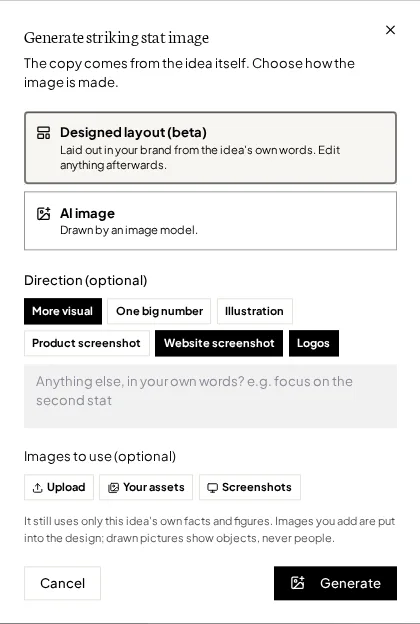
- Open the post and click Ready to generate in the preview.
- Choose Designed layout (beta) to have it laid out in your brand from the idea's own words, or AI image to have it drawn by an image model.
- For a Designed layout, give it a direction if you like: tick options such as One big number, add your own words, or choose up to three images to use. It's all optional.
- Click Generate. It's usually ready in under a minute.
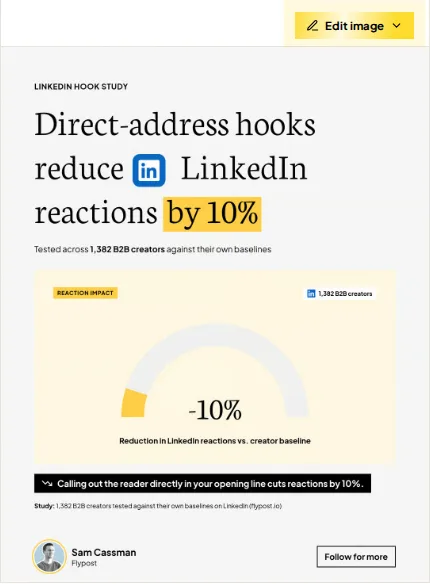
A designed image works exactly like a designed infographic: Edit design opens the editor, where you can change any word, size, colour or position, use Rewrite with AI on one part or Revise with AI on the whole image, and turn your profile and logo on or off. See how to edit a designed infographic.
How do I make the other kinds of image?
Click Ready to generate in the preview, and Flypost asks for what that kind needs:
- Product in situ: Choose a screenshot of your product to feature, or leave it on Auto. You need at least one product screenshot in Project settings first; without one, Flypost sends you there to add it.
- Meme take: pick a meme style in Generate meme image, then generate it.
- Let AI decide: click to generate. To steer the picture first, open What the image says and use Suggest 3 ideas, or describe the picture yourself.
How do I change the words on an AI image?
An AI image has its words drawn in, so you change them before you redraw it. Under the post, click Show image copy on the What the image says card. Edit the words directly, or click Redevelop with feedback, say what's off, and click Rework the copy.
Neither changes the image on its own. When the copy reads right, open Edit image and click Generate new.
How do I add my logo?
- AI image: open Edit image and choose Add logo to place your logo on it. Some Comparison images have Edit & frame instead, which adds your header, footer and logo around the image.
- Designed layout: use the Company logo switch in the editor's Footer section.
Both use the logo from your brand kit.
Can I go back to an earlier image?
Yes. Every image you make for a post is kept. Click Switch version under the preview to pick the one that goes out. After a Revise with AI, Undo revision brings back the design before it. Upload your own uses an image you already have instead, and View full size opens the image on its own.
What next?
Write the text that goes with your image in the post editor, then schedule or publish it.
Common questions
- Why can't I choose Designed layout for my image?
- Only Striking stat and Comparison images can be a Designed layout. Product in situ, Meme take and Let AI decide images are always drawn by an AI image model.
- Why does my Product in situ image ask me to add a screenshot?
- A Product in situ image is built around a real screenshot of your product. Add one in Project settings, on the Visuals tab under Product Screenshots, then generate the image.
- I changed the words under What the image says, but the image hasn't changed. Why?
- Changing the copy never redraws the image on its own, so you can get the words right first. Click Generate new on the image when it reads right.
- Does generating an image use up my plan?
- Each new image, designed or drawn, and each Revise with AI counts towards your plan's monthly image allowance. Editing a designed image doesn't.