
How do I design a carousel?
Last updated 27 October 2026
Quick answer
When a carousel's slides are written, its preview says Ready to design. Click it and choose Designed layout (beta), which lays your slides out in your brand, or Template. Click Edit design to change anything on a slide, Revise with AI to change the whole deck, and Render PDF to see exactly what LinkedIn will get.
Have you written a carousel and now need it to look the part? Flypost can lay your slides out for you in your own brand, with your fonts, colours and logo, and then let you change anything on any slide. If you'd rather use one of the ready-made carousel templates, that's there too.
In this guide we'll cover choosing how a carousel is designed, steering the design, editing the slides, changing them with AI, and checking the PDF before it goes to LinkedIn. Read on to find out more.
What does "Ready to design" mean?
Once Flypost has researched a carousel and written its slides, the preview on the post says Ready to design. Click it, and the Design your carousel box asks how you'd like the slides designed:
- Designed layout (beta) lays your slides out in your brand, adding pictures, logos and charts where they help. You can edit anything afterwards.
- Template puts your slides on one of the carousel templates. Click Choose a template to pick one.
The Designed layout uses the fonts, colours and logo in your brand kit, so it's worth checking them first. See the Visuals tab.
How do I steer the design?
With Designed layout (beta) chosen, everything under Direction (optional) is up to you. Leave it empty and the designer decides, or:
- Tick any options: More visual, One big number, Illustration, Product screenshot, Website screenshot or Logos. Product screenshot only appears once you've added product screenshots in Project settings.
- Add your own words in the box, such as "focus on the second stat" (up to 300 characters).
- Choose images to use (up to three): Upload one (PNG, JPEG or WebP, up to 15 MB), pick one from Your assets, or choose one of your product Screenshots.
- Click Design. A new carousel takes about two to three minutes.
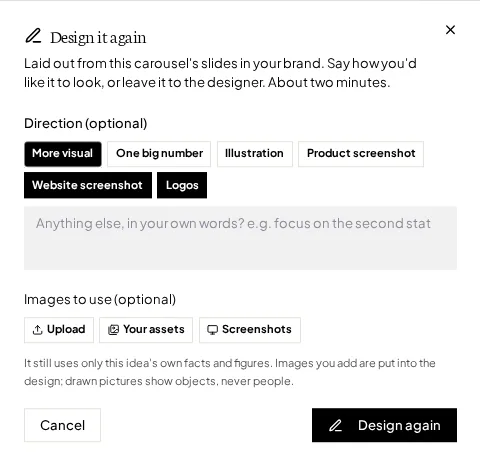
The design only uses the facts and figures in your idea, whatever you ask for. Pictures Flypost draws for you show objects, never people. Next time you design the same post, it starts from the options and images you picked last time, with an empty box for your words.
How do I edit a designed carousel?
Click Edit design on the preview. The editor opens full screen, with your slides down the left, the slide you're working on in the middle and your tools on the right. Use the arrows (or the ← and → keys) to move between slides.
- Click anything on a slide to select it. Drag it to move it, or pull a handle to resize it.
- Double-click any text to type. Enter finishes, Escape cancels.
- With something selected you can change its text size, its Colour and its Fill, bring it forward or send it back, Hide it or Reset it. Delete hides it too, and the arrow keys nudge it.
- Hidden on this slide lists anything you've hidden, with Show to bring it back.
- Logo has two switches, Show logo and Show your profile, for the header of every slide and the cover.
- Colours changes the Background and Texture of every slide. Only colours your text reads clearly on are offered, and Reset goes back to the original.
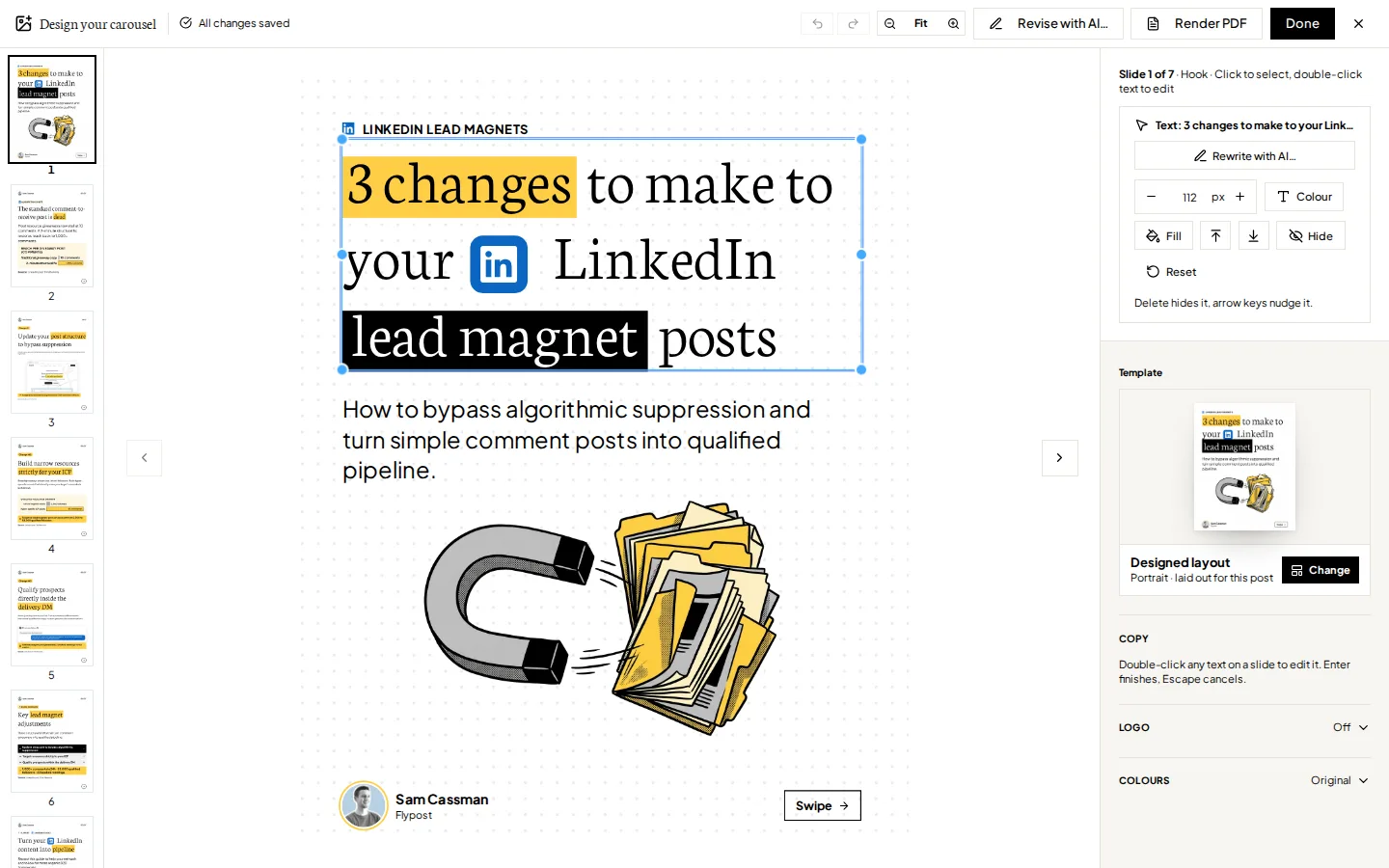
Your changes save as you go (the top bar says All changes saved), and Undo and Redo are next to it. Click Done when you've finished. If an edit causes a problem, such as text too small to read, a Heads up note appears above the tools so you can undo it or adjust it.
How do I rewrite one part with AI?
Select a part of a slide, such as the headline, a stat or a card, and click Rewrite with AI…. Flypost writes three replacements from the post's own research, in the same place and the same design. Click Use this on the one you like, or type what you'd like instead and click Suggest again.
Undo takes it back. If the part draws a chart from its numbers, the numbers stay and only the words change.
How do I change the whole carousel with AI?
Click Revise with AI… in the editor's top bar, say what should change, and click Revise. For example: "Make the numbers on slides 2 and 3 much bigger, and give the cover more space."
Flypost revises the carousel as it is now, your edits included, and leaves the rest alone. It takes a minute or two, and the preview shows Revising your carousel… while it works.
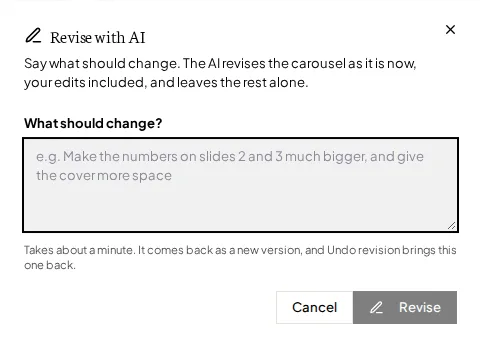
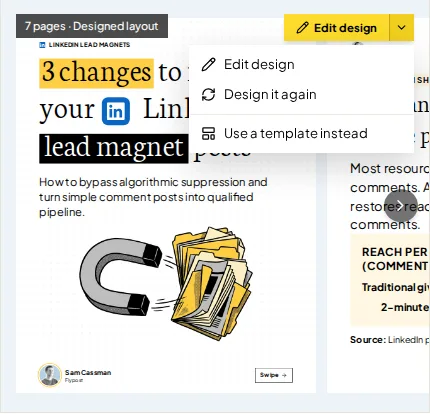
Not keen on the result? Click the arrow next to Edit design on the preview and choose Undo revision to get the carousel back as it was. Redo revision swaps the revision back in.
Can I start the design again?
Yes. In the same menu, Design it again makes a new layout from scratch, with the direction box so you can steer it differently. It replaces the design you have now, edits and all, so use it when you want a fresh start rather than a tweak. For a tweak, Revise with AI is the better choice.
How do I switch between a template and a designed layout?
- To a template: choose Use a template instead from the menu next to Edit design (or Change on the Template card in the editor). Flypost keeps your design to one side.
- Back to the designed layout: on the template carousel, click the arrow next to Edit slides and choose Designed layout (beta). A design you had before comes straight back, with your edits. If there wasn't one, you'll get the direction box to design it.
On a template carousel, Edit slides opens the template editor, and the menu next to it has Edit text, Change template and, when the template has room for pictures, Add images.
How do I check the PDF?
LinkedIn shows a carousel as a document you swipe through, so Flypost sends it as a PDF. Click Render PDF in the editor to make that PDF and open it: it's exactly what would be posted.
Rendering is free, as it uses no AI. Any slides you've edited since the last render are redrawn first, and Flypost does the same automatically before the carousel is published.
What next?
Write the text that goes with your carousel in the post editor, then schedule or publish it.
Common questions
- How long does a Designed layout carousel take?
- About two to three minutes. The preview shows Designing your carousel while it works, and you can carry on with the post text in the meantime.
- Does designing a carousel use up my plan?
- A new design, Design it again and Revise with AI count towards your plan's monthly image allowance. Editing, Rewrite with AI, Render PDF and switching between a template and your design don't.
- If I switch to a template, do I lose my design?
- No. Flypost keeps it. Open the arrow next to Edit slides and choose Designed layout (beta), and the same design comes back in a second, edits included, at no cost.
- Why can't I edit the design of a scheduled carousel?
- Scheduled and published posts are locked so what goes out matches what you approved. Unschedule it to make changes, then schedule it again.
- Can I put my own pictures on the slides?
- Yes. Before you design, add up to three under Images to use: upload them, pick them from your assets, or choose one of your product screenshots. On a template carousel whose template has room for pictures, use Add images in the Edit slides menu.