
How to View Your LinkedIn Profile as Someone Else

By Sam Cassman · Last verified
Can you view your LinkedIn profile as someone else? Only partly. LinkedIn has no "view as" button, but its Public profile settings page shows a live preview of what people who are not signed in may see. There is no way to preview what a particular connection or recruiter sees. We checked this first hand on desktop in October 2026.
Are you looking for a way to view your LinkedIn profile as someone else sees it? It sounds like a simple request, and plenty of guides still describe a "view as" button that will show you. Then you open your profile and the button is nowhere to be found. We wanted to know what actually works today, so we checked it on a real account.
Most people assume LinkedIn lets you preview your profile through the eyes of a connection, a stranger or a recruiter. It does not. When we went through the live site in October 2026, there was exactly one preview on offer: the public version of your profile, the one people who are not signed in may see. The popular shortcut of opening your profile in an incognito window did not work for us at all.
In this article we'll cover where the public preview lives, what it shows and what you can switch off, why incognito lets you down, and what to do when you want to know how a particular person sees you. Read on to find out more.
Can you view your LinkedIn profile as someone else?
Only in one way. LinkedIn has no "view as" button, so you cannot see your profile through the eyes of a particular person or connection level. What it does give you is a live preview of your public profile: the version that people who are not signed in to LinkedIn may see.
We looked for anything else on 12 October 2026. The buttons under your name on your own profile were Open to, Add section, Enhance profile and Resources. Resources holds options such as Send profile in a message, Save to PDF and Activity. None of them previews your profile as someone else.
Some older guides say LinkedIn removed a "view as" option years ago. We could not confirm when, so we won't give you a date. What matters is that it is not there now, and any guide that walks you to it is out of date.
So the public preview is the tool you have. Here is how to reach it.
How do you see your LinkedIn profile as the public sees it?
On desktop, it takes three clicks. Click Me in the top bar, then View profile. In the right-hand column, click the pencil next to Public profile & URL. That opens a page called Public profile settings, and its left side is a preview of your public profile.
You can also go straight there: linkedin.com/public-profile/settings. The same page is where you
change your custom URL, which our guide to
finding and copying your LinkedIn URL walks through step by step.
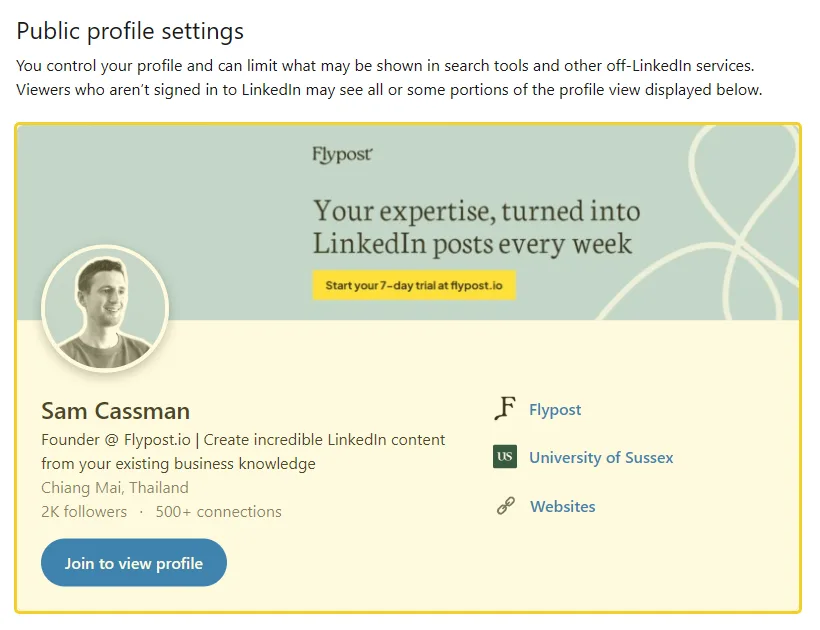
LinkedIn's own wording above the preview is careful: viewers who aren't signed in "may see all or some portions of the profile view displayed below". That "may" is doing real work, as the next sections show.
What does the LinkedIn public profile preview show?
It shows the top of your profile as a stranger would meet it: banner, photo, name, headline, location, follower and connection counts, and the places you work and studied. Below that it lists the sections you allow, such as About, Activity and Experience. A Join to view profile button sits where your own buttons normally are.
That button is the clue to how LinkedIn treats outsiders. The public version is a shop window, and LinkedIn's help page on public profile visibility, updated in October 2026, says that "in order to see your full profile, visitors may need to log in to their LinkedIn accounts."
What the preview does not show is just as important:
| Who is looking | Can you preview it? |
|---|---|
| Someone not signed in to LinkedIn | Yes, in Public profile settings |
| A 1st-degree connection | No |
| A 2nd or 3rd-degree member | No |
| A recruiter or Premium member | No |
| Google, Bing and other search engines | Partly: the preview is what they may pick up, on their own schedule |
If the degree labels are new to you, our explainer on what 1st, 2nd and 3rd mean on LinkedIn covers who falls into each group.
So treat the preview as a check on your public face, not on how your network sees you. The good news is that the public face is the part you control most.
How do you change what the public sees on your LinkedIn profile?
Use the Edit visibility column on the right of the same page. It has a master switch for your whole public profile, a setting for who sees your photo, and an Allow toggle for each section. LinkedIn's help page on controlling your public profile, updated in November 2026, says changes are saved automatically.
The first control is the master switch, Your profile's public visibility. Turn it off and your profile stops being shown to people who aren't signed in.
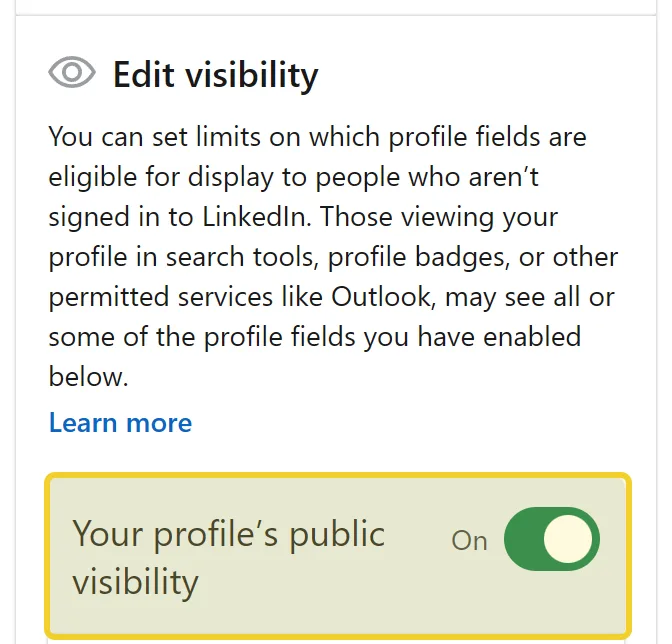
Below it, Basic (required) cannot be switched off: your name, number of connections, number of followers and region. Then comes Profile photo, with four choices running from the narrowest to the widest audience.
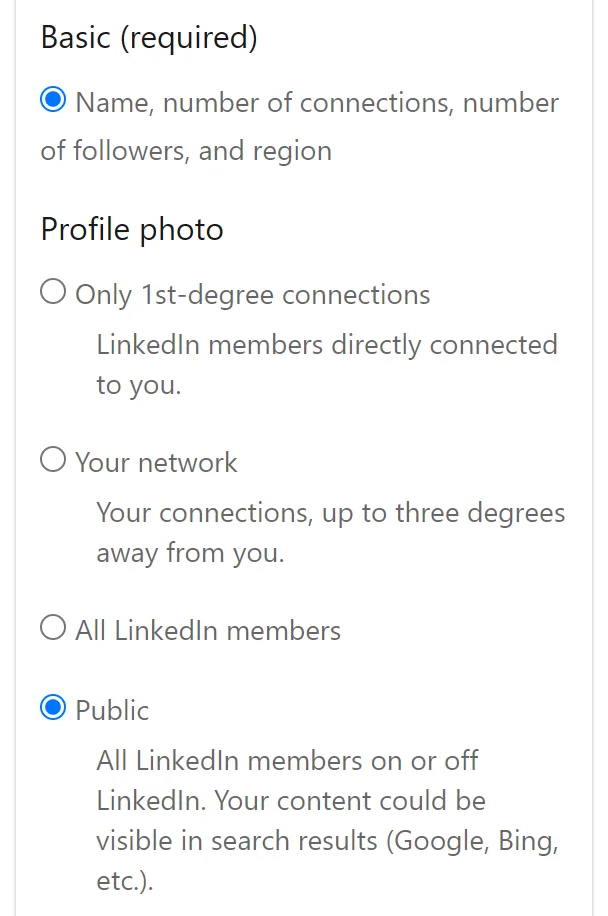
The photo setting is the one control on this page that reaches signed-in members too. Set it to Only 1st-degree connections and everyone else on LinkedIn sees a placeholder instead of your face, which costs you trust with exactly the people you have not met yet. LinkedIn's help page on profile photo visibility, updated in November 2026, says this setting must be changed on the desktop site (though the same page also lists app steps), so desktop is the safe place to do it.
Last come the section toggles. Each one decides whether that part of your profile can appear in the public version.
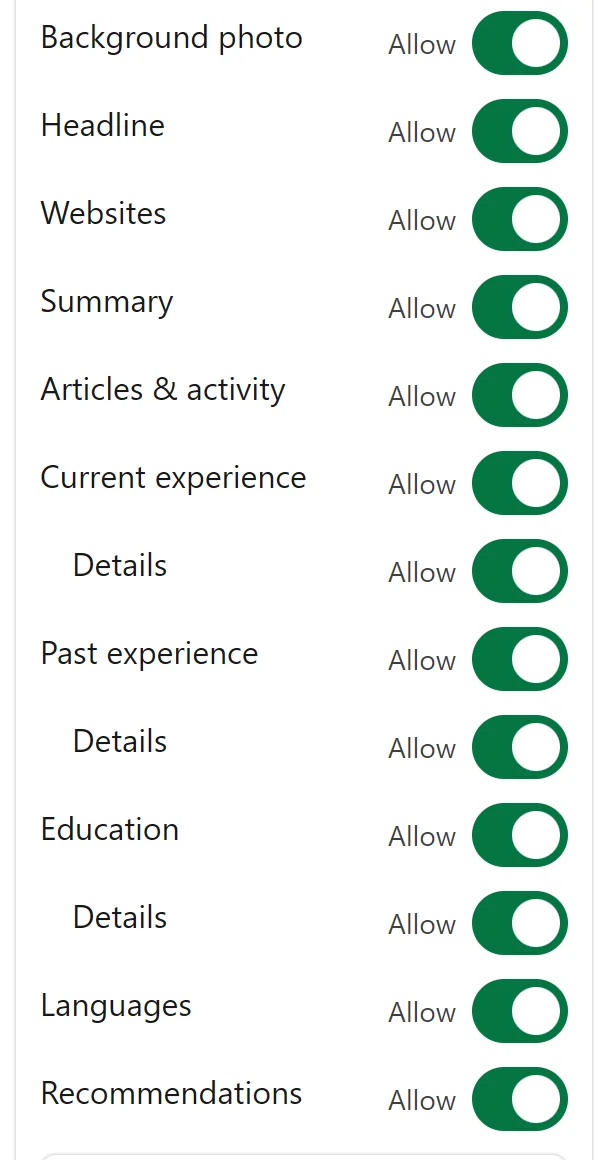
Under those sits a switch called Public visibility limits, which LinkedIn describes this way: "Even when your profile's public visibility is on, we may not display all profile fields." In other words, allowing a section makes it eligible to appear, not certain to.
Now for the shortcut that most guides recommend instead of all this.
Does opening your LinkedIn profile in incognito show what others see?
Not reliably. On 12 October 2026 we opened a LinkedIn profile link in a fresh browser that was not signed in to anything. Instead of the profile, we got a Join LinkedIn sign-up wall. That fits LinkedIn's own warning that signed-out visitors may need to log in to see a full profile.
Several popular guides, including some updated in 2026, still give incognito as the main method. It may work some of the time, and some guides say that arriving from a Google result shows more of the public page than pasting the link does. We did not test that route, so we can't promise it.
The preview in Public profile settings needs no tricks and shows the same thing every time. Use it first, and treat incognito as a bonus if it happens to work.
How do you see what a connection or recruiter sees on your LinkedIn profile?
You can't preview it directly. LinkedIn has no setting that shows your profile as a 1st-degree connection, a 2nd-degree member or a recruiter sees it. You have two workarounds, and each has a limit worth knowing.
- Ask someone you trust. A colleague or friend can open your profile and tell you, or send a screenshot of, what they see. It only shows their view, at their connection level.
- Search your own name on Google. This shows the public version that has been picked up by the search engine. It may be out of date: LinkedIn's help page says search engines can take "several weeks or even months" to reflect a change, and LinkedIn does not control when they refresh.
The honest summary is that signed-in members see far more of you than the public does, and the only thing you can tune for them separately is your photo. So the best use of your time is not previewing their view, it is making sure the top of your profile reads well to anyone.
That top section is short: your photo, your banner and your headline. If the banner looks cropped in the preview, check it against the right LinkedIn banner size, or make a new one in our free LinkedIn banner maker.
How do you view your public LinkedIn profile on the app?
Through Settings rather than your profile. LinkedIn's help page on controlling your public profile gives this route in the app: tap your profile photo, then Settings & Privacy, then Visibility, then Edit your public profile under "Visibility of your profile & network".
We have taken that route from LinkedIn's help page rather than photographing it in the app, so the labels on your phone may differ slightly. The desktop page shown above is the one we checked first hand, and it is the easier place to compare the preview with the switches side by side.
What should you check on your public LinkedIn profile?
A five-minute check covers it. Open the preview once, read it as a stranger would, and fix anything that looks wrong.
- Open the preview. Me, then View profile, then the pencil next to Public profile & URL.
- Read the top card as a stranger. Is the headline clear without any context? Does the banner crop cleanly?
- Check your photo setting. Unless you have a reason to hide it, Public or All LinkedIn members is the friendlier choice.
- Switch off what you don't want found. Past experience details or education, for instance. Remember there is no Save button.
- Give Google time. If a search result still shows the old version, that is the search engine, not your settings. LinkedIn says it can take weeks or months.
If you are tidying your visibility for a job search, one related setting is worth checking at the same time: the one that decides what LinkedIn shows about who viewed your profile, and whether people can see that you looked at theirs.
How we checked what others see on your LinkedIn profile
We looked at the live site rather than summarising other guides. On 12 October 2026, signed in to a real account on a desktop browser, we checked every button on the profile for a "view as" option, opened Public profile settings and captured the preview and every visibility control on this page. We did not touch any switch, because each one saves the moment you click it.
In the same session we opened a profile link in a separate browser that was not signed in, to test the incognito method, and got the Join LinkedIn wall. We did not test arriving from a Google search, and we did not photograph the mobile app route, so both are described from LinkedIn's help pages rather than shown.
On 19 November 2026 we reread LinkedIn's help pages on public profile visibility, controlling your public profile and profile photo visibility, and checked the steps and quotes on this page against them. The only profile shown in the screenshots is our founder's own public profile, which is public by design.
Frequently asked questions
- Can you view your LinkedIn profile as someone else?
- Only as the public sees it. LinkedIn no longer has a 'view as' button. Its Public profile settings page shows a preview of what people who are not signed in may see, but there is no way to preview what a specific connection, a 2nd-degree member or a recruiter sees.
- How do I see my LinkedIn profile as the public sees it?
- On desktop, click Me, then View profile, then the pencil next to 'Public profile & URL' in the right-hand column. That opens Public profile settings, at linkedin.com/public-profile/settings, where the left side is a live preview of your public profile.
- Does opening my LinkedIn profile in incognito show what others see?
- Not reliably. When we opened a profile link in a signed-out browser in October 2026, LinkedIn showed a 'Join LinkedIn' sign-up wall instead of the profile. LinkedIn's own help page says visitors may need to sign in to see a full profile. The preview in Public profile settings is the dependable route.
- Can I see what a recruiter sees on my LinkedIn profile?
- No. LinkedIn has no preview for a particular viewer or connection level. The nearest you can get is to ask someone you trust to open your profile and tell you what they see, which only shows their own view.
- Why does Google show old information from my LinkedIn profile?
- Because search engines refresh on their own schedule. LinkedIn's help page says it can take several weeks or even months for Google, Bing and others to reflect a change, and LinkedIn does not control when that happens.
Written by
Sam Cassman
Founder, Flypost · Chiang Mai, Thailand
I'm Sam. I built Flypost after watching too many good businesses sit on years of material (blog posts, call transcripts, case studies, half-finished decks) and post almost none of it.
I write everything here myself. When I claim something works on LinkedIn, it's because I tested it first-hand or ran the numbers across our own data. Where I'm working from a small sample, I'll say so. I'd rather be useful than certain.