
How do I get started with Flypost?
Last updated 25 October 2026
Quick answer
Sign up at app.flypost.io, confirm your email, then give Flypost your website. It builds your brand kit, learns your writing voice from LinkedIn, reads your blog and videos, and drafts your first post ideas. The whole setup takes about five minutes, and you can skip any step and come back to it later.
Are you new to Flypost and wondering where to begin? You've come to the right place. Setting up takes about five minutes, and most of it is Flypost doing the work: it reads your website, your blog and your LinkedIn posts so that the first things it writes for you already sound like you.
The good news is that you can't really get it wrong. Every step after the first can be skipped and filled in later, and everything the setup creates can be edited afterwards.
In this guide we'll cover creating your account, each step of the setup, and what you'll find in your workspace when it's done. Read on to find out more.
How do I create a Flypost account?
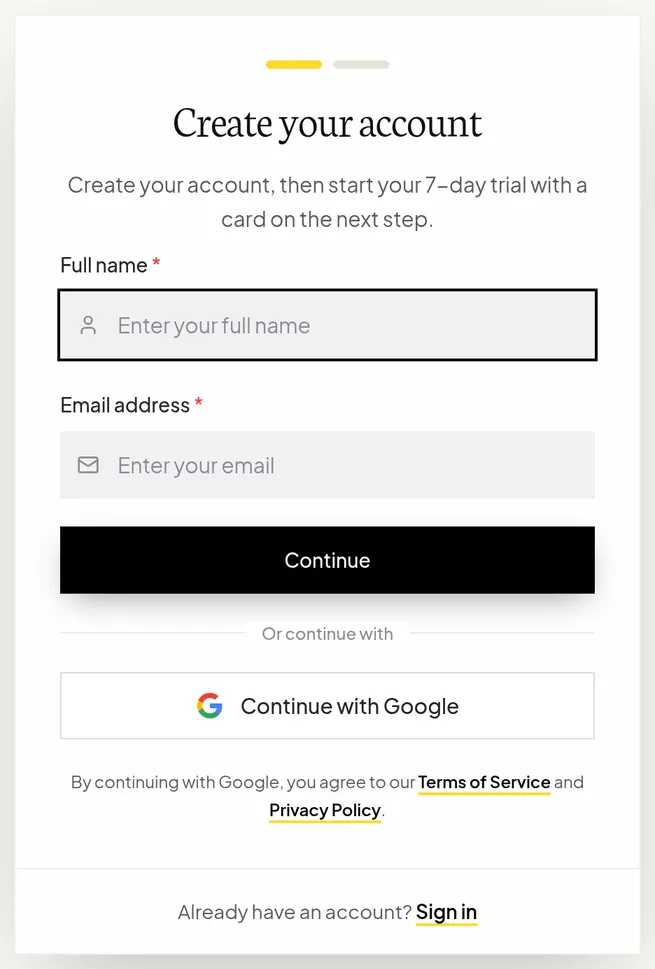
Go to app.flypost.io/signup. You can sign up with your email or with Continue with Google.
- Enter your Full name and Email address, then click Continue.
- Choose a password (at least 8 characters), type it again to confirm, and tell us where you heard about Flypost.
- Tick the box to agree to the Terms of Service and Privacy Policy, then click Create account.
- Open the email we send you and click the link to confirm your address. The link lasts 24 hours.
What happens during setup?
Once you're signed in, Flypost walks you through seven short steps. You'll see "Step 1 of 7" at the top, with Back and Next links if you want to revisit one.
- Welcome. Type your website address (for example
yourcompany.com) and click Analyse my brand. - Analysing. Flypost reads your site, finds your logo, and picks up your colours, fonts and what you do. This usually takes 20 to 40 seconds.
- Brand kit. Check what it found: your company name, a one-line description, your logo and your colours. Fix anything that's off, then click the Looks right button to carry on.
- LinkedIn. Paste your LinkedIn profile address. Flypost studies your recent posts to learn your writing voice. Click Continue, or I'll do this later.
- Sources. Add your blog (or other sections of your site) and your YouTube channel, so Flypost has your own material to write from. If it spotted them on your website, they're already filled in.
- Building. Flypost puts it all together and drafts some starter ideas. This takes a minute or two. You can leave the page and we'll email you when it's ready.
- Your first post concepts. A handful of ready-made ideas for your first posts. Click Open my workspace to start.
If Flypost can't reach your website, don't worry: it takes you straight to the brand kit step so you can fill in your details by hand.
Do I need a plan to use Flypost?
Yes. Once setup is finished, you'll be asked to start your 7-day free trial before you can generate and publish posts. You can try any plan, nothing is charged for 7 days, and you can cancel any time before then. There's more on this in plans, billing and your free trial.
What's in my Flypost workspace?
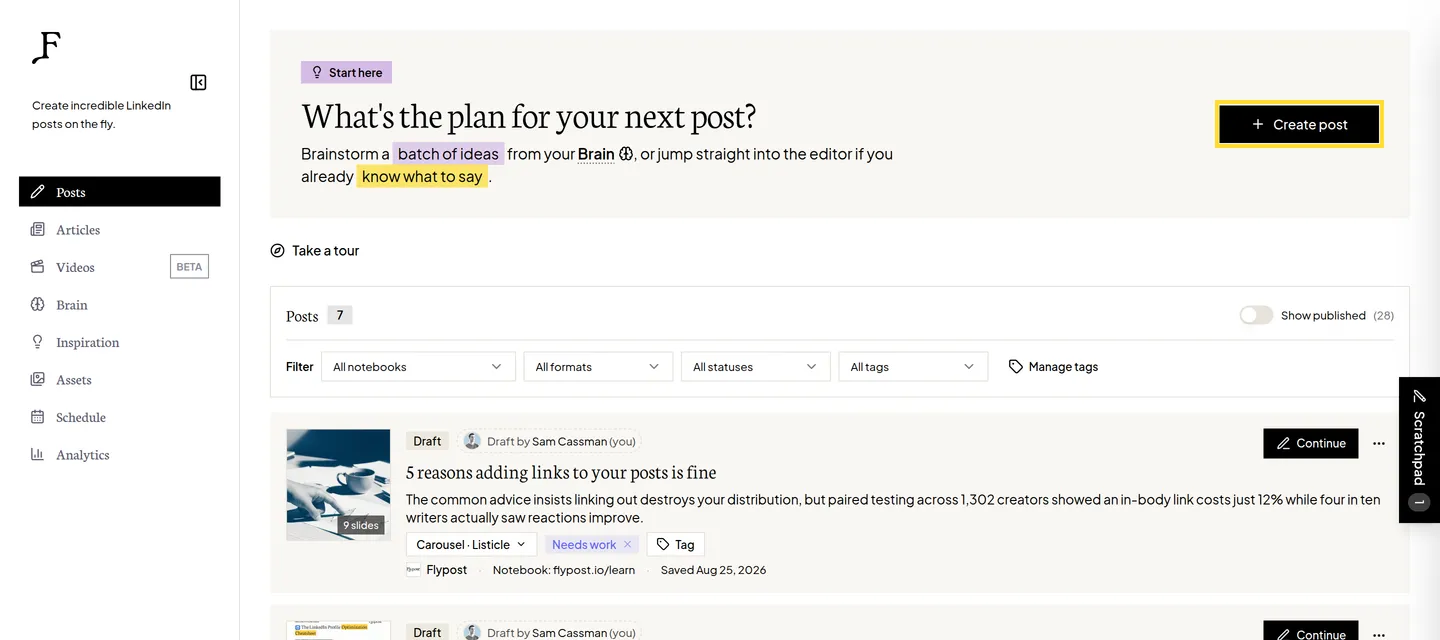
When setup is done you land on Posts, your home page. The sidebar on the left takes you to everything else:
| Sidebar item | What it's for |
|---|---|
| Posts | Your ideas and drafts, and the Create post button |
| Articles | Long-form LinkedIn articles |
| Videos | Short videos (in beta) |
| Brain | Your blog, videos, documents and notes, which Flypost writes from |
| Inspiration | What other LinkedIn creators in your space are posting |
| Assets | Every image, carousel and infographic you've made |
| Schedule | Your scheduled and published posts on a calendar |
| Analytics | How your LinkedIn posts performed (Pro and Agency plans) |
At the very bottom of the sidebar is a button with your project's name. Click it to open the project and account menu: that's where you'll find Project settings, Plans & billing, Connect AI tools, the Bin and Log out.
What should I do first?
Three things make the biggest difference to what Flypost writes for you:
- Connect your LinkedIn account so you can schedule and publish straight from Flypost.
- Add more of your own material to the Brain: blog posts, videos, documents, notes. The more Flypost knows, the less generic it sounds.
- Check your writing voice, so every draft follows your rules (for example, "no hashtags" or "never use em dashes").
Then you're ready to brainstorm your first ideas and write your first post.
Common questions
- How long does setting up Flypost take?
- About five minutes. Reading your website takes 20 to 40 seconds (up to 90 for a big site), and building your workspace takes a minute or two. You can leave the page while it builds and we'll email you when it's ready.
- Do I need to connect LinkedIn during setup?
- No. The setup only reads your public LinkedIn posts to learn how you write. Connecting LinkedIn so Flypost can publish for you is a separate step in Project settings, and you can do it whenever you like.
- How do I change my password?
- Log out, then click 'Forgot password?' on the sign-in page and enter your email. We'll send you a link to set a new password of at least 8 characters.
- Can I change the email address on my account?
- Not from inside the app yet. Contact support from the email you sign in with and we'll change it for you.