
How to Optimise Your LinkedIn Profile

By Sam Cassman · Last verified
How do you optimise your LinkedIn profile? Work from the top down, because that is how visitors read it: a clear photo, a headline that says who you help, an About section whose first two lines stand alone, then Featured, Experience and skills. We checked every step on a real profile and against LinkedIn's own help pages in 2026.
Are you looking for a way to optimise your LinkedIn profile without guessing? Most advice on the subject is a long list of tips with no order to it, and it is hard to tell which of it still matches the site today. We wanted one checklist that matches the screens you will actually see, so we went through a real profile section by section.
Most people think optimising a profile means filling in every field and stuffing it with keywords. When we walked our founder's own profile through LinkedIn's editors in October 2026, and reread LinkedIn's help pages in November, the job looked different: what a visitor actually sees is the top card and the first line or two of each section, so those few lines matter far more than filling every field.
In this article we'll cover the photo and banner, the headline, the About section, Featured, Experience and skills, then what three LinkedIn creators say about getting it right. Read on to find out more.
What does it mean to optimise your LinkedIn profile?
It means making the top of your profile answer one question quickly: what do you do, and for whom? Visitors read from the top down, and several sections are cut off after a line or two. So an optimised profile is not the fullest one. It is the one where the photo, headline and first lines of About make the point before anyone has to click "more".
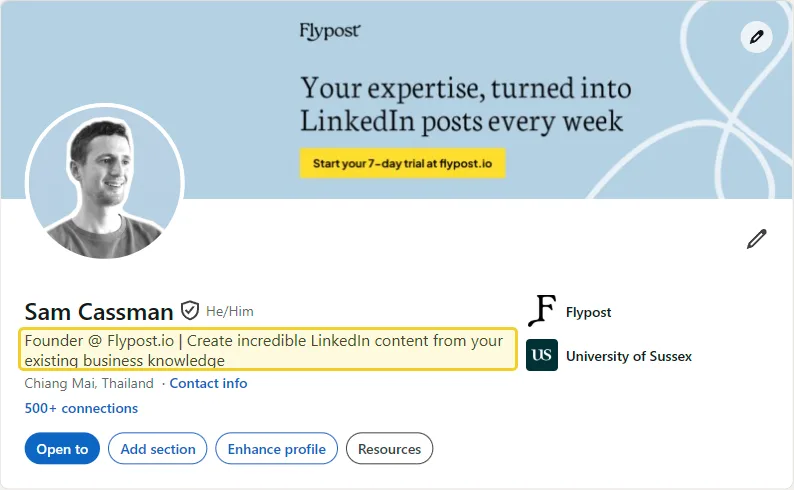
LinkedIn's own help page on editing the Introduction section calls that top card "the first thing members see when they visit your profile". Here is the one we used as our worked example:
Will McTighe, who writes about LinkedIn profiles, puts the reason plainly:
"A viral post is wasted if the profile behind it doesn't show the reader the next step. Every post sends traffic to the same page, so that page has to work like a landing page."
So start where the visitor starts: the picture.
How should you set up your LinkedIn profile photo and banner?
Use a recent, clear photo of yourself with your face filling most of the frame, and treat the banner behind it as a small billboard with one message. LinkedIn's help page on profile photo visibility, updated in November 2026, says members with a profile photo "receive up to 2X more profile views and 3X more connection requests".
A few rules are worth knowing before you upload:
- It has to look like you. LinkedIn's photo guidelines allow an illustration of yourself, but say the photo "must reflect your likeness". Pictures that are only a logo, a landscape, an animal, a flag or words can be removed.
- Fill the frame. LinkedIn's talent blog suggested in August 2024 that your face should take up about 60% of the picture, cropped from the shoulders to just above your head. The same post gives a much bigger figure for photo views (14 times), which doesn't match the help page, so we'd lean on the newer help page's numbers.
- Check who can see it. The photo is the one thing you can hide from most of LinkedIn. Unless you have a reason, leave it visible to everyone, or strangers see a blank placeholder.
The banner is the wide image behind your photo. Ours in the screenshot above carries one line about what Flypost does and one call to action. Whatever you put there, keep the words away from the bottom left, where the photo covers them. Our guide to the right LinkedIn banner size and safe zone shows exactly where that is, and the free banner maker builds one to fit.
Once the picture is right, the next thing a visitor reads is the line under your name.
How do you write a good LinkedIn headline?
Say who you help and how, in the first few words, using no more than 220 characters. The headline is the line under your name, and it follows you everywhere: search results, comments, connection requests. Only the start of it shows in most of those places, so a job title alone wastes the space.
To change it, click the pencil on your intro card. The Edit intro dialog opens, and the Headline box has a live counter.
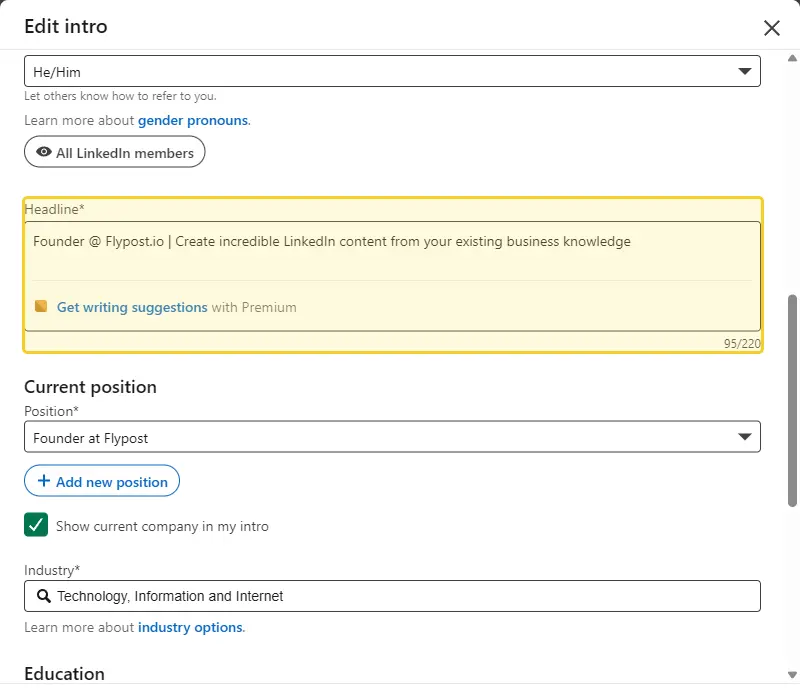
The same dialog holds your name, pronouns, industry, location and which current job shows in the intro card. As our full list of LinkedIn character limits explains, only around the first 60 to 70 characters show in search results and comment threads. So lead with the useful part:
Instead of
Founder | Entrepreneur | Speaker | Coffee lover
Try
Helping B2B founders turn what they already know into weekly LinkedIn posts
A stack of titles → who you help and what you do for them · Illustrative example, written by us. Not a real post from the study.
You don't need to drop your job title entirely. Many people keep one role and add what it does for the reader, which is what our founder's headline does with "Founder @ Flypost.io" followed by the outcome.
With the headline doing the introduction, the About section gets to do the explaining.
How do you write your LinkedIn About section?
Write it for the two lines people actually see, then use the rest of the 2,600 characters for detail. On desktop, visitors see only the opening lines of About before a "… more" link, so the first sentence should say who you help and the second why they should care.
Here is what a visitor saw of our founder's About section in October 2026:

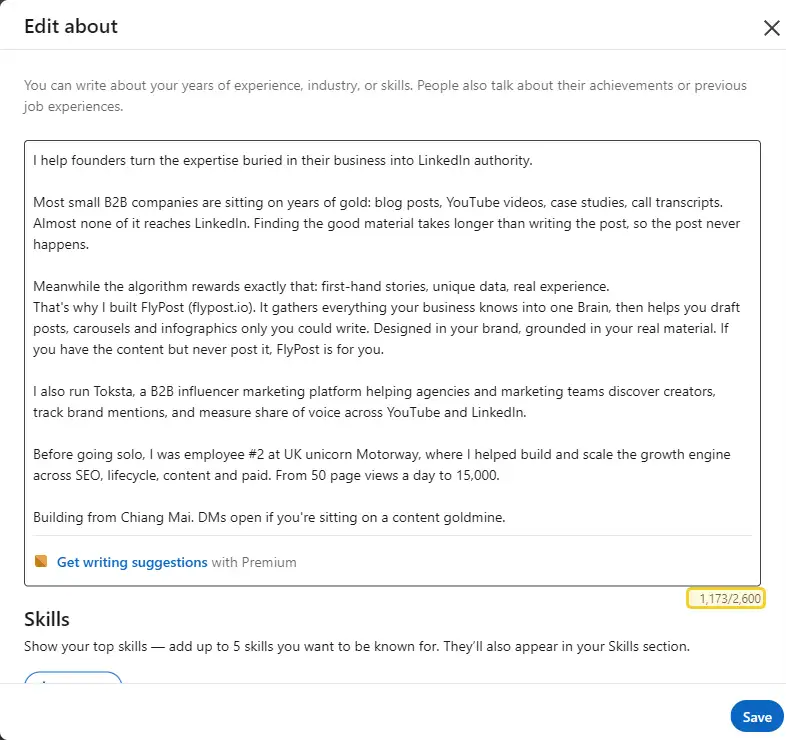
To edit it, click the pencil on the About section. The Edit about dialog shows a counter out of 2,600, and below the text box a Skills block where you can pick up to five top skills to be known for. LinkedIn says those five also appear in your Skills section.
A simple shape that works for most people:
- Line one: who you help and with what.
- Line two: the problem they have, in their words.
- The middle: what you've done about it, with one or two specifics (numbers, names of past roles, results).
- The end: what to do next, such as "message me" or a link in Featured.
If you'd rather start from a draft, the free LinkedIn About section generator writes one you can edit. Then give visitors something to look at, which is what Featured is for.
What should go in your LinkedIn Featured section?
Your best evidence: the post, article, link or document that proves the claim in your headline. LinkedIn's help page on featured work samples, updated in November 2026, lists four kinds of item: posts you created or reshared, articles you published on LinkedIn, links to outside websites, and uploaded images, documents, presentations and videos.
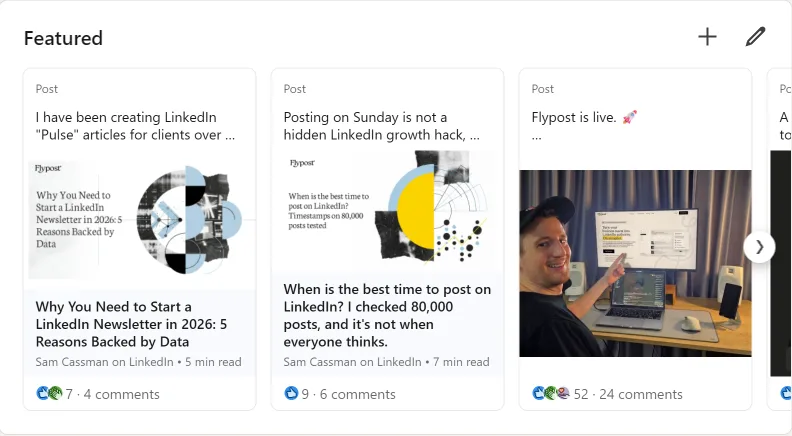
Three details from LinkedIn's Featured section FAQs are worth knowing:
- Only people signed in to LinkedIn can see your Featured items.
- If you have nothing featured, the section is hidden from visitors.
- New items show up first by default, so check the order after adding one.
One newer option needs Premium: pinning parts of your own profile, such as a certification or a recommendation, to Featured. LinkedIn's help page on featuring profile content says it is available only to Premium Business, Sales Navigator and Recruiter subscribers. Posts, articles, links and uploads don't need it.
If you post regularly, Featured is where your best post keeps working after the feed has moved on. That is the main reason we keep it current at Flypost, where writing those posts is the whole job.
How should you fill in your LinkedIn Experience section?
Give each role a clear title, the right dates and a first sentence that says what you achieved, because visitors see only about a line of the description before "… more". You can also attach a few skills to each role, and LinkedIn shows them under it.
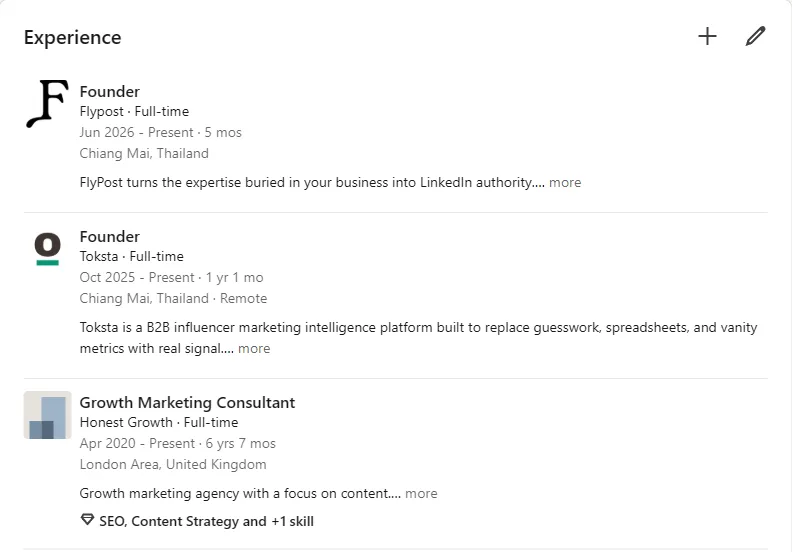
Compare the first lines in the screenshot. "Toksta is a B2B influencer marketing intelligence platform…" describes the company. A line like "Helped grow the site from 50 page views a day to 15,000" describes what the person did. The second is the one a visitor remembers, so lead with results where you have them.
How many skills should you list on LinkedIn?
As many as you genuinely want to be found for, up to LinkedIn's limit of 100. LinkedIn's help page on adding and removing skills, updated in November 2026, says "You can add up to 100 skills to your profile." Its page on skill endorsements adds that skills attached to roles in Experience don't count towards that limit.
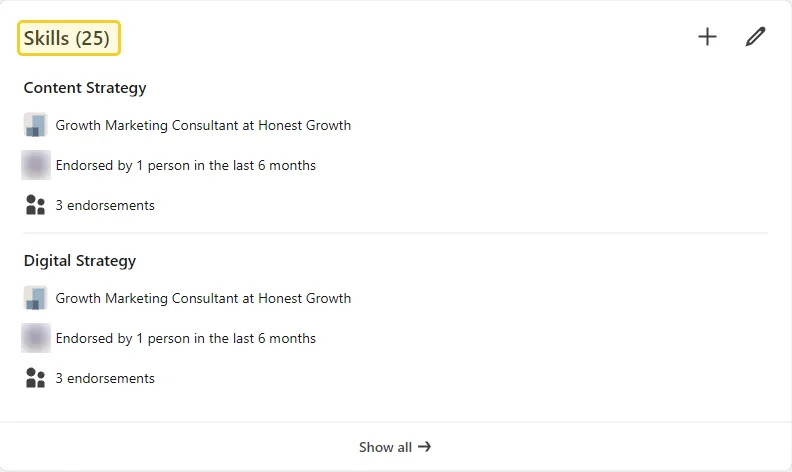
Endorsements are clicks from your 1st-degree connections confirming a skill. LinkedIn's endorsement page says they add to the strength of your profile and increase "the likelihood that you'll be discovered for opportunities related to the skills you possess". That is LinkedIn's own claim; we haven't measured it.
There is no published ideal number. What we'd do:
- Pick your five top skills first, in the About editor, so the ones that matter show first.
- Add skills you'd want to be searched for, not every tool you've touched.
- Link skills to roles in Experience, so visitors see where you used them.
With the sections done, a few settings decide how far your profile travels.
What else should you check on your LinkedIn profile?
Two quick settings: your profile link and what the public sees. Both take a minute and both affect how you come across before anyone reads a word.
- Your custom URL. A link like
linkedin.com/in/yournamelooks better on a CV or email signature than the default string of numbers. Our guide to finding and changing your LinkedIn URL walks through it. - Your public profile. People who are not signed in see a cut-down version, and you choose which sections appear. Our guide to viewing your LinkedIn profile as others see it shows the preview and every switch.
Under your intro card you'll also see an Enhance profile button, and both the headline and About editors show a "Get writing suggestions with Premium" link. Those are paid AI writing aids. We didn't try them, so we can't tell you how well they work.
What do LinkedIn experts say about optimising your profile?
They mostly agree on one thing: a clear, focused profile beats a crowded one. We picked three short quotes from public posts by LinkedIn creators. They are their opinions, not LinkedIn's rules, but they match what we saw on the page.
Nader Alnajjar argues for cutting before adding:
"That's because weak profiles are usually overcrowded rather than underfilled."
Yonathan Levy suggests a test anyone can run in five minutes:
"Send your profile to a friend and ask them to tell you in one sentence what you sell."
Where creators disagree is on the details. Some keep a job title in the headline and others say nobody should have to decode one. Some want the banner to carry one message and one ask, others use it for social proof. And Featured gets used for everything from a free download to a booking link to a post that took off. The common thread is that each section should point the visitor at one next step, which is McTighe's landing-page point from the top of this article.
What is the quickest way to optimise your LinkedIn profile?
Go through the profile once, top to bottom, and fix one section at a time. This order follows what visitors see first, so even stopping halfway leaves you better off.
- Photo: a recent picture of you, face filling most of the frame, visible to everyone.
- Banner: one message, text clear of the photo in the bottom left.
- Headline: who you help and how, with the useful words in the first 60 or so characters.
- About: two opening lines that work on their own, then detail and a next step.
- Featured: two or three items that prove your headline, in the order you want them seen.
- Experience: a result in the first line of each recent role.
- Skills: your five top skills chosen, the rest pruned to what you want to be found for.
- Settings: a clean custom URL and a public profile you've previewed.
- The test: send it to a friend and ask what you do. If they can't say, start again at step 3.
How we checked this LinkedIn profile advice
We worked from the live site, not from other guides. On 12 October 2026, signed in to our founder's own account on a desktop browser, we opened the intro card, the Edit intro and Edit about dialogs, and the Featured, Experience and Skills sections, and captured each one. We closed both editors without saving, so nothing on the profile was changed for this article.
On 23 November 2026 we read LinkedIn's help pages on skills, endorsements, featured work samples, the Featured FAQs, photo visibility and photo guidelines, and checked every limit and quote on this page against them. The creator quotes come from public LinkedIn posts saved in Flypost's Inspiration feed, quoted word for word and linked. This is a how-to page rather than one of our data studies, so it makes no claims about what the LinkedIn algorithm rewards.
Frequently asked questions
- How do I optimise my LinkedIn profile?
- Start at the top, because that is what visitors see first. Use a clear photo of yourself, write a headline that says who you help rather than only your job title, make the first two lines of your About section work on their own, pin your best work in Featured, and keep Experience and skills current.
- How many skills should I list on LinkedIn?
- LinkedIn's help pages say you can add up to 100 skills, and skills attached to roles in your Experience section do not count towards that limit. There is no published ideal number. List the skills you genuinely want to be found for, and pick up to five top skills in the About editor to show first.
- What is the character limit for a LinkedIn headline?
- 220 characters. We saw the counter in LinkedIn's Edit intro dialog in October 2026. Only the first 60 to 70 or so show in search results and comment threads, so put the most important words first.
- Does a profile photo really make a difference on LinkedIn?
- LinkedIn says it does. Its help page on photo visibility says members with a profile photo get up to 2X more profile views and 3X more connection requests. LinkedIn's photo rules also say the picture must reflect your likeness, so logos, landscapes and pets can be removed.
- What should I put in my LinkedIn Featured section?
- Your best evidence: posts or articles you wrote on LinkedIn, links to your own site or portfolio, and uploaded documents, images or videos. LinkedIn's help page says only signed-in members can see Featured, and the section is hidden if it is empty.
Written by
Sam Cassman
Founder, Flypost · Chiang Mai, Thailand
I'm Sam. I built Flypost after watching too many good businesses sit on years of material (blog posts, call transcripts, case studies, half-finished decks) and post almost none of it.
I write everything here myself. When I claim something works on LinkedIn, it's because I tested it first-hand or ran the numbers across our own data. Where I'm working from a small sample, I'll say so. I'd rather be useful than certain.